
ウェブサイトの元のコンテンツを変更するとどうなりますか?
ConveyThis translates your website text by text. Each text is saved with its translation, so if you change the original text on your website, even by one word, ConveyThis sees it as a new text.
What happens when I change my website’s text?
- The new text is translated automatically. The next time someone opens the page in a translated language, ConveyThis translates the new text and shows it on your site.
- The new translation uses words from your plan. The new text counts toward your plan’s word limit, just like any other new content.
- The old text stays in your list. You’ll see both versions in the Text Editor. The old one is no longer shown on your site, but it isn’t deleted automatically.
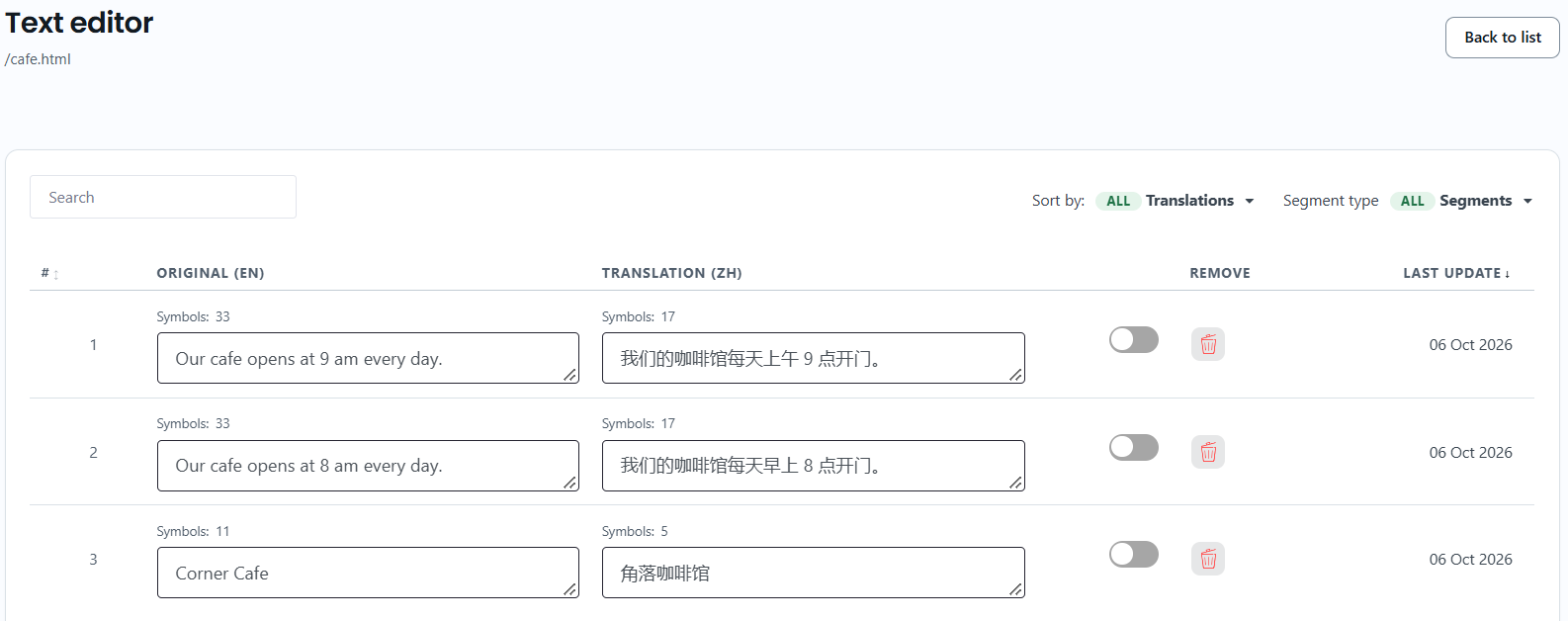
Will my manual edits be kept?
No. Your edits belong to the old text. The new text starts with an automatic translation, so if you edited the old translation by hand, open the new text and make the change again.
Your 用語集 rules still apply to new texts on paid plans, so words you set in the glossary are translated the same way.
Why is my new text not translated?
ConveyThis doesn’t translate new text when:
- Your plan’s word limit is reached. New text stays in the original language until you upgrade your plan. Translations you already have keep showing.
- Enable Translation is off for your website in ドメイン. New and changed text isn’t translated while it’s off.
If neither applies, see 翻訳の変更がウェブサイトに表示されないのはなぜですか?
Tips for updating your content
- Finish the original text first, then edit translations. Each change to the original creates a new text, so edit the translation once the original is final.
- Use the Visual Editor to find the new text. 次でページを開きます: ビジュアルエディター and click the text you changed. This opens the current version, not the old one.
- Remove old texts if you want a cleaner list. In the Text Editor, click the delete icon next to a text you no longer use.