
翻訳を永久に削除するにはどうすればよいですか?
To remove a translation for good, you need two steps. If you skip the first one, the translation comes back the next time someone visits the page.
Step 1. Keep the original text out of translation
Choose one:
- Remove the original text from your website, or
- Exclude it from translation. 次に移動します: ドメイン あなたの ConveyThis ダッシュボード、 を開きます カスタマイズ ウェブサイトのメニューを選択します 除外されたページ for a whole page or 除外されるID/クラス for a part of a page. You can also use the 除外されるページ そして Excluded elements links at the top of your list of translated pages.
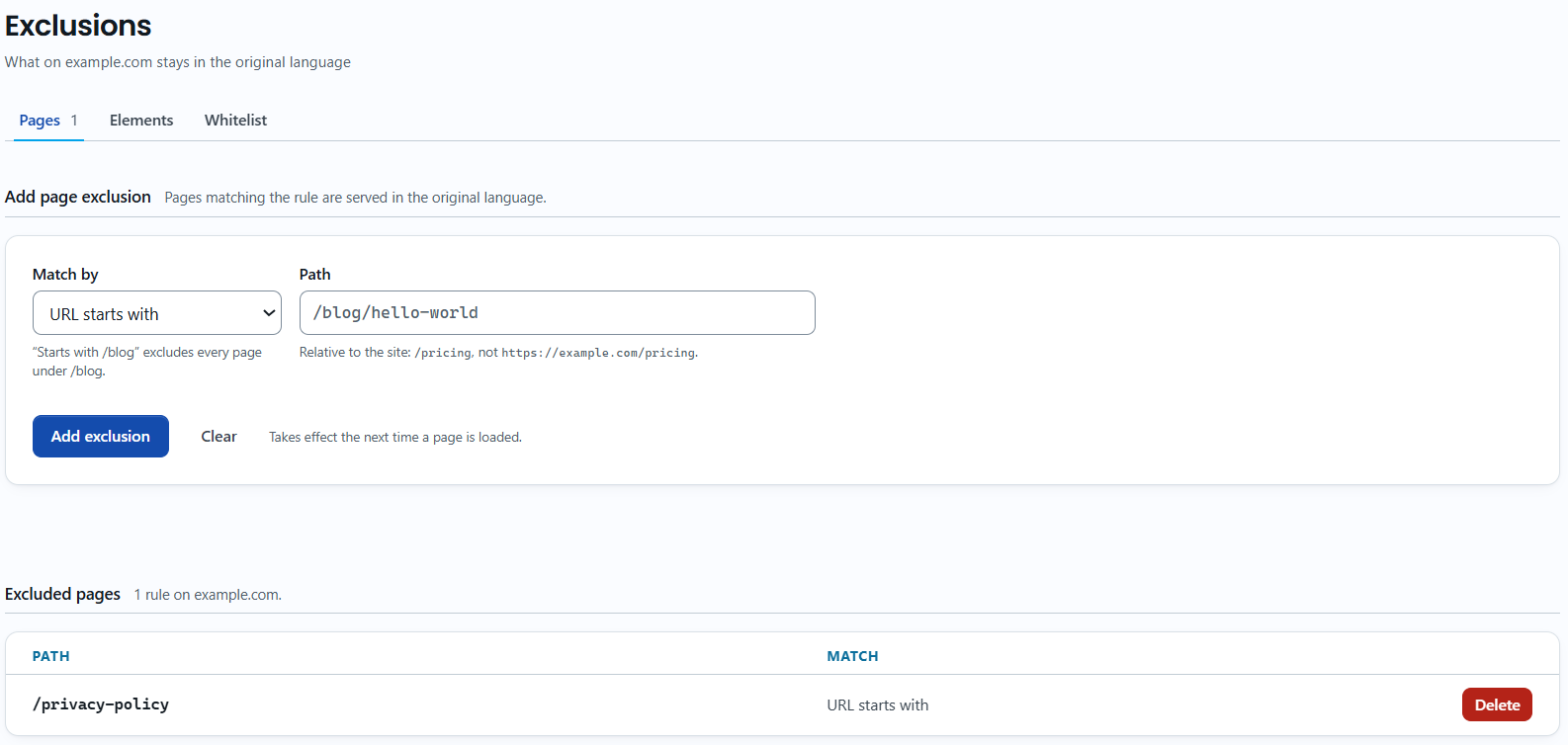
見る ページと要素を翻訳から除外します for details.
Step 2. Delete the translation
- 次をクリックします: Edit Translations in the left menu and choose your website.
- ページの一覧で、目的のページの行にある次をクリックします: テキストエディター on the page.
- Find the text with the Search box and click the trash icon in the Remove column.
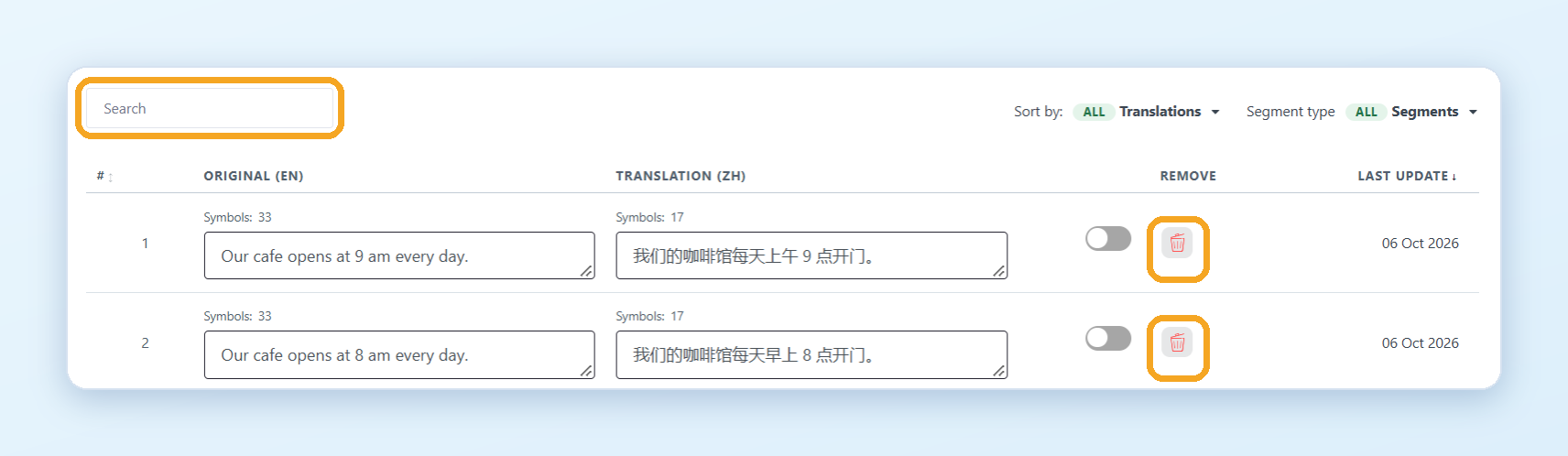
To delete all translations of a page, click Delete next to the page in the list. You can delete it for the current language or for all languages.
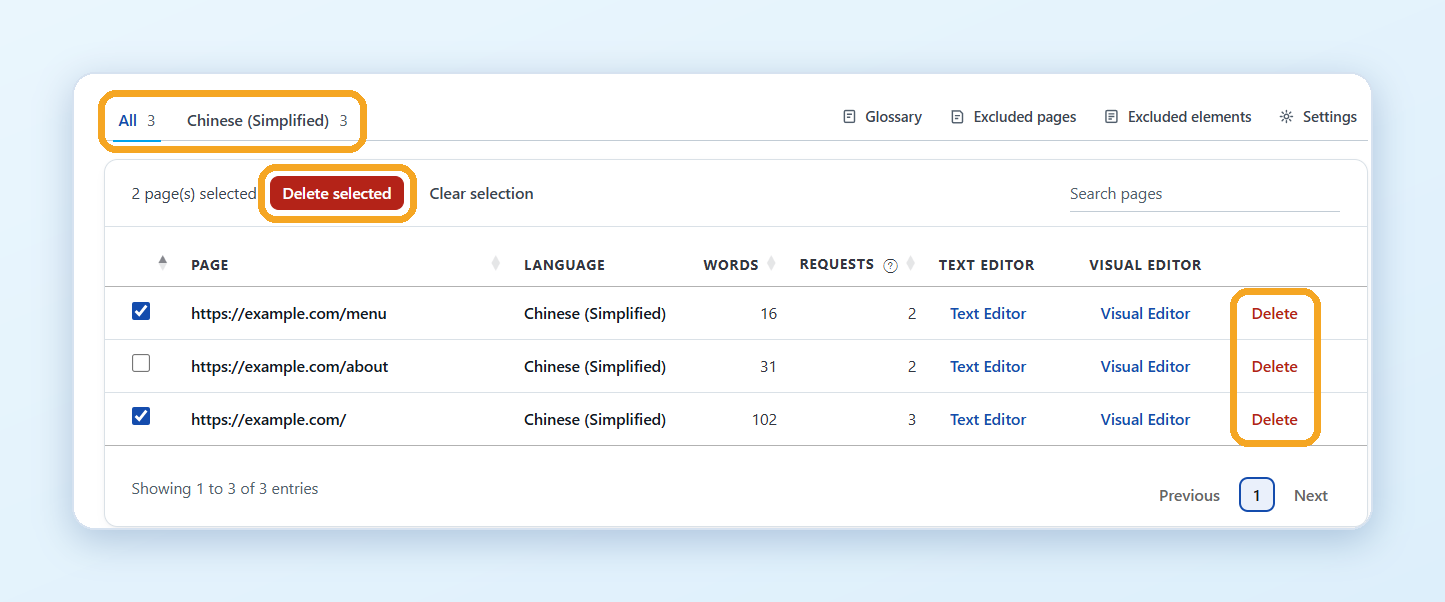
見る 翻訳を編集するにはどうすればよいですか? for more about the Text Editor.
Good to know
- Deleting a translated page takes its words off your word count. See 翻訳を削除すると単語数が減りますか?
- Removing a language in Settings only hides it. To delete a language and all its translations, write to [電子メールが保護されました].