
How do I remove a translation permanently?
To remove a translation for good, you need two steps. If you skip the first one, the translation comes back the next time someone visits the page.
Step 1. Keep the original text out of translation
Choose one:
- Remove the original text from your website, or
- Exclude it from translation. Go to Dominios in your panel de control de ConveyThis, open the Personalizar y elige Excluded Pages for a whole page or Excluded ids/classes for a part of a page. You can also use the Excluded pages y Excluded elements links at the top of your list of translated pages.
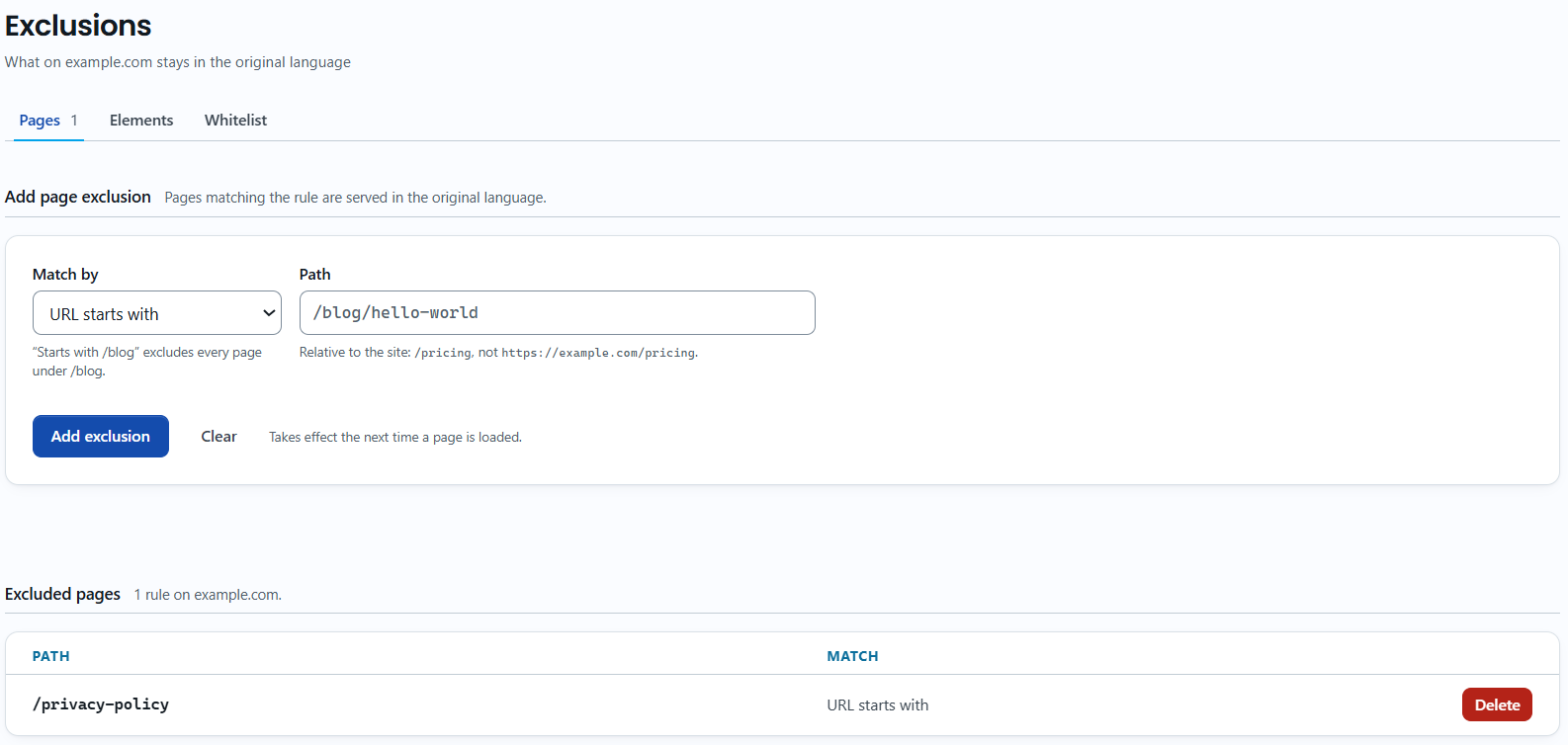
See Exclude pages and elements from translation for details.
Step 2. Delete the translation
- Haz clic en Edit Translations in the left menu and choose your website.
- In the list of pages, click Editor de texto on the page.
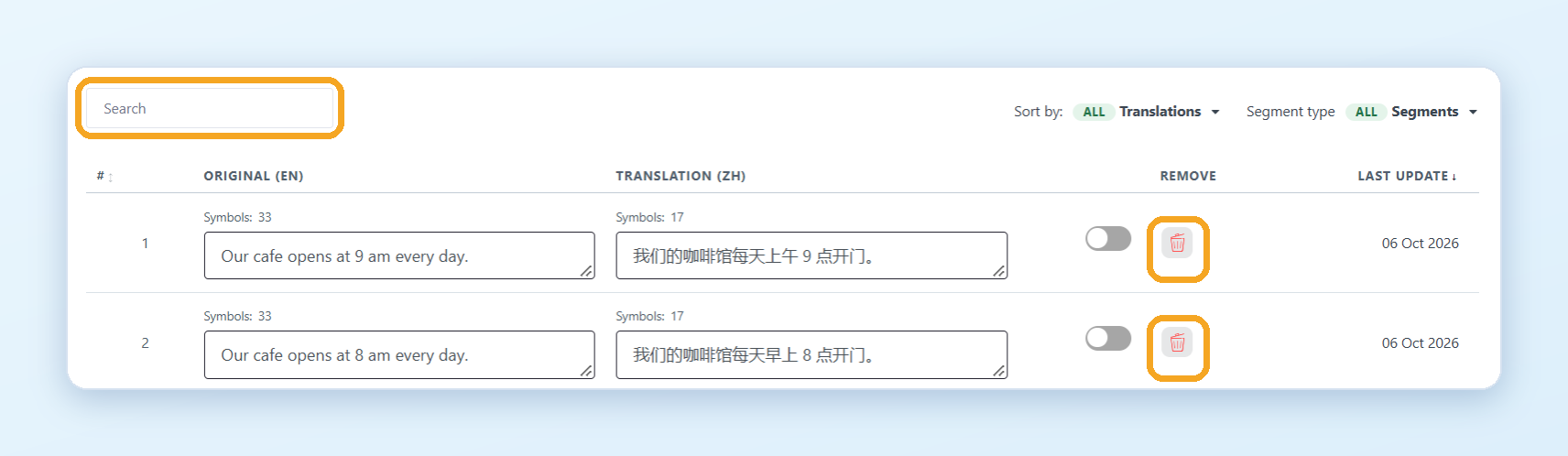
- Find the text with the Search box and click the trash icon in the Remove column.
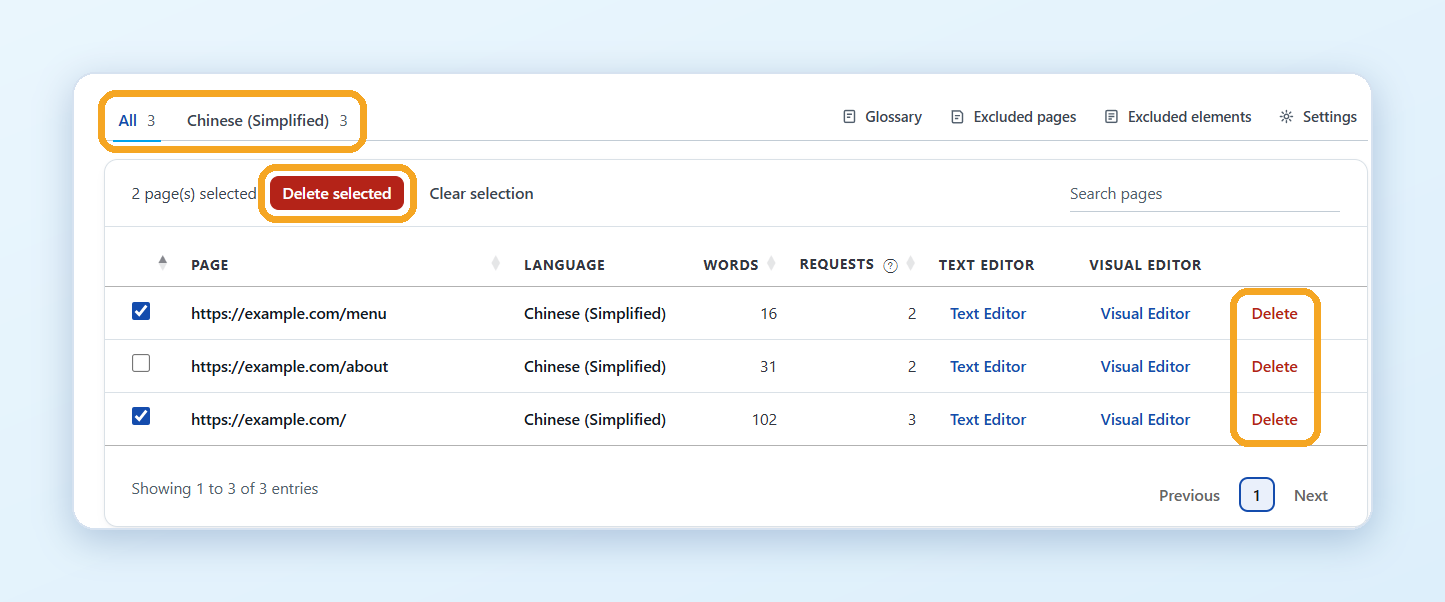
To delete all translations of a page, click Delete next to the page in the list. You can delete it for the current language or for all languages.
See How do I edit my translations? for more about the Text Editor.
Good to know
- Deleting a translated page takes its words off your word count. See Does deleting translations lower my word count?
- Removing a language in Settings only hides it. To delete a language and all its translations, write to [email protected].