

You built your Webflow site to look exactly right. Now you want visitors in Berlin, Madrid or Tokyo to read it in their own language without you rebuilding a single page.
There are two ways to translate a Webflow site. You can use Webflow Lokalisieren, Webflow’s own paid add-on, and translate inside the Designer. Or you can add a translation service such as ConveyThis with one short piece of code in your site settings. This guide walks through the second option step by step, then compares the two honestly so you can pick the one that fits your site.
If you’re still deciding on a general approach, our website translation guide explains the methods that work on any platform. This article is the Webflow-specific version.
ConveyThis in Zahlen: 20.000+ übersetzte Websites, 4.500+ zahlende Kunden, bewertet mit 4,8/5 auf Capterra aus 36 Bewertungen.
Bevor Sie beginnen
- Your Webflow plan. Webflow lets you add site-wide custom code if your site has an active Site plan, or if you have a Core, Growth, Agency or Freelancer Arbeitsbereich plan. You also need the Site manager or Designer role on the site.
- Ein ConveyThis-Konto. The Free plan covers one language and 10,000 words, with no card required and no end date.
- Ihre Sprachen. Pick the language your visitors need most and start there. You can add more later on a larger plan.
- Ten minutes. Most of that is waiting for Webflow to publish.
Step by step: translate your Webflow site with ConveyThis
Schritt 1. Fügen Sie Ihre Website in ConveyThis hinzu
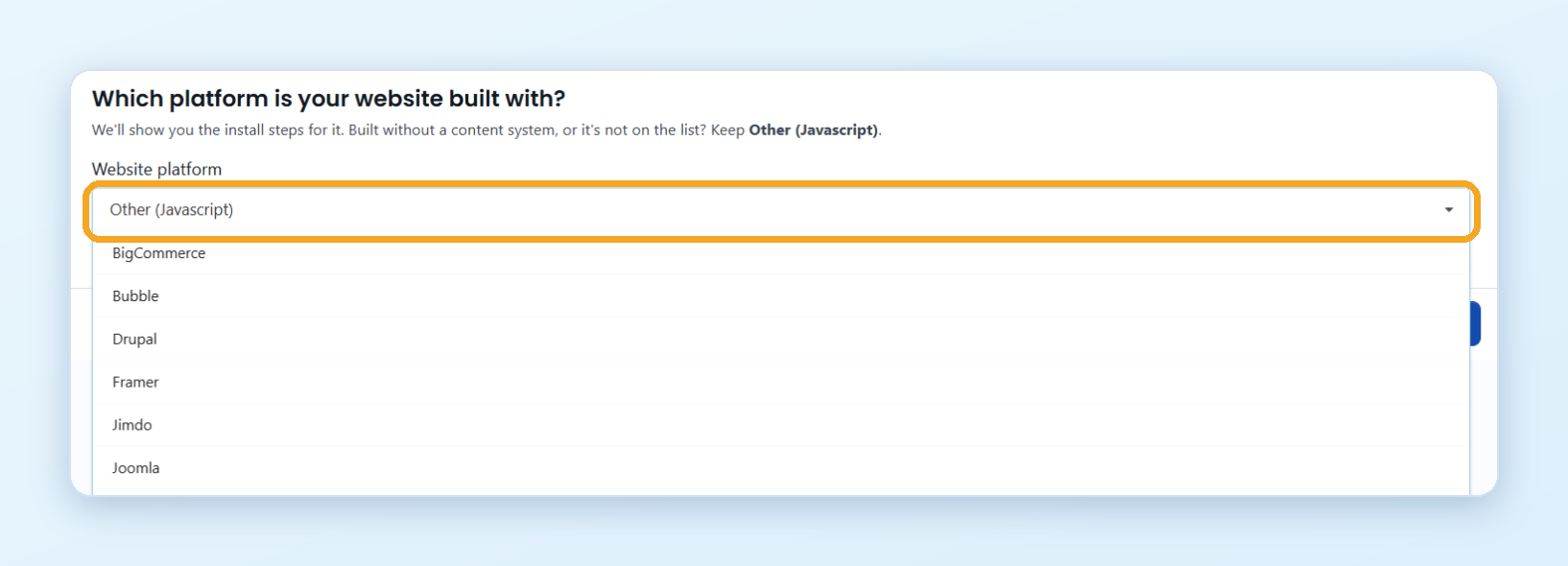
Anmelden bis ConveyThis (oder Erstellen Sie ein kostenloses Konto) und klicken Domäne hinzufügen. If you just signed up, the setup opens by itself. Under Website-plattform, wählen Sie WebFlow und klicken Sie auf Weiter.
Then enter your Website-domäne (zum Beispiel example.com), your site’s current language and the Sprachen, in die übersetzt werden soll. Klicken Weiter.
Step 2. Choose your page addresses and copy the code
The next screen asks how the addresses of your translated pages should look. If you’re not sure, keep the default; you can change it later (more on this in the SEO section below). Click Weiter.
Auf der Installieren Schritt, klicken Kopieren neben dem Code.
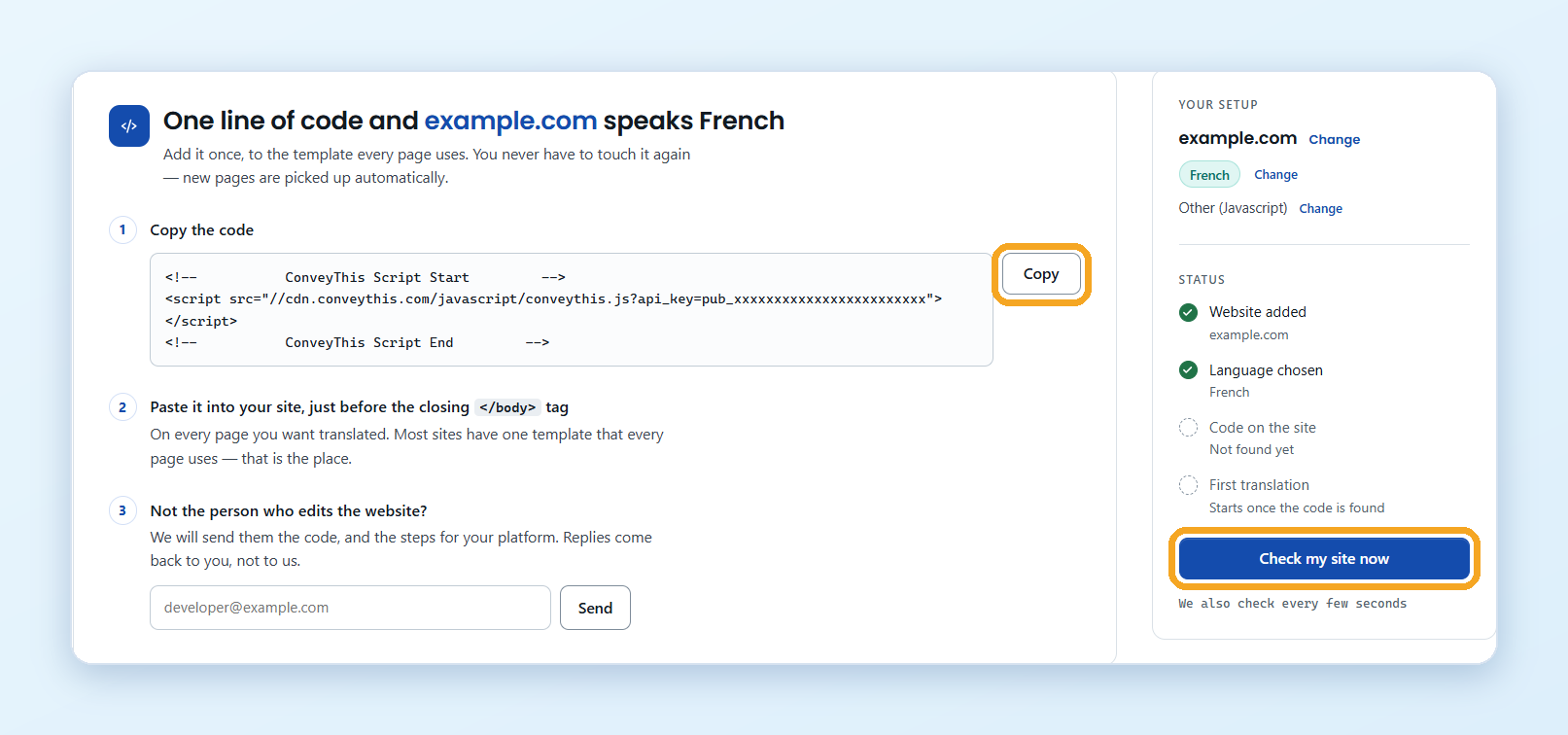
Someone else edits your Webflow site? Enter their email on the same step and click Senden. They get the code and the Webflow steps.
Step 3. Paste the code into Webflow
- In Webflow, öffnen Site-einstellungen für Ihre Site.
- Gehen Sie zu Benutzerdefinierter Code an.
- Fügen Sie den Code in die Fußzeilencode field. Webflow places this code just before the closing
</body>tag on every page, which is where the ConveyThis code belongs. - Klicken Sie auf Änderungen speichern.
If the Footer code field already holds other scripts, such as analytics, that’s fine. Add the ConveyThis code on a new line after them.
Step 4. Publish your site
This step is easy to forget. Webflow shows custom code in preview mode, but it only goes live after you Veröffentlichen the site. Click Veröffentlichen in the Designer and publish to your domain.
Step 5. Check that it works
Gehen Sie zurück zum ConveyThis Setup und klicken Sie Schauen Sie sich jetzt meine Website an. ConveyThis also checks every few seconds by itself. When Code auf der Site Zeigt an, dass der Code gefunden wurde, die Übersetzung beginnt.
Now open your live website. A language switcher appears in the bottom-right corner. Choose a language and the page is translated.
It can take a few minutes the first time. If you don’t see the switcher, clear your browser cache and reload. The same steps are in our help article Wie füge ich ConveyThis zu Webflow hinzu?
Want to see your own Webflow site in another language? Der Kostenlos-Plan benötigt keine Karte und die Einrichtung dauert einige Minuten.
What gets translated on a Webflow site
Once the code is live, ConveyThis translates the text of your published pages. That includes:
- Static pages you design in Webflow, including navigation, buttons, footers and forms.
- CMS collection items, such as blog posts, case studies, team members or job listings. They’re translated like any other page.
- New content. Publish a new page or CMS item and it’s translated automatically. You don’t need to touch the code again.
- Seitentitel und Metabeschreibungen, which are what people see in search results.
- Image alt text.
Two things need a little extra attention:
- Text inside images. ConveyThis doesn’t read words baked into an image, such as a hero graphic or a product screenshot. You can upload a different image, video or PDF for each language, and ConveyThis serves it to visitors in that language.
- Brand and product names. On paid plans from Starter, glossary rules keep names exactly as you set them.
Style the language switcher to match your design
Webflow sites tend to have a carefully chosen look, so the switcher should fit in. In ConveyThis, go to Domänen und öffnen Sie Einstellungen on your website. You can move the switcher to another corner (see Ändern Sie die Umschalterposition), choose how flags appear, and add your own CSS so the switcher matches your Webflow typography and colors.
With Starter or a higher plan, you can also send visitors to their language automatically: someone whose browser is set to Spanish can land on the Spanish version straight away.
Überprüfen und bearbeiten Sie Ihre Übersetzungen
ConveyThis translates with AI and machine translation. Treat the first result as a draft and give it a few minutes of review:
- Beginnen Sie mit den Seiten, die am wichtigsten sind: your home page, pricing, contact details and any forms.
- Check one CMS template for each collection, such as a blog post or a case study, so you know the layout works in the new language. Some languages run longer than English, so look for buttons or headings that wrap.
- Fix wording in the visual editor. Click a phrase on your live site and rewrite it. Your edit replaces the automatic translation wherever that sentence appears. See Wie bearbeite ich meine Übersetzungen?
- Order a human translation for sensitive text. For legal or pricing pages, you can order professional translation per word from the text editor.
On the Pro plan or higher, you can invite translators and managers to your ConveyThis account. They work in the ConveyThis dashboard, so they don’t need seats in your Webflow workspace.
Multilingual SEO for Webflow
Translating your site helps the visitors who already arrive. To win neu visitors from search in other languages, search engines have to find each language. Our guide to mehrsprachiges SEO covers the full picture; here is what matters on Webflow.
Geben Sie jeder Sprache eine eigene Adresse. By default, visitors change language with the switcher and stay on the same address. That works well for visitors, but search engines mostly see your original language. On the ConveyThis Geschäftsplan und höher, jede Sprache kann ihre eigene Adresse haben:
- ein Unterdomäne, wie zum Beispiel
fr.example.com. You add one CNAME record per language at your DNS provider, and your main site stays on Webflow hosting. - ein Unterverzeichnis, wie zum Beispiel
example.com/fr/. Here your whole domain points through ConveyThis, so a wrong DNS record can take your site offline. Follow the setup carefully.
For most Webflow sites we recommend subdomains, because they leave your Webflow hosting untouched. Our comparison of Unterverzeichnisse vs. Unterdomänen explains the trade-offs for search, and Unterdomäne oder Unterverzeichnis shows the setup.
Lassen Sie Suchmaschinen die Versionen verbinden. With a subdomain or subdirectory, each translated page includes hreflang tags, which tell search engines which page is the French or German version of which. Our hreflang-führer erklärt, wie sie funktionieren.
Translate titles and descriptions. ConveyThis translates each page’s title and meta description, so your search results read naturally in each language.
Überprüfen Sie es in der Google Search Console. Sobald eine Sprache eine eigene Adresse hat, stellen Sie sicher, dass Ihre Search Console-Eigenschaft diese abdeckt, und verwenden Sie dann URL-Inspektion auf einer übersetzten Seite, um zu bestätigen, dass Google es lesen kann.
Webflow Localize vs a translation service
Webflow has its own localization product, so you may wonder whether you need a separate tool at all. Here is how Webflow Localize works, based on Webflow’s help center.
- Locales. You build your site in a primary locale and add secondary locales. Each secondary locale starts as a copy of the primary one, and you override what should differ. Publishing a secondary locale requires a paid Localize add-on, which Webflow prices per locale on top of your site plan.
- Übersetzung. Webflow can translate pages, page metadata, components and CMS content with AI, either once per piece of content or continuously as your primary content changes. You can also write translations yourself or connect a translation app such as Lokalise. AI translation draws on a monthly word allowance that comes with your Localize add-on.
- More than words. Localize lets you change styles, images and element visibility per locale, so each market can look different.
- SEO. Each locale is served in a subdirectory such as
/es/, with localized metadata and a localized sitemap. Advanced and Enterprise plans can also localize CMS collection slugs. - Limits to know. Webflow’s custom translation glossary is listed for Enterprise customers. And Webflow states that Localize doesn’t support Ecommerce Site plan features, so products, categories and Ecommerce pages can’t be localized when both are enabled.
Webflow Localize fits when your site lives only on Webflow, you need a small number of locales, and you want each market to have its own design, images or translated URL slugs, managed inside the Designer.
A translation service like ConveyThis fits when you run a Webflow Ecommerce store, need many languages, want a glossary on an entry-level plan, or also run sites on other platforms. ConveyThis works the same way across platforms, so the steps for WordPress website translation oder Shopify store translation will look familiar, and the Pro plan covers three websites in one account. ConveyThis doesn’t use Webflow locales: it translates the text of your published pages, which is why setup is a single snippet.
For prices side by side, see our detailed ConveyThis vs. Webflow Lokalisierungsvergleich.
| Webflow Lokalisieren | ConveyThis | |
|---|---|---|
| How you add it | Add-on in your Webflow plan | One snippet in Site settings, Custom code |
| Where you translate | Inside the Designer, or a connected app | ConveyThis dashboard and visual editor |
| Webflow Ecommerce products | Can’t be localized | Translated like other pages |
| Different design per language | Yes: styles, images, visibility | Different images, videos and PDFs per language |
| Sprachadressen für die Suche | Subdirectory per locale | Subdomain or subdirectory, from Business |
| Glossar | Enterprise | Paid plans from Starter |
| Kostenlos Option | Set up and preview locales; publishing needs the paid add-on | Free plan: 1 language, 10,000 words |
How much does it cost to translate a Webflow site?
- Webflow: a plan that allows site-wide custom code (an active Site plan, or a qualifying Workspace plan).
- ConveyThis: Beginnen Sie mit dem Plan Kostenlos, der für viele kleine Websites ausreicht, und aktualisieren Sie Ihr Dashboard, wenn Sie mehr benötigen.
| Kostenlos | Starter | Business | |
|---|---|---|---|
| Preis | 0 $, keine zeitliche Begrenzung | 12 $/Monat | 24 $/Monat |
| Wörter | 10,000 | 60,000 | 200,000 |
| Sprachen | 1 | 1 | 3 |
| Karte erforderlich | Nein | Ja | Ja |
| Eigene Adresse pro Sprache für die Suche | Nein | Nein | Ja |
Yearly billing costs ten times the monthly price. Every plan also counts monthly translated page loads. Larger plans add more languages, words and websites, up to 100 languages on Extreme. See every plan on the Preisseite.
Häufige Probleme und schnelle Lösungen
- Der Umschalter wird nicht angezeigt. Überprüfen Sie, ob der Code im Fußzeilencode field under Site-einstellungen, Benutzerdefinierter Code, that you clicked Änderungen speichern, and that you published the site afterwards. Then clear your browser cache and reload.
- The Custom code tab won’t let you save. Your site needs a paid Site plan or a qualifying Workspace plan, and your role must be Site manager or Designer.
- It works in preview but not on your domain. You saved the code but didn’t publish. Publish again to your custom domain.
- Ein Teil des Textes ist nicht übersetzt. Sehen Übersetzungen werden nicht angezeigt. Text in Bildern wird nicht übersetzt, Sie können jedoch für jede Sprache ein anderes Bild anzeigen.
- A button label breaks the layout. Translated text can run longer. Shorten the wording in the visual editor, or give that element room to wrap in the Designer.
Häufig gestellte Fragen
Can Webflow translate my site automatically? Yes, with the paid Localize add-on, which includes AI translation inside the Designer. Without Localize, you can add a translation service such as ConveyThis through custom code to translate your pages automatically.
Can I translate a Webflow site for free? Yes. The ConveyThis Free plan covers one language and 10,000 words. Your Webflow site still needs a plan that allows site-wide custom code.
Übersetzt ConveyThis Webflow CMS-Inhalte? Yes. CMS collection items, such as blog posts, are translated like any other page, including items you publish later.
Can I translate a Webflow Ecommerce store? Yes, with ConveyThis. Product pages are translated like other pages. Webflow’s own Localize add-on can’t localize Ecommerce products, categories or pages.
Will my translated Webflow pages show up in Google? They can, once each language has its own address (a subdomain or subdirectory, on the ConveyThis Business plan and above). ConveyThis then adds hreflang tags and translates titles and meta descriptions.
Should I paste the code in Head code or Footer code? Verwenden Fußzeilencode. The ConveyThis setup asks you to place the code just before the closing </body> tag, and that’s where Webflow puts Footer code.
Translate your Webflow site for free
Start with the language your visitors need most. The Free plan gives you one language and 10,000 words with no card required, and you can have your first translated page live in a few minutes.