

You built your Webflow site to look exactly right. Now you want visitors in Berlin, Madrid or Tokyo to read it in their own language without you rebuilding a single page.
There are two ways to translate a Webflow site. You can use Webflow Localiser, Webflow’s own paid add-on, and translate inside the Designer. Or you can add a translation service such as ConveyThis with one short piece of code in your site settings. This guide walks through the second option step by step, then compares the two honestly so you can pick the one that fits your site.
If you’re still deciding on a general approach, our guide de traduction de site web explains the methods that work on any platform. This article is the Webflow-specific version.
ConveyThis en chiffres : 20 000+ sites Web traduits, 4 500+ clients payants, notés 4,8/5 sur Capterra sur la base de 36 avis.
Avant de commencer
- Your Webflow plan. Webflow lets you add site-wide custom code if your site has an active Site plan, or if you have a Core, Growth, Agency or Freelancer Espace de travail plan. You also need the Site manager or Designer role on the site.
- Un compte ConveyThis. The Free plan covers one language and 10,000 words, with no card required and no end date.
- Vos langues. Pick the language your visitors need most and start there. You can add more later on a larger plan.
- Ten minutes. Most of that is waiting for Webflow to publish.
Step by step: translate your Webflow site with ConveyThis
Étape 1. Ajoutez votre site Web dans ConveyThis
Connectez-vous à ConveyThis (ou créer un compte gratuit) et cliquez Ajouter un domaine. If you just signed up, the setup opens by itself. Under Plateforme de site Web, choisissez WebFlow et cliquez sur Suivant.
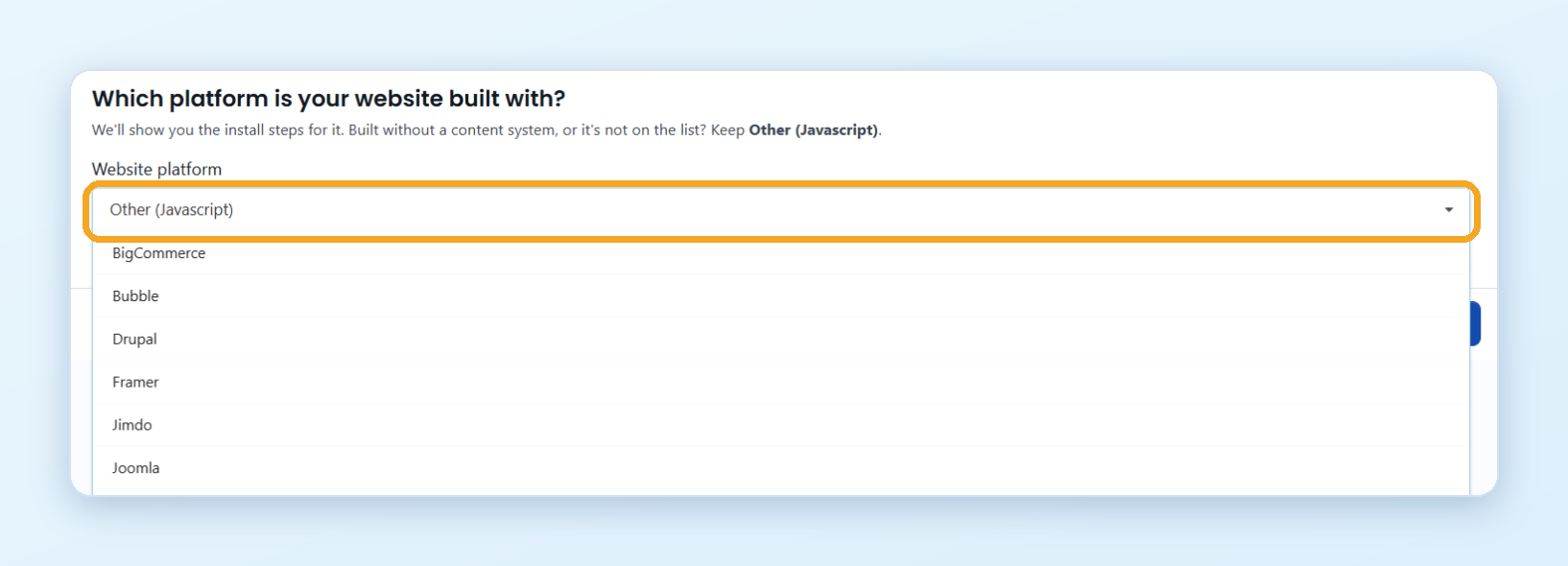
Then enter your Domaine du site Web (par exemple example.com), your site’s current language and the Langues dans lesquelles traduire. Cliquez Suivant.
Step 2. Choose your page addresses and copy the code
The next screen asks how the addresses of your translated pages should look. If you’re not sure, keep the default; you can change it later (more on this in the SEO section below). Click Suivant.
Sur le Installer étape, cliquez Copier à côté du code.
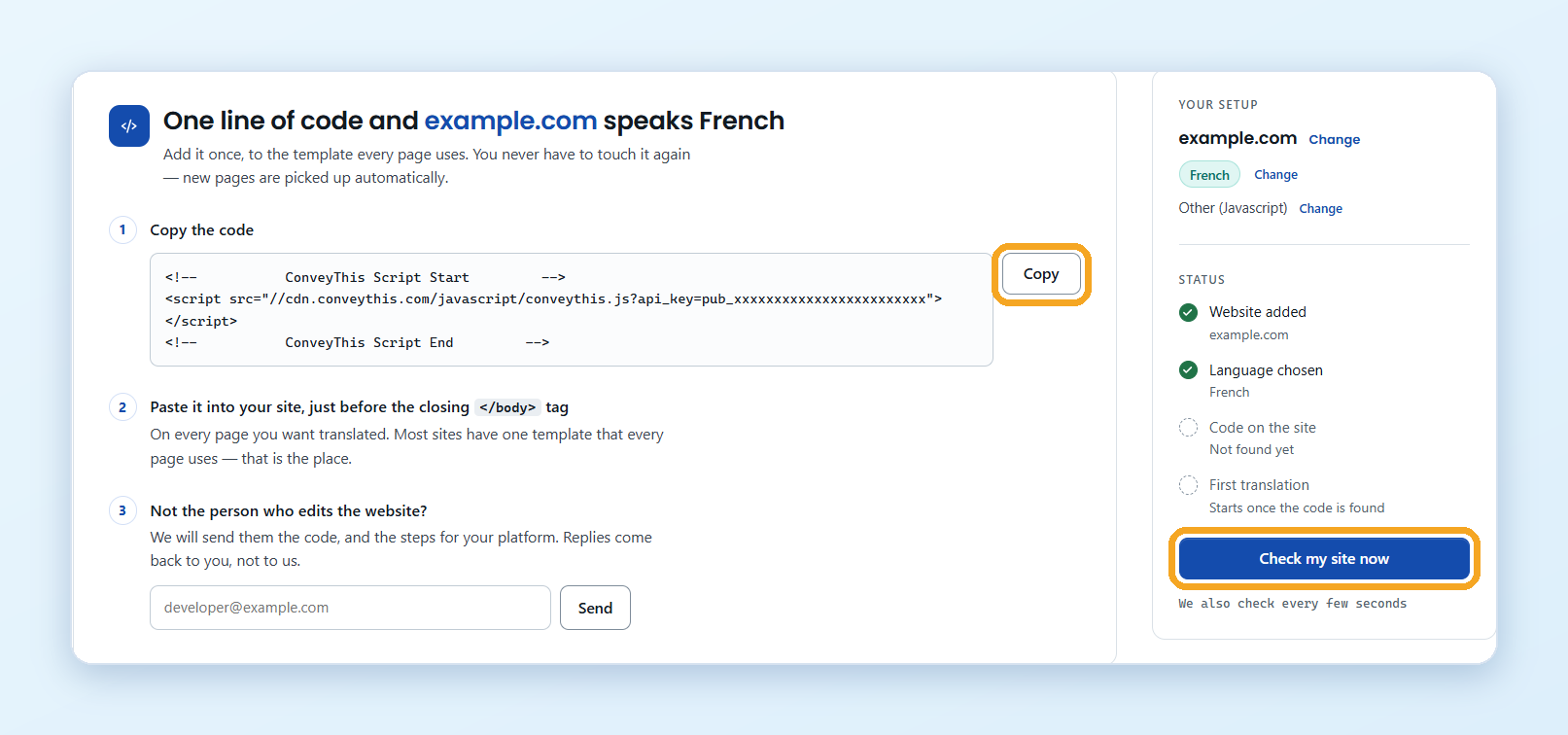
Someone else edits your Webflow site? Enter their email on the same step and click Envoyer. They get the code and the Webflow steps.
Step 3. Paste the code into Webflow
- Dans Webflow, ouvrir Paramètres du site pour votre site.
- Accédez à Code personnalisé par défaut.
- Collez le code dans le Code du pied de page field. Webflow places this code just before the closing
</body>tag on every page, which is where the ConveyThis code belongs. - Cliquez sur Enregistrer les modifications.
If the Footer code field already holds other scripts, such as analytics, that’s fine. Add the ConveyThis code on a new line after them.
Step 4. Publish your site
This step is easy to forget. Webflow shows custom code in preview mode, but it only goes live after you Publier the site. Click Publier in the Designer and publish to your domain.
Step 5. Check that it works
Revenez à la configuration ConveyThis et cliquez sur Consultez mon site maintenant. ConveyThis also checks every few seconds by itself. When Code sur le site montre que le code a été trouvé, la traduction démarre.
Now open your live website. A language switcher appears in the bottom-right corner. Choose a language and the page is translated.
It can take a few minutes the first time. If you don’t see the switcher, clear your browser cache and reload. The same steps are in our help article Comment ajouter ConveyThis à Webflow ?
Want to see your own Webflow site in another language? Le forfait gratuit ne nécessite aucune carte et l'installation prend quelques minutes.
What gets translated on a Webflow site
Once the code is live, ConveyThis translates the text of your published pages. That includes:
- Static pages you design in Webflow, including navigation, buttons, footers and forms.
- CMS collection items, such as blog posts, case studies, team members or job listings. They’re translated like any other page.
- New content. Publish a new page or CMS item and it’s translated automatically. You don’t need to touch the code again.
- Titres de pages et méta descriptions, which are what people see in search results.
- Image alt text.
Two things need a little extra attention:
- Text inside images. ConveyThis doesn’t read words baked into an image, such as a hero graphic or a product screenshot. You can upload a different image, video or PDF for each language, and ConveyThis serves it to visitors in that language.
- Brand and product names. On paid plans from Starter, glossary rules keep names exactly as you set them.
Style the language switcher to match your design
Webflow sites tend to have a carefully chosen look, so the switcher should fit in. In ConveyThis, go to Domaines et ouvrez Paramètres on your website. You can move the switcher to another corner (see Modifier la position du commutateur), choose how flags appear, and add your own CSS so the switcher matches your Webflow typography and colors.
With Starter or a higher plan, you can also send visitors to their language automatically: someone whose browser is set to Spanish can land on the Spanish version straight away.
Révisez et modifiez vos traductions
ConveyThis translates with AI and machine translation. Treat the first result as a draft and give it a few minutes of review:
- Commencez par les pages qui comptent le plus: your home page, pricing, contact details and any forms.
- Check one CMS template for each collection, such as a blog post or a case study, so you know the layout works in the new language. Some languages run longer than English, so look for buttons or headings that wrap.
- Fix wording in the visual editor. Click a phrase on your live site and rewrite it. Your edit replaces the automatic translation wherever that sentence appears. See Comment éditer mes traductions ?
- Order a human translation for sensitive text. For legal or pricing pages, you can order professional translation per word from the text editor.
On the Pro plan or higher, you can invite translators and managers to your ConveyThis account. They work in the ConveyThis dashboard, so they don’t need seats in your Webflow workspace.
Multilingual SEO for Webflow
Translating your site helps the visitors who already arrive. To win nouveau visitors from search in other languages, search engines have to find each language. Our guide to SEO multilingue covers the full picture; here is what matters on Webflow.
Donnez à chaque langue sa propre adresse. By default, visitors change language with the switcher and stay on the same address. That works well for visitors, but search engines mostly see your original language. On the ConveyThis Plan d'affaires et supérieur, chaque langue peut avoir sa propre adresse :
- un sous-domaine, tels que
fr.example.com. You add one CNAME record per language at your DNS provider, and your main site stays on Webflow hosting. - un sous-répertoire, tels que
example.com/fr/. Here your whole domain points through ConveyThis, so a wrong DNS record can take your site offline. Follow the setup carefully.
For most Webflow sites we recommend subdomains, because they leave your Webflow hosting untouched. Our comparison of sous-répertoires vs sous-domaines explains the trade-offs for search, and Sous-domaine ou sous-répertoire shows the setup.
Laissez les moteurs de recherche connecter les versions. With a subdomain or subdirectory, each translated page includes hreflang tags, which tell search engines which page is the French or German version of which. Our guide de hreflang explique comment ils fonctionnent.
Translate titles and descriptions. ConveyThis translates each page’s title and meta description, so your search results read naturally in each language.
Vérifiez-le dans Google Search Console. Une fois qu'une langue a sa propre adresse, assurez-vous que votre propriété Search Console la couvre, puis utilisez Inspection d'URL sur une page traduite pour confirmer que Google peut le lire.
Webflow Localize vs a translation service
Webflow has its own localization product, so you may wonder whether you need a separate tool at all. Here is how Webflow Localize works, based on Webflow’s help center.
- Locales. You build your site in a primary locale and add secondary locales. Each secondary locale starts as a copy of the primary one, and you override what should differ. Publishing a secondary locale requires a paid Localize add-on, which Webflow prices per locale on top of your site plan.
- Traduction. Webflow can translate pages, page metadata, components and CMS content with AI, either once per piece of content or continuously as your primary content changes. You can also write translations yourself or connect a translation app such as Lokalise. AI translation draws on a monthly word allowance that comes with your Localize add-on.
- More than words. Localize lets you change styles, images and element visibility per locale, so each market can look different.
- RÉFÉRENCEMENT. Each locale is served in a subdirectory such as
/es/, with localized metadata and a localized sitemap. Advanced and Enterprise plans can also localize CMS collection slugs. - Limits to know. Webflow’s custom translation glossary is listed for Enterprise customers. And Webflow states that Localize doesn’t support Ecommerce Site plan features, so products, categories and Ecommerce pages can’t be localized when both are enabled.
Webflow Localize fits when your site lives only on Webflow, you need a small number of locales, and you want each market to have its own design, images or translated URL slugs, managed inside the Designer.
A translation service like ConveyThis fits when you run a Webflow Ecommerce store, need many languages, want a glossary on an entry-level plan, or also run sites on other platforms. ConveyThis works the same way across platforms, so the steps for WordPress website translation ou Shopify store translation will look familiar, and the Pro plan covers three websites in one account. ConveyThis doesn’t use Webflow locales: it translates the text of your published pages, which is why setup is a single snippet.
For prices side by side, see our detailed ConveyThis vs Webflow Comparaison de localisation.
| Webflow Localiser | ConveyThis | |
|---|---|---|
| How you add it | Add-on in your Webflow plan | One snippet in Site settings, Custom code |
| Where you translate | Inside the Designer, or a connected app | ConveyThis dashboard and visual editor |
| Webflow Ecommerce products | Can’t be localized | Translated like other pages |
| Different design per language | Yes: styles, images, visibility | Different images, videos and PDFs per language |
| Adresses linguistiques pour la recherche | Subdirectory per locale | Subdomain or subdirectory, from Business |
| Glossaire | Enterprise | Paid plans from Starter |
| Option gratuite | Set up and preview locales; publishing needs the paid add-on | Free plan: 1 language, 10,000 words |
How much does it cost to translate a Webflow site?
- Webflow: a plan that allows site-wide custom code (an active Site plan, or a qualifying Workspace plan).
- ConveyThis: Commencez par le plan gratuit, qui est suffisant pour de nombreux petits sites, et effectuez une mise à niveau depuis votre tableau de bord lorsque vous en avez besoin de plus.
| Gratuit | Starter | Business | |
|---|---|---|---|
| Prix | 0 $, pas de limite de temps | 12$/mois | 24$/mois |
| Mots | 10,000 | 60,000 | 200,000 |
| Langues | 1 | 1 | 3 |
| Carte requise | Non | Oui | Oui |
| Adresse propre par langue pour la recherche | Non | Non | Oui |
Yearly billing costs ten times the monthly price. Every plan also counts monthly translated page loads. Larger plans add more languages, words and websites, up to 100 languages on Extreme. See every plan on the page de tarification.
Problèmes courants et solutions rapides
- Le commutateur n'apparaît pas. Vérifiez que le code est dans le Code du pied de page field under Paramètres du site, Code personnalisé, that you clicked Enregistrer les modifications, and that you published the site afterwards. Then clear your browser cache and reload.
- The Custom code tab won’t let you save. Your site needs a paid Site plan or a qualifying Workspace plan, and your role must be Site manager or Designer.
- It works in preview but not on your domain. You saved the code but didn’t publish. Publish again to your custom domain.
- Certains textes ne sont pas traduits. Voir Les traductions ne sont pas affichées. Le texte à l'intérieur des images n'est pas traduit, mais vous pouvez afficher une image différente pour chaque langue.
- A button label breaks the layout. Translated text can run longer. Shorten the wording in the visual editor, or give that element room to wrap in the Designer.
Questions fréquentes
Can Webflow translate my site automatically? Yes, with the paid Localize add-on, which includes AI translation inside the Designer. Without Localize, you can add a translation service such as ConveyThis through custom code to translate your pages automatically.
Can I translate a Webflow site for free? Yes. The ConveyThis Free plan covers one language and 10,000 words. Your Webflow site still needs a plan that allows site-wide custom code.
Est-ce que ConveyThis traduit le contenu CMS Webflow ? Yes. CMS collection items, such as blog posts, are translated like any other page, including items you publish later.
Can I translate a Webflow Ecommerce store? Yes, with ConveyThis. Product pages are translated like other pages. Webflow’s own Localize add-on can’t localize Ecommerce products, categories or pages.
Will my translated Webflow pages show up in Google? They can, once each language has its own address (a subdomain or subdirectory, on the ConveyThis Business plan and above). ConveyThis then adds hreflang tags and translates titles and meta descriptions.
Should I paste the code in Head code or Footer code? Utiliser Code du pied de page. The ConveyThis setup asks you to place the code just before the closing </body> tag, and that’s where Webflow puts Footer code.
Translate your Webflow site for free
Start with the language your visitors need most. The Free plan gives you one language and 10,000 words with no card required, and you can have your first translated page live in a few minutes.