
JavaScript を使用して ConveyThis を任意の Web サイトに追加するにはどうすればよいですか?
ConveyThis を 1 行のコードで任意の Web サイトに追加します。HTML を編集できるあらゆるプラットフォームやカスタム構築サイトで動作します。
あなたのサイトがまず別の言語でどのように読めるか見てみたいですか?無料でプレビューしてください ウェブサイト翻訳ツール、 アカウントは必要ありません。
ステップ1。アカウントを作成します
無料のConveyThisアカウントを作成 そしてメールを確認します。すでにアカウントをお持ちの場合は、ログインしてください ConveyThisダッシュボード.
ステップ2。ウェブサイトを追加します
- 次に移動します: ドメイン 左メニューでクリックします ドメインを追加。の ウェブサイトを追加します セットアップが開きます。
- テクノロジー: プラットフォームを選択します。リストにないカスタムサイトやプラットフォームの場合は、そのままにしておきます その他(Javascript)。クリック 次.
- ドメインと言語: あなたのを入力してください ウェブサイトドメイン (例: example。com)、Web サイトの現在の言語と翻訳する言語を選択します。クリック 次.
- URL構造: 翻訳されたページのアドレスがどのように見えるかを選択します。よくわからない場合は、最初のオプションを保持してください。後で設定に変更できます。クリック 次.
ステップ3。ウェブサイトにコードを追加します
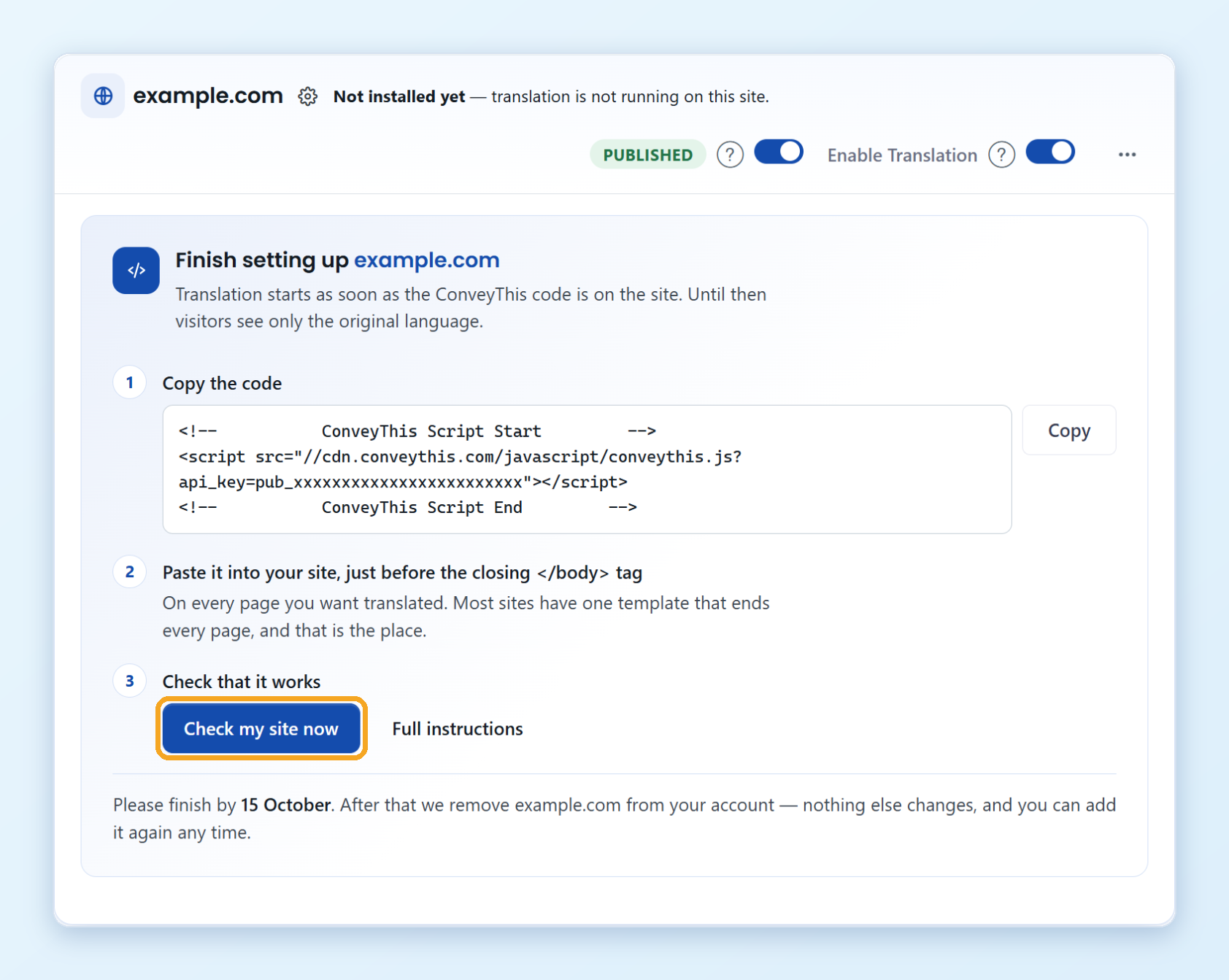
インストール ステップはコードを示します。すでに API キーが含まれています。
- 次をクリックします: コピー.
- コードをウェブサイトに貼り付けます 閉店直前
</body>タグ。すべてのページが使用するテーマまたはテンプレートに 1 回追加します。Web サイト ビルダーでは、 を使用します カスタムコード または フッターコード 設定。その後、コードは後で追加するページを含むすべてのページで機能します。 - ウェブサイトを公開または保存します。
Web サイトが共有テンプレートのない個別の HTML ファイルで構成されている場合は、各ファイルにコードを追加します。
にコードを入れてもいいですか <head> 代わりに? はい。ConveyThis はページがロードされた後にのみ翻訳を開始するため、スイッチャーと翻訳は同じように機能します。を提案します </body> なぜなら、そこではコードがページの読み込み中にページの表示を保持しないからです。Web サイト ビルダーにヘッダー コードのフィールドしかない場合は、それを使用してください。コードは1 回だけ追加します。
コードは次のようになります、 あなた自身のキーで:
<!-- ConveyThis Script Start -->
<script src="//cdn.conveythis.com/javascript/conveythis.js?api_key=pub_xxxxxxxx"></script>
<!-- ConveyThis Script End -->
ステップ4。動作するかどうか確認してください
次の画面で: ドメインページ、次をクリックします: 今すぐ私のサイトをチェックしてください あなたのウェブサイトのカードに。コードが見つかるとすぐに翻訳が始まります。
Web サイトを開きます。言語スイッチャーが右下隅に表示されます。そうでない場合は、Web サイトまたは CDN のキャッシュをクリアしてリロードします。見る 私のウェブサイトがまだアクティブ化されていないのはなぜですか?
次は何ですか?
- スイッチャーの外観と位置、URL構造、その他のオプションをWebサイトに変更します 設定 ダッシュボード で。
- テキスト エディターまたはビジュアル エディターを使用して翻訳を編集します。見る 翻訳を編集するにはどうすればよいですか?