
JavaScript Intégration
L'intégration du widget ConveyThis JavaScript dans n'importe quel site Web est incroyablement simple. Suivez simplement notre guide simple, étape par étape, pour ajouter ConveyThis à votre site Web en quelques minutes seulement.
1) Créer un compte ConveyThis
Pour commencer, le tableau de bord de votre compte ConveyThis vous permet de visualiser et de gérer toutes vos traductions. Créez simplement un compte ConveyThis ici.

2) Sélectionnez votre plugin via ConveyThis
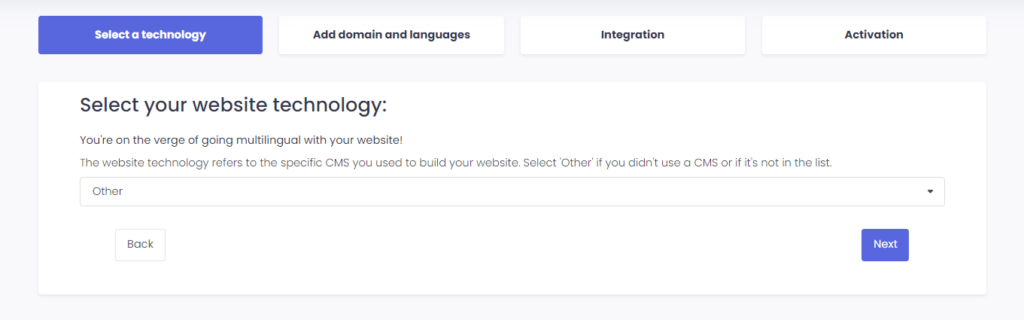
La technologie du site Web fait référence au CMS spécifique que vous avez utilisé pour créer votre site Web, dans ce cas, il s'agit de JavaScript.
Cliquez sur “Suivant” pour passer à l’étape suivante.
Après avoir cliqué sur “Suivant”, entrez votre nom de domaine et indiquez la ou les langues dans lesquelles vous souhaitez traduire votre site Web.
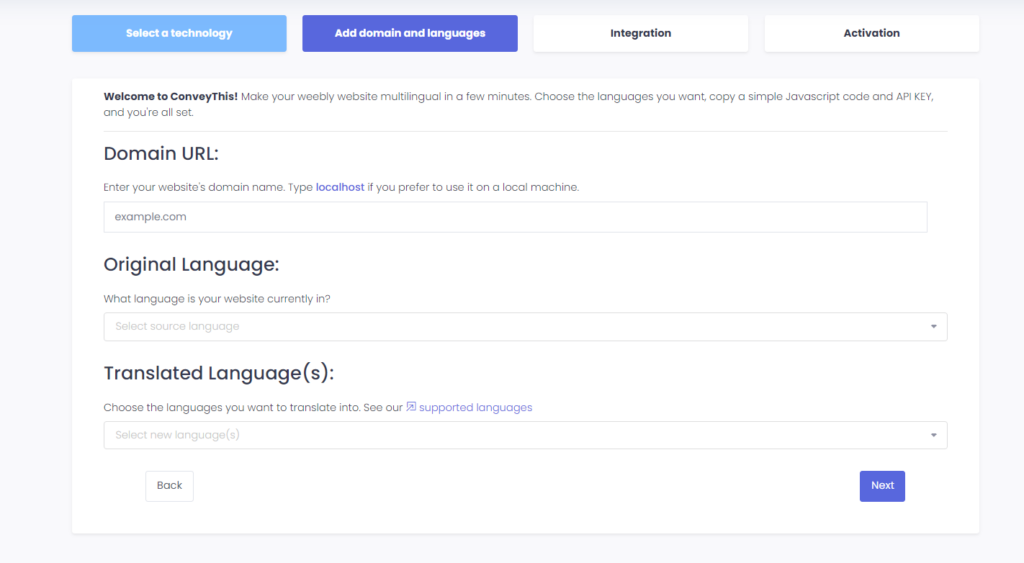
Cliquez sur “Suivant” pour passer à l’étape suivante.
3) Copiez et collez le code affiché sur votre écran
L'écran suivant s'affichera :
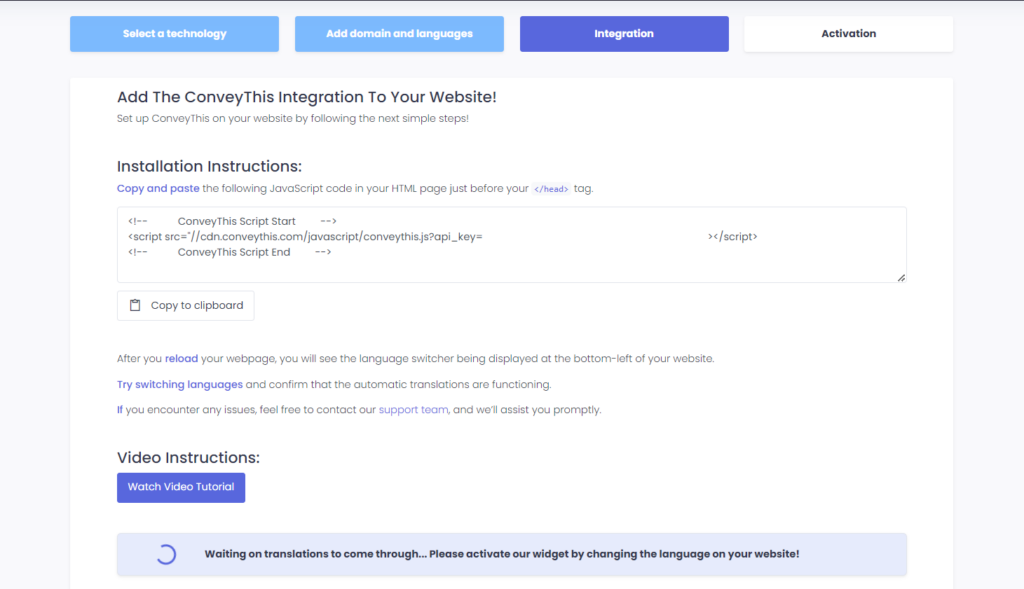
Copiez le code qui apparaîtra sur votre écran ci-dessous (n'oubliez pas de remplacer “YOUR_API_KEY” par celui trouvé dans votre tableau de bord.
<!-- ConveyThis Script Start -->
<script src="https://cdn.conveythis.com/javascript/conveythis.js?api_key=YOUR_API_KEY"></script>
<!-- ConveyThis Script End -->
Collez-le ensuite dans la section de vos pages HTML (si vous utilisez un CMS pour créer votre site Web, celui-ci se trouve généralement dans les paramètres du CMS, sous un onglet intitulé “Code personnalisé” ou quelque chose de similaire).
Si vous créez votre site à partir de zéro, collez l'extrait JavaScript sur toutes les pages HTML de votre site Web juste avant la fin de la </head> étiqueter.
4) Vous avez terminé !
C'est ça. Accédez à votre site Web et voyez le bouton de changement de langue en bas à droite. Cela peut prendre quelques minutes pour apparaître, alors ne vous inquiétez pas si vous devez attendre un peu.
Essayez de changer la langue lorsque le sélecteur de langue apparaît–et, comme par magie, votre site Web est multilingue ! Vous pouvez maintenant accéder à votre tableau de bord ConveyThis pour gérer toutes vos traductions.
Félicitations, vous pouvez maintenant commencer à traduire votre site Web !