
¿Cómo edito mis traducciones?
ConveyThis translates your website automatically. You can change any translation in three ways:
- Editor de texto: a list of every text on a page with its translation. Best for many changes at once.
- Editor visual: your page as visitors see it. Click a text and change it in place.
- Glosario: rules for words that should always be translated the same way, or never translated.
A page shows up in your dashboard after someone has visited it in a translated language. If a page is missing, open it on your site, switch to that language, then come back.
Where do I find the Text Editor and Visual Editor?
Both editors open from the list of your translated pages:
- Inicia sesión en tu panel de control de ConveyThis.
- In the left menu, click Edit Translations and pick your website. You can also go to Dominios, abre el menú Traducciones y elige My Translations.
- You’ll see every translated page, one row per page and language. Each row has two links: Editor de texto y Editor visual.
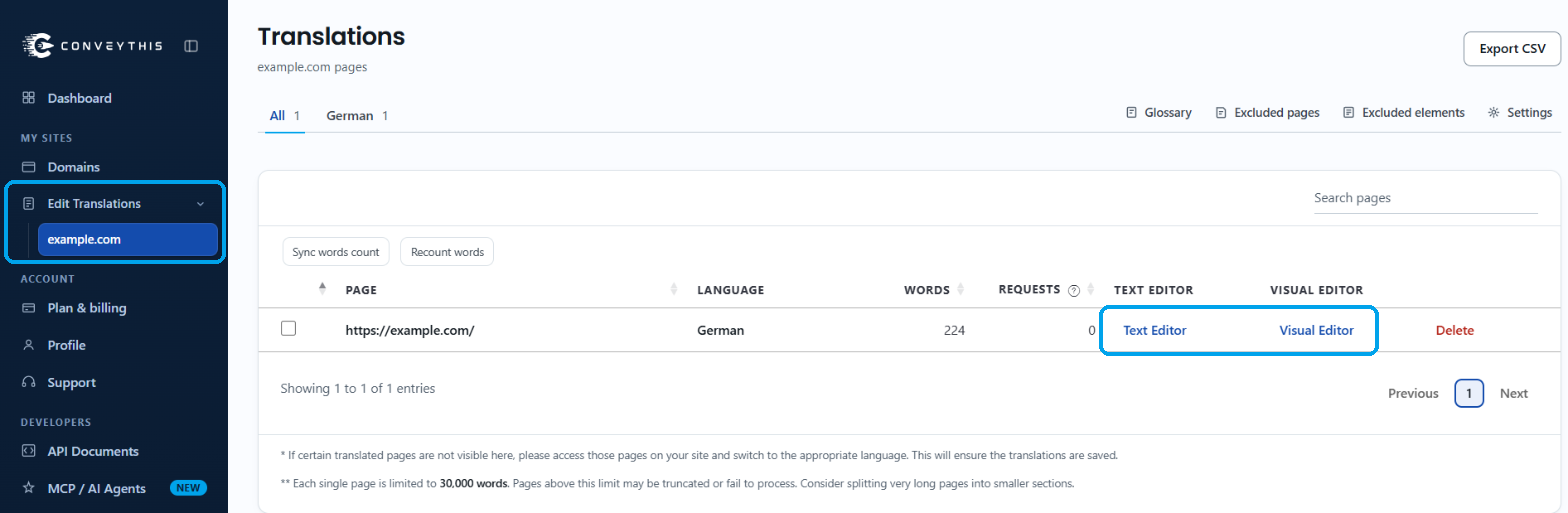
Edit translations in the Text Editor
- In the list of pages, find the page and language you want and click Editor de texto.
- Click into the translation next to any text and type your change.
Your edit is saved as soon as you click outside the field, and you’ll see “Translation is updated”. The switch next to the text turns on to show that it now uses your translation.
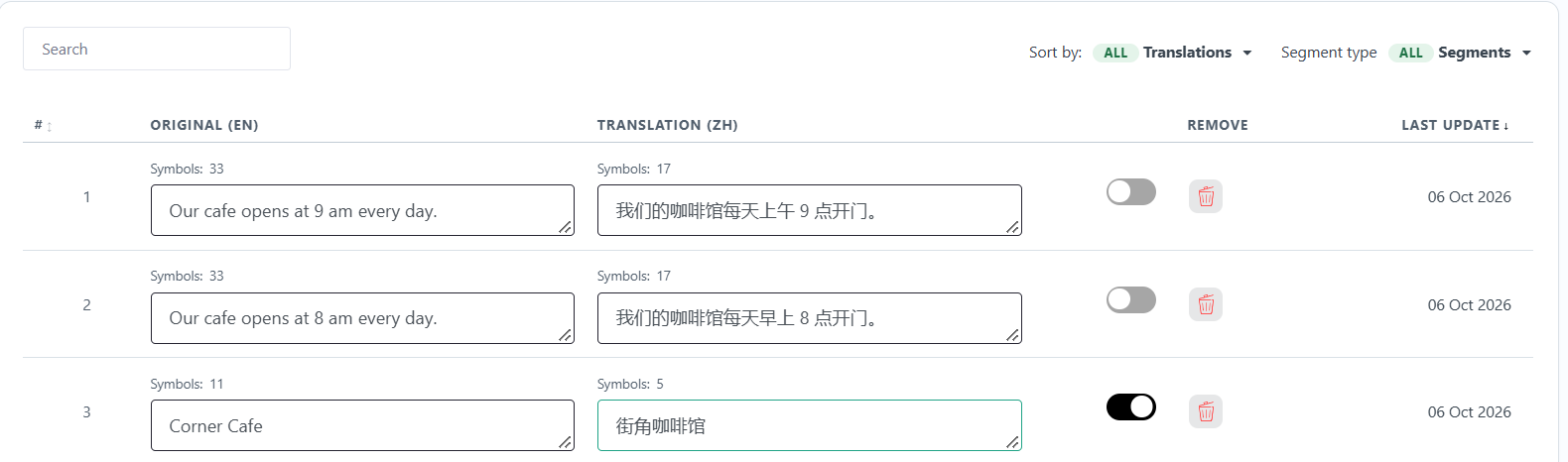
Tools that help in the Text Editor:
- Search finds a text by its original wording.
- Sort by shows all texts, only automatic translations (AUTO) or only your own edits (USER).
- Segment type finds texts that aren’t visible on the page, such as page titles, image alt text and translated URLs.
- The switch goes back to the automatic translation when you turn it off. Your edit is kept, so you can turn it on again. See ¿Existe un historial de traducción?
Edit translations in the Visual Editor
En la lista de páginas, haz clic en Editor visual in the row of the page you want. Your page opens in the translated language in a new tab. Click any text, change the translation and click Save changes.
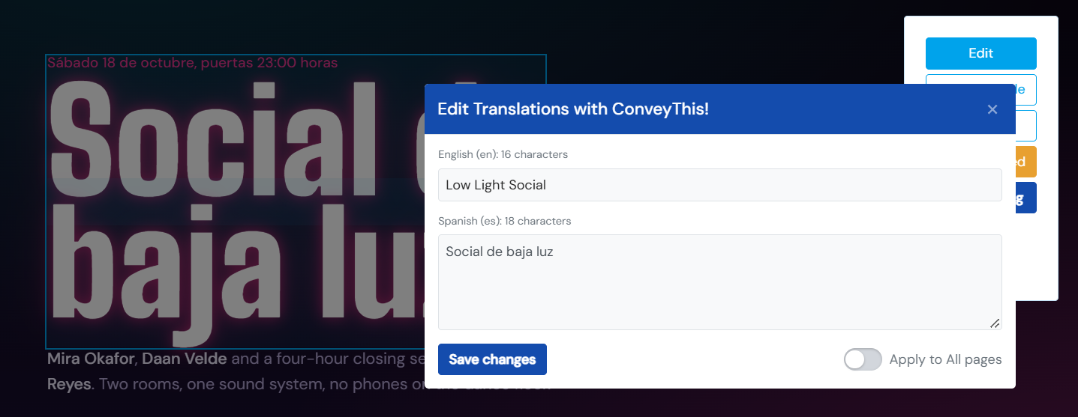
Note: Apply to All pages With this switch off, your change applies to this page only. With it on, your translation is saved as a Glosario rule for this language, and every text on your site that contains this phrase uses it, including longer sentences. Those texts are translated again with the rule, so earlier manual edits to them are updated too.
The Visual Editor is the easiest way to be sure you’re changing the exact text you see. For all its buttons and what to do if it doesn’t open, see How to use the Visual Editor.
Set rules with the Glossary
Use the Glossary for words that appear across your site, like your brand or product names. Go to Dominios, abre Personalizar on your website and choose Glosario. Then add a rule:
- Do not translate keeps the term exactly as written.
- Translate as always uses the translation you enter.
Each rule can apply to one language or to all of them.
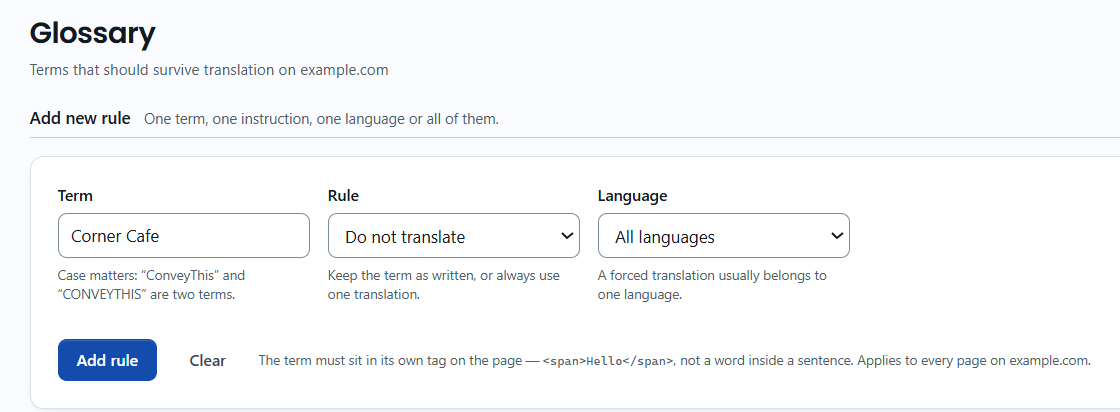
The Glossary isn’t available on the Free plan. For details, see How to use the Glossary.
Let your team edit translations
On the Pro plan and higher, you can invite translators to edit translations with you. See ¿Cómo agrego miembros del equipo a mi sitio web?
When will I see my changes?
Right away. ConveyThis clears its cache for the page when you save. If you still see the old text, see Why aren’t my translation changes showing on my website?