
¿Cómo agrego miembros del equipo a mi sitio web?
La función Equipo está incluida en los planes Pro y superiores. Los miembros trabajan en tu sitio con su propio inicio de sesión de ConveyThis; el sitio, su plan y su facturación siguen en tu cuenta.
Los cuatro roles
Hay tres roles que puedes asignar: Traductor, Gestor y Administrador. Tu rol es el de Propietario. Qué puede hacer cada uno:
| Función | Traductor | Gestor | Administrador | Propietario |
|---|---|---|---|---|
| Editar traducciones (editor, editor visual, eliminar páginas) | ✓ | ✓ | ✓ | ✓ |
| Reglas del glosario | ✓ | ✓ | ✓ | ✓ |
| Descargar traducciones (CSV/TMX) | ✓ | ✓ | ✓ | ✓ |
| Subir traducciones (CSV/TMX) | ✗ | ✓ | ✓ | ✓ |
| Exclusiones y lista blanca | ✗ | ✓ | ✓ | ✓ |
| Ver el equipo | ✗ | ✓ | ✓ | ✓ |
| Agregar o eliminar traductores | ✗ | ✓ | ✓ | ✓ |
| Agregar o eliminar gestores y administradores | ✗ | ✗ | ✓ | ✓ |
| Idiomas y configuración de widgets | ✗ | ✗ | ✓ | ✓ |
| Publicar o anular la publicación | ✗ | ✗ | ✓ | ✓ |
| Cloudflare (borde) y DNS | ✗ | ✗ | ✓ | ✓ |
| Eliminar el sitio, desconectarlo de Cloudflare | ✗ | ✗ | ✗ | ✓ |
| Facturación, plan y facturas | ✗ | ✗ | ✗ | ✓ |
Cada miembro del equipo sigue gestionando la facturación de su propia cuenta de ConveyThis; la última fila se refiere a la cuenta del propietario del sitio.
Traductor
Los traductores editan traducciones, agregan reglas de glosario y descargan traducciones como CSV o TMX.
Puede:
- Editar traducciones, en el editor de traducción y en el editor visual.
- Agregar reglas de glosario para que ciertas palabras se traduzcan siempre igual o no se traduzcan.
- Descargar las traducciones del sitio como archivos CSV o TMX.
No puede:
- Subir archivos de traducción (CSV o TMX).
- Excluir páginas o partes de páginas de la traducción o editar la lista blanca.
- Ver el equipo o invitar a alguien.
- Cambiar los idiomas o la configuración del widget, o publicar y despublicar el sitio.
- Ver la facturación o eliminar el sitio.
Gestor
Los gestores hacen todo lo que hacen los traductores y, además, suben archivos de traducción, excluyen páginas y contenido de la traducción, y agregan o eliminan traductores.
Puede:
- Todo lo que puede hacer un traductor: editar traducciones, agregar reglas de glosario, descargar traducciones.
- Subir archivos de traducción (CSV o TMX).
- Excluir páginas o partes de páginas de la traducción y editar la lista blanca.
- Ver el equipo y agregar o eliminar traductores.
No puede:
- Agregar o eliminar gestores o administradores.
- Cambiar los idiomas o la configuración del widget, o publicar y despublicar el sitio.
- Conectar el sitio a Cloudflare o cambiar su configuración de DNS.
- Ver la facturación o eliminar el sitio.
Administrador
Los administradores hacen todo lo que hacen los gestores y, además, cambian los idiomas y la configuración del widget, publican o despublican el sitio, y agregan o eliminan gestores y administradores. Los administradores no pueden ver la facturación ni eliminar el sitio.
Puede:
- Todo lo que puede hacer un gestor: traducciones, glosario, subidas y descargas, exclusiones, lista blanca.
- Agregar o eliminar traductores, gestores y otros administradores.
- Agregar o eliminar idiomas y cambiar la configuración del widget. Los idiomas cuentan para el plan del propietario del sitio.
- Publicar y despublicar el sitio.
- Conectar el sitio a Cloudflare y administrar su configuración de DNS.
No puede:
- Ver la facturación, las facturas o el plan del propietario, o cambiar el plan.
- Eliminar el sitio o desconectarlo de Cloudflare.
Cómo agregar a alguien
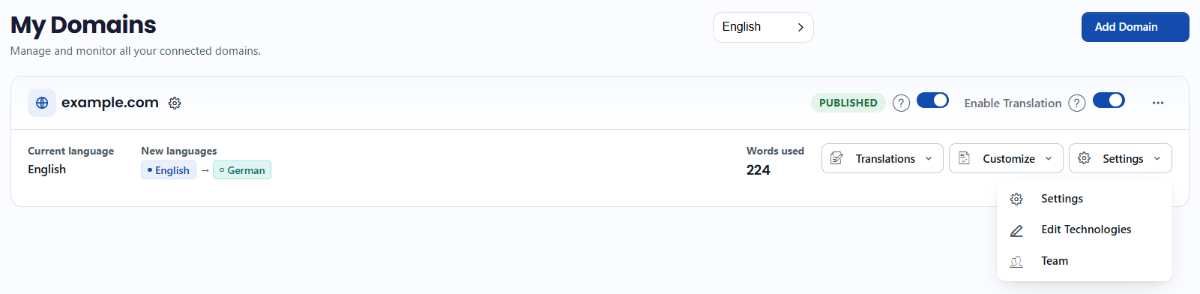
Inicia sesión y abre Dominios.
En la tarjeta del sitio, abre el menú Configuración y elige Equipo.
En Traductores, Gestores o Administradores, escribe la dirección de correo electrónico de la persona y haz clic en Agregar.
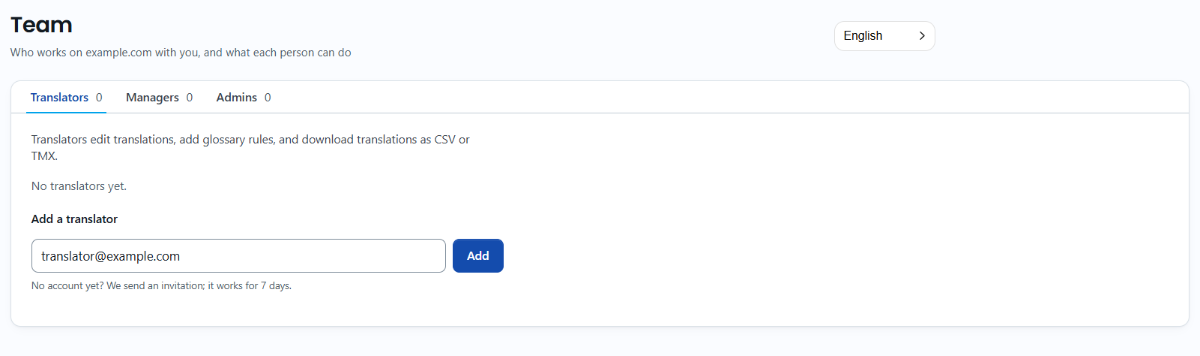
Lo que sucede a continuación depende de si ya usan ConveyThis:
- Tienen una cuenta de ConveyThis: pasan a formar parte de tu equipo de inmediato y reciben un correo electrónico con un enlace a las traducciones de tu sitio.
- No tienen cuenta: reciben una invitación. Desde su enlace eligen una contraseña y llegan directamente a las traducciones de tu sitio. No necesitan plan ni tarjeta, y no hay asistente de configuración: son tu traductor, no un cliente nuevo. Las invitaciones son válidas durante 7 días; puedes hacer clic en Resend o Withdraw en la misma página Equipo para reenviarla o retirarla.
Quién puede añadir a quién
- Gestores agregan o eliminan traductores.
- Administradores y el Propietario agregan o eliminan traductores, gestores y administradores.
- Nadie puede quitarse a sí mismo. Pídeselo a un administrador o al propietario.
Cómo eliminar a alguien
En la página Equipo, haz clic en Remove junto a su dirección de correo electrónico. Conservan su propia cuenta de ConveyThis; simplemente ya no ven tu sitio.
Lo que ve un miembro
La primera vez que un miembro abre tu sitio, ve un breve panel «Eres traductor en example.com», que indica lo que puede y no puede hacer, con tu nombre como la persona a quien pedir más acceso. El botón Your access en su página Dominios lo vuelve a abrir en cualquier momento.