
Integración con Shopify
Integrating ConveyThis into any website is incredibly simple, and Shopify platform is no exception. Just follow our simple, step-by-step guide to add ConveyThis to your Shopify site in just a few minutes.
1) Crea una cuenta ConveyThis
Para comenzar, el panel de control de su cuenta ConveyThis le permite ver y administrar todas sus traducciones. Simplemente cree una cuenta ConveyThis aquí.

2) Seleccione su complemento a través de ConveyThis
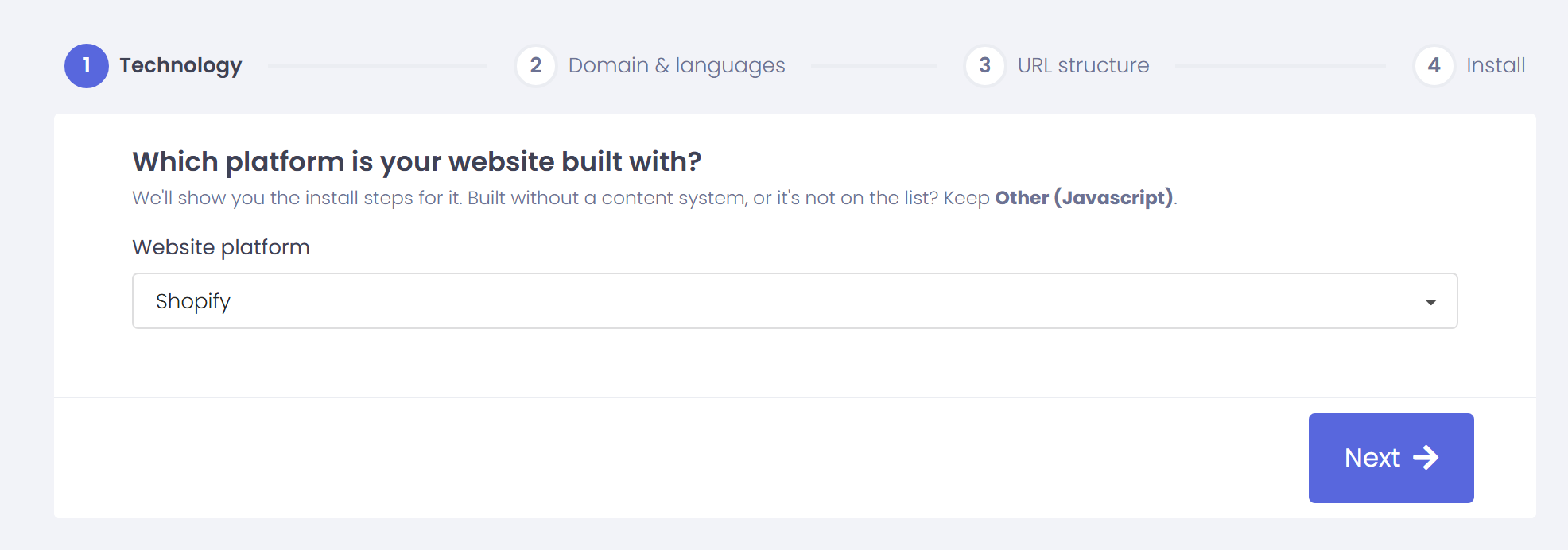
The website technology refers to the specific CMS you used to build your website, in this instance it’s Shopify.
Haga clic en “Siguiente” para continuar con el siguiente paso.
Después de hacer clic en “Siguiente”, ingrese su nombre de dominio e indique el idioma(s) al que desea traducir su sitio web.
Haga clic en “Siguiente” para ir al siguiente paso.
3) Install the ConveyThis Plugin Through Shopify App Store
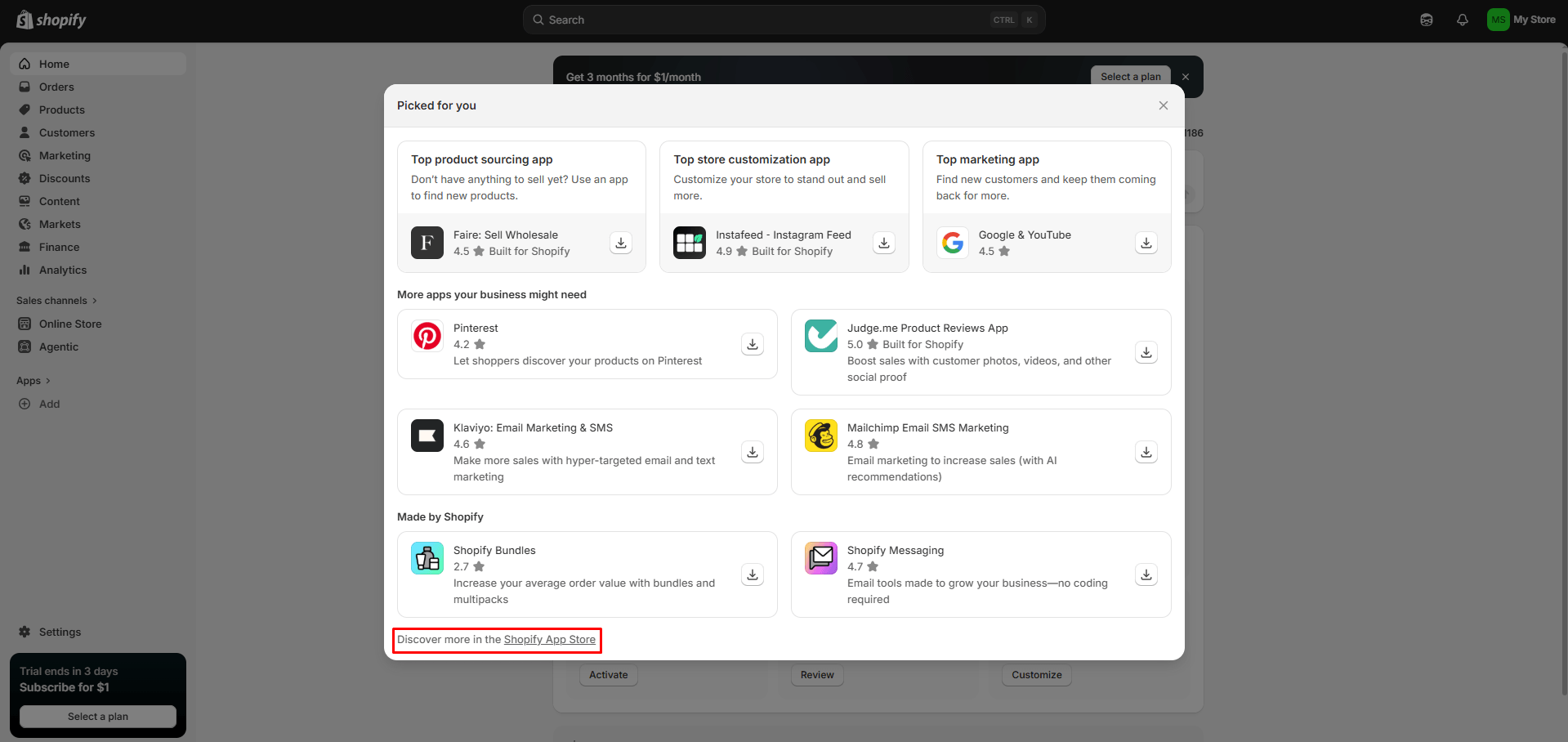
Go to your admin dashboard and click on “Apps” > “Add” > “Discover more in the Shopify App Store”
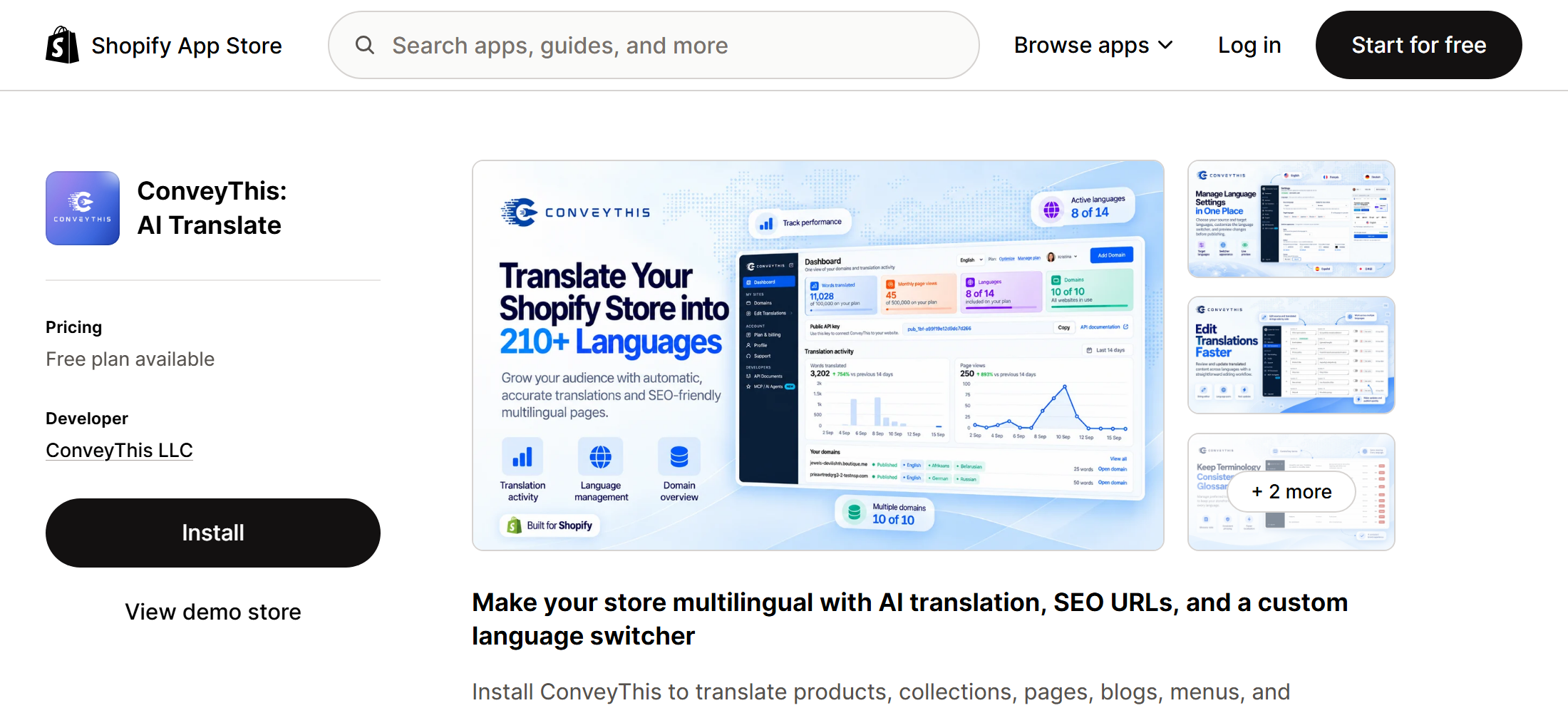
Buscar ConveyThis, and once you’ve found us, click on “Install”.
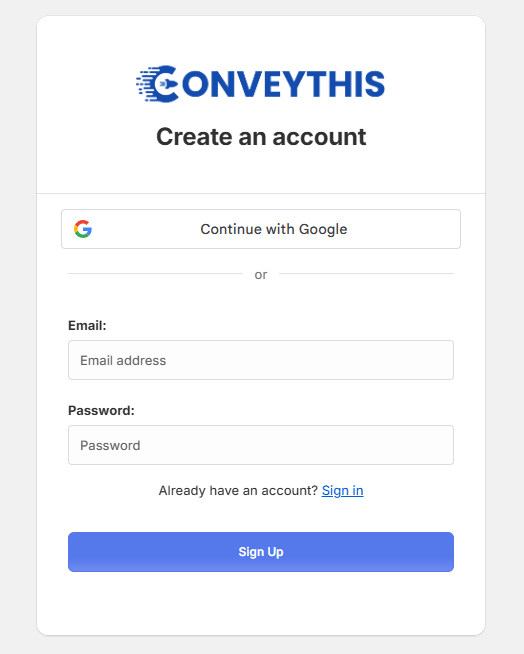
3.1) Create your account via the Shopify app or Log In to your existing ConveyThis account
If you already have an existing ConveyThis account, you’ll be able to directly create a new project or reuse an existing project if needed.
If you don’t have an account, all you need is to enter a valid e-mail address and a password to start on the Plan gratuito (10,000 words, one language).
3.2) Choose your languages
Once you’ve set up your ConveyThis account, you’ll be asked to choose the language your store is currently written in, and the language(s) you’d like to translate it to.
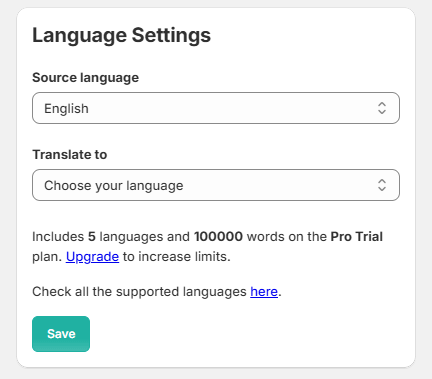
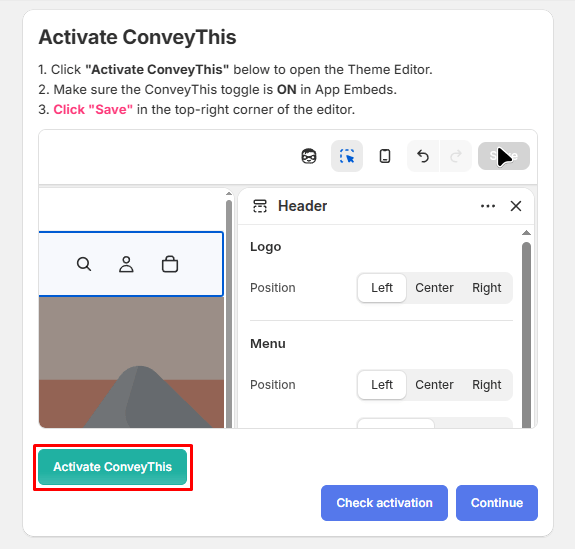
3.3) Activate ConveyThis Plugin
Once the languages are defined, you’ll need to activate ConveyThis in your theme. To do so, click on the “Activar” button.
After which you will need to click the “Guardar” button at the top right corner of the editor.
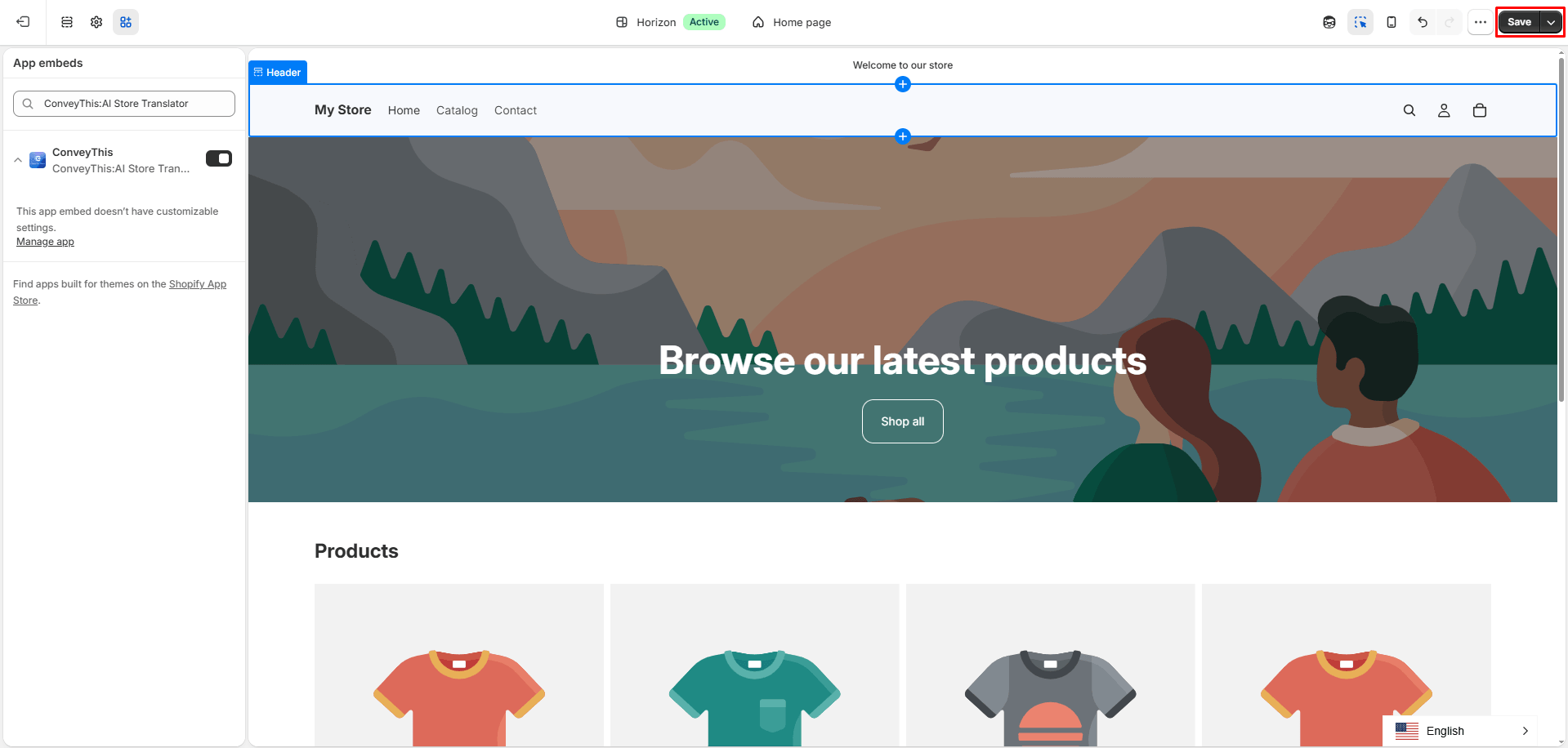
Once saved, you can return to this page and click “Check activation” to finalize the integration.
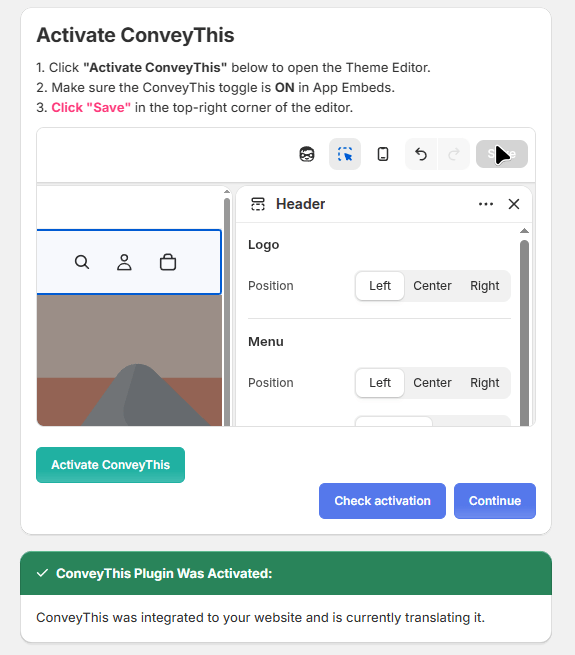
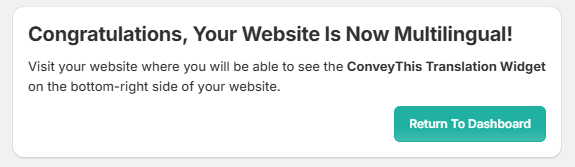
3.4) You’ve gone multilingual!
Now that your store has the ConveyThis plugin activated, you can start customizing your translations and/or the appearance of your language-switch button by clicking “Return To Dashboard”.
4) Install the ConveyThis Plugin Through Copy & Paste
If you would like to choose a different route on the installation process for the ConveyThis widget, you could always try to Copy & Paste our code snippet.
First, you’ll have to navigate to to Shopify Admin > Online Store and in here you’ll see the “…” botón.
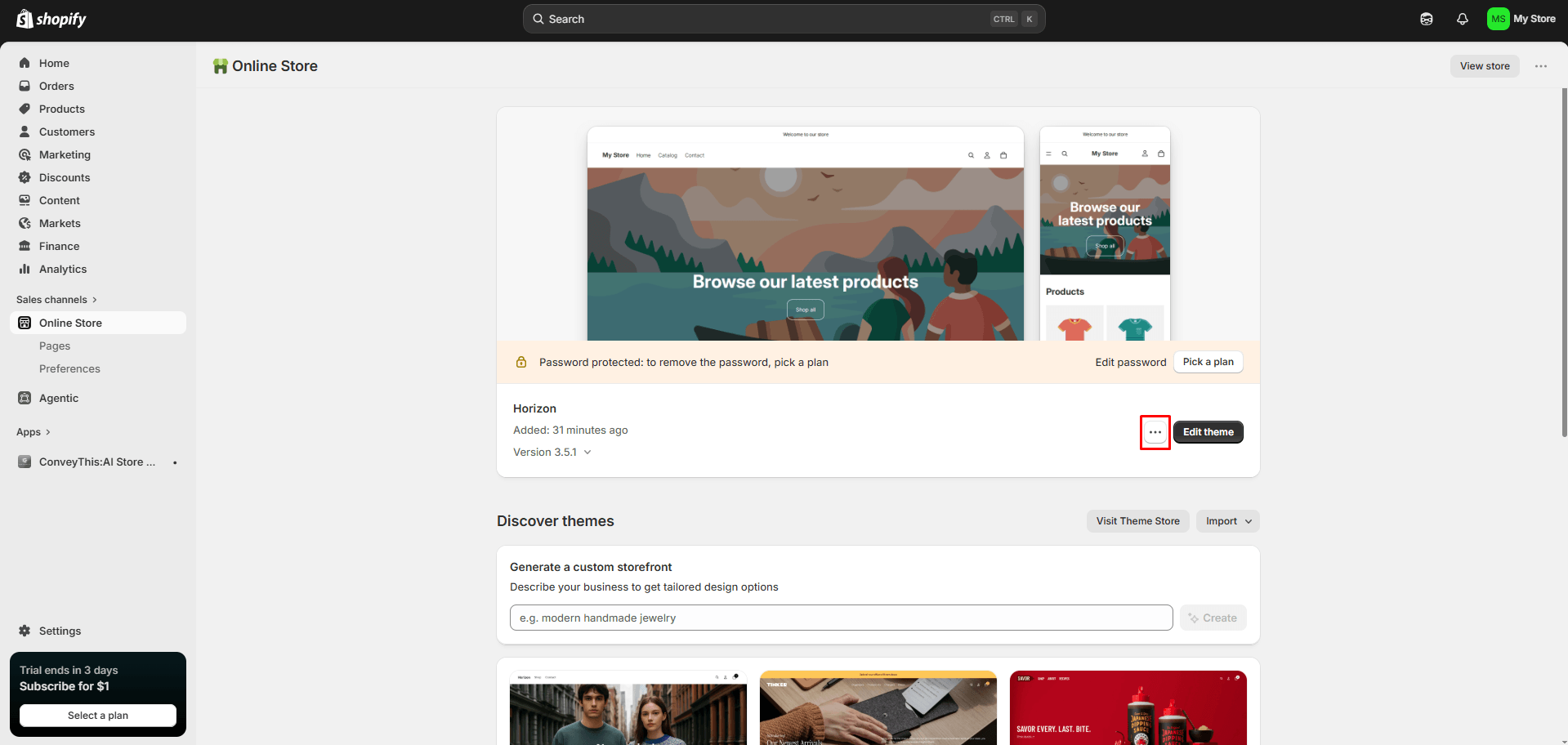
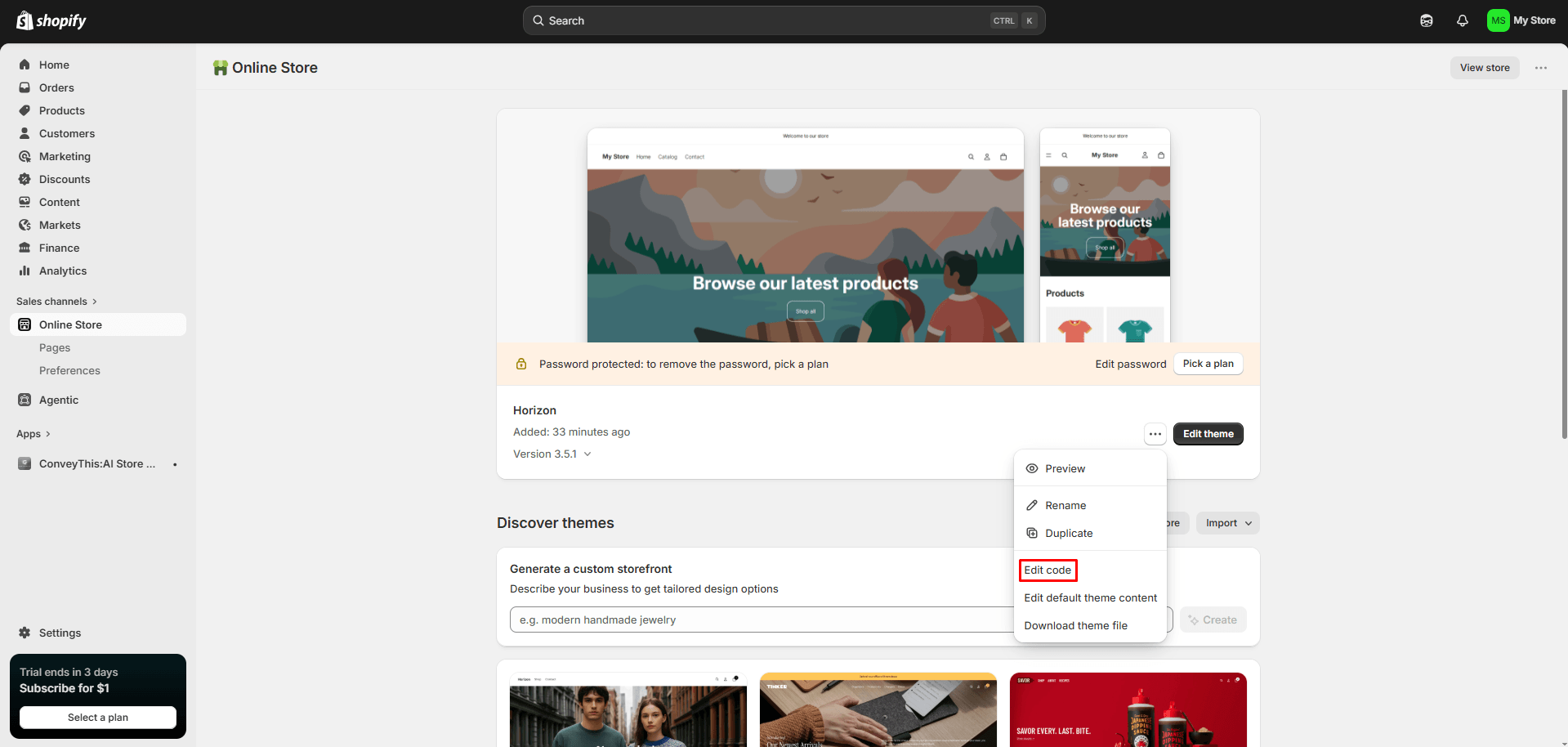
Once you’ll press on the “…” button, you’ll get a list of options, and among them, choose the “Edit code” opción.
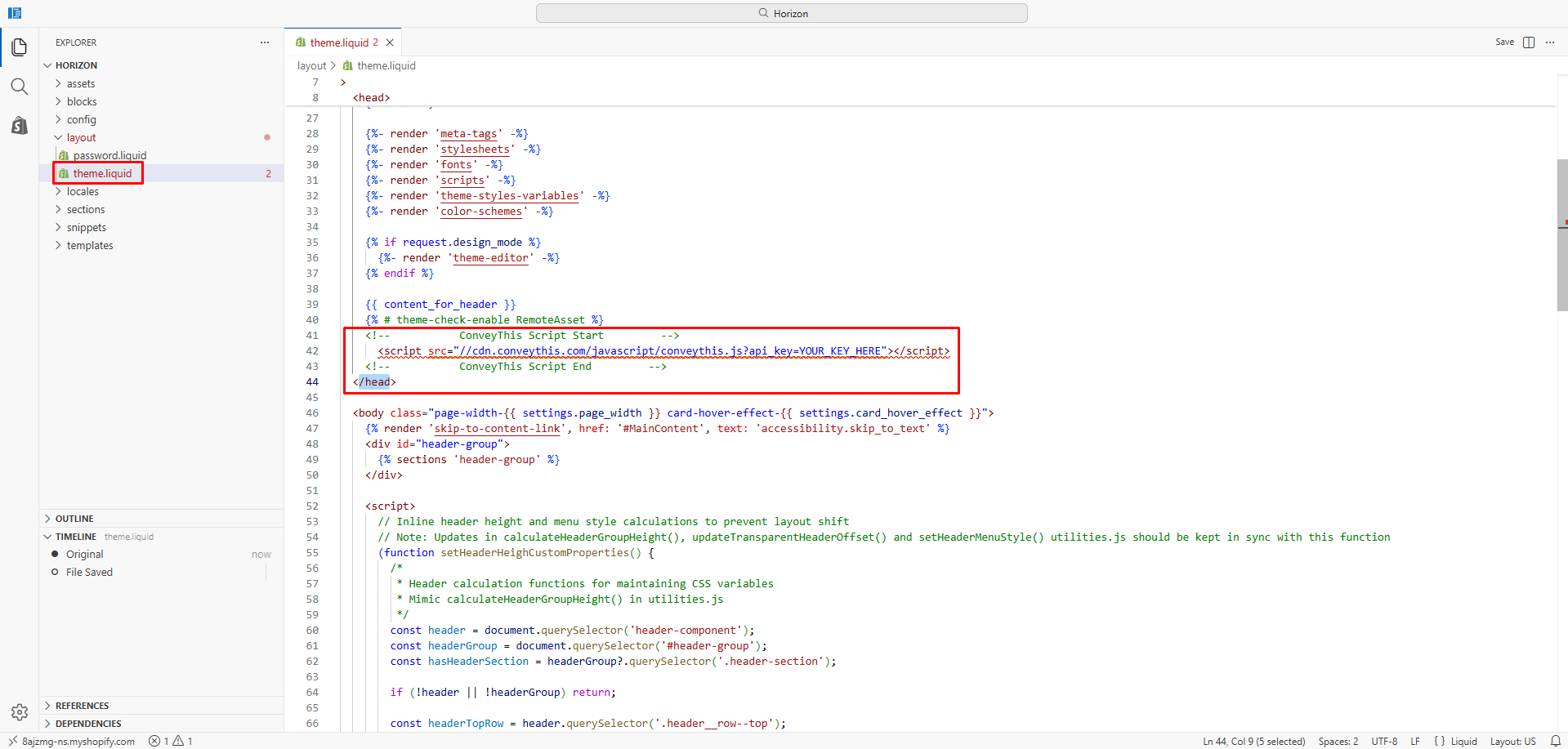
Once you navigate to “Edit code”, insert the provided code snippet into the theme.liquid file, just before the closing </head> tag.
5) You’re all done!
Eso es todo. Vaya a su sitio web y vea el botón de cambio de idioma en la parte inferior derecha. Puede que tarde unos minutos en aparecer, así que no te preocupes si debes esperar un poco.
Intente cambiar el idioma cuando aparezca el selector de idioma–y, como por arte de magia, ¡su sitio web es multilingüe! Ahora puedes ir a tu panel ConveyThis para administrar todas tus traducciones.
¡Felicitaciones, ahora puedes comenzar a traducir tu sitio web!
*If you want to customize the button or get familiar with an additional settings, please go to our Customization on our plugin Homepage».

How to Translate Shopify Checkout Page?
Please visit our help article Shopify Traducir página de pago for more information.