
BigCommerce Integración
Integrating CoveyThis Translate into any website is incredibly simple, and BigCommerce platform is no exception. Just follow our simple, step-by-step guide to add ConveyThis to your BigCommerce site in just a few minutes.
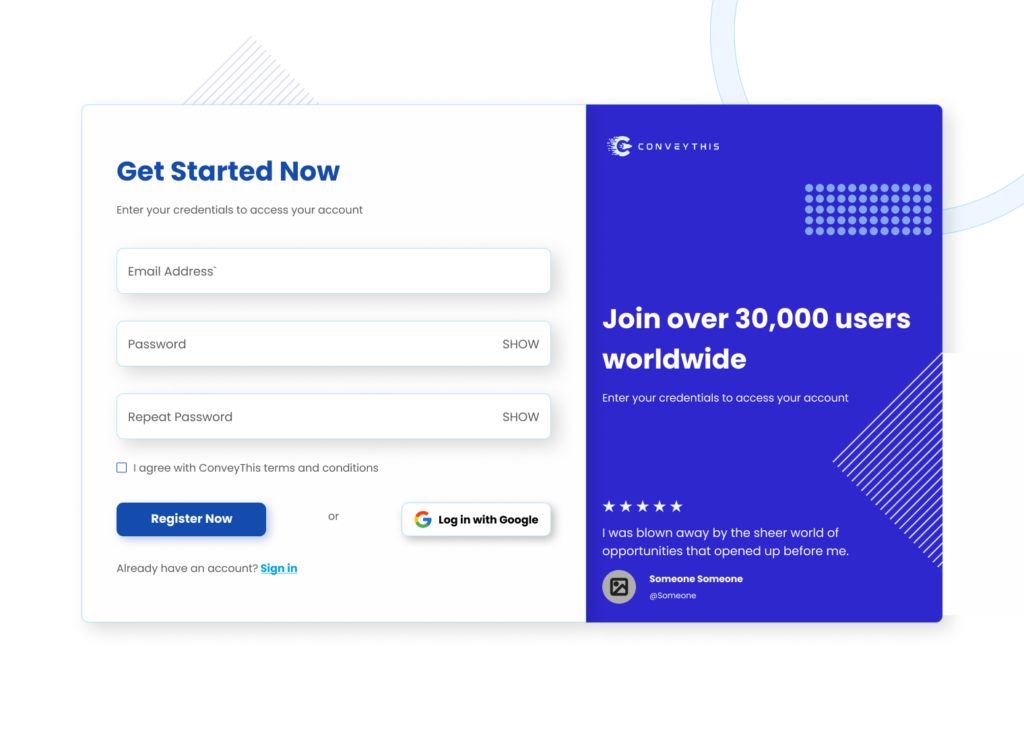
1) Crea una cuenta ConveyThis
Para comenzar, el panel de control de su cuenta ConveyThis le permite ver y administrar todas sus traducciones. Simplemente cree una cuenta ConveyThis aquí.
2) Seleccione su complemento a través de ConveyThis
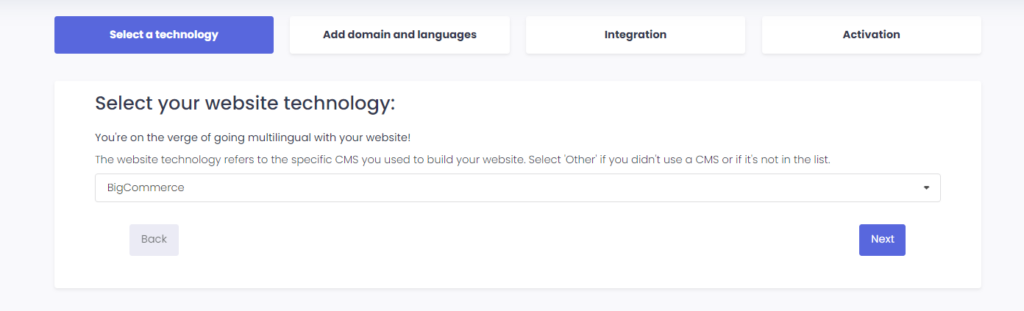
The website technology refers to the specific CMS you used to build your website, in this instance it’s BigCommerce.
Haga clic en “Siguiente” para continuar con el siguiente paso.
Después de hacer clic en “Siguiente”, ingrese su nombre de dominio e indique el idioma(s) al que desea traducir su sitio web.
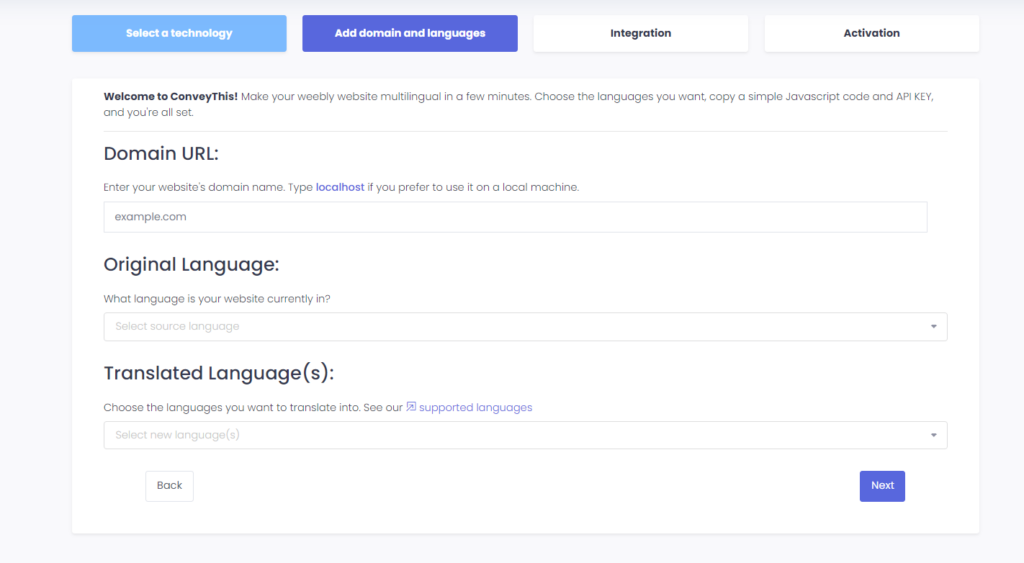
Haga clic en “Siguiente” para ir al siguiente paso.
3) Instale el complemento ConveyThis
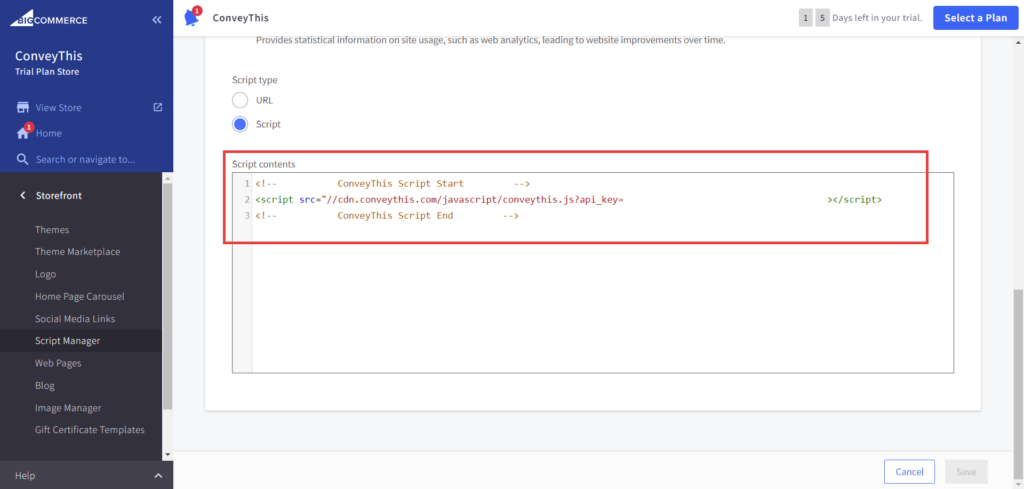
Go to your BigCommerce dashboard > “Script Manager” menu and click on the blue “Create a Script” button:
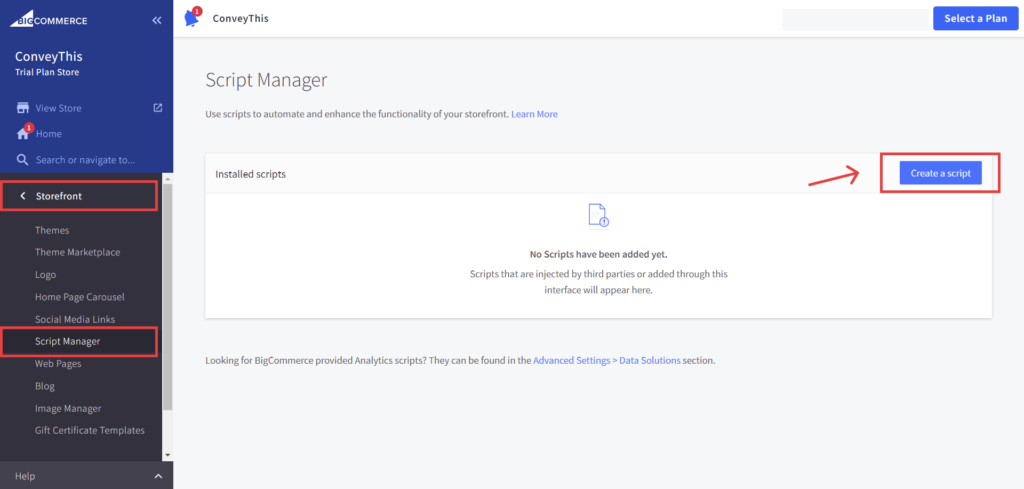
Enter whatever “Name of script” and “Description” you want, and fill up the remaining fields as follows:
- “Location on page” = “Cabeza“
- “Select pages where script will be added” = “Todas las páginas“
- “Script category” = “Essential“
- “Script type” = “Script“
- “Script contents” = Here you only paste the code snippet’s
<script>two parts as you can see in the screenshot below (you will add the hreflang links elsewhere in the next step)
Click on the blue ” Guardar” button:
4) ¡Ya terminaste!
Eso es todo. Vaya a su sitio web y vea el botón de cambio de idioma en la parte inferior derecha. Puede que tarde unos minutos en aparecer, así que no te preocupes si debes esperar un poco.
Intente cambiar el idioma cuando aparezca el selector de idioma–y, como por arte de magia, ¡su sitio web es multilingüe! Ahora puedes ir a tu panel ConveyThis para administrar todas tus traducciones.
¡Felicitaciones, ahora puedes comenzar a traducir tu sitio web!