
Traduce tus correos electrónicos de pago y pedido Shopify
Sin datos de tarjeta
Sin compromiso













;fill-opacity:1;'%20d='M%2019.511719%2039.964844%20C%208.304688%2039.964844%200%2031.289062%200%2020.324219%20L%200%2020.230469%20C%200%209.363281%208.160156%200.46875%2019.847656%200.46875%20C%2027.023438%200.46875%2031.320312%202.878906%2034.847656%206.375%20L%2029.519531%2012.492188%20C%2026.59375%209.820312%2023.59375%208.179688%2019.800781%208.179688%20C%2013.390625%208.179688%208.761719%2013.53125%208.761719%2020.085938%20L%208.761719%2020.203125%20C%208.761719%2026.757812%2013.273438%2032.203125%2019.800781%2032.203125%20C%2024.144531%2032.203125%2026.808594%2030.46875%2029.808594%2027.722656%20L%2035.136719%2033.121094%20C%2031.199219%2037.335938%2026.855469%2039.964844%2019.511719%2039.964844%20'/%3e%3cpath%20style='%20stroke:none;fill-rule:nonzero;fill:rgb(26.274511%25,42.352942%25,94.901961%25);fill-opacity:1;'%20d='M%2035.878906%200.0351562%20L%2044.136719%200.0351562%20L%2044.136719%2039.867188%20L%2035.878906%2039.867188%20Z%20M%2035.878906%200.0351562%20'/%3e%3cpath%20style='%20stroke:none;fill-rule:nonzero;fill:rgb(26.274511%25,42.352942%25,94.901961%25);fill-opacity:1;'%20d='M%2059.472656%2016.15625%20C%2056.039062%2016.15625%2053.808594%2018.613281%2053.160156%2022.375%20L%2065.617188%2022.375%20C%2065.113281%2018.664062%2062.953125%2016.15625%2059.472656%2016.15625%20M%2073.535156%2027.578125%20L%2053.28125%2027.578125%20C%2054.097656%2031.335938%2056.710938%2033.3125%2060.40625%2033.3125%20C%2063.191406%2033.3125%2065.183594%2032.445312%2067.464844%2030.300781%20L%2072.191406%2034.492188%20C%2069.480469%2037.867188%2065.566406%2039.941406%2060.289062%2039.941406%20C%2051.527344%2039.941406%2045.070312%2033.769531%2045.070312%2024.832031%20L%2045.070312%2024.710938%20C%2045.070312%2016.347656%2051%209.480469%2059.472656%209.480469%20C%2069.191406%209.480469%2073.65625%2017.074219%2073.65625%2025.363281%20L%2073.65625%2025.457031%20C%2073.65625%2026.300781%2073.609375%2026.808594%2073.535156%2027.578125%20'/%3e%3cpath%20style='%20stroke:none;fill-rule:nonzero;fill:rgb(26.274511%25,42.352942%25,94.901961%25);fill-opacity:1;'%20d='M%2089.375%2039.796875%20L%2081.863281%2039.796875%20L%2070.390625%2010.324219%20L%2079.152344%2010.324219%20L%2085.679688%2029.914062%20L%2092.257812%2010.324219%20L%20100.847656%2010.324219%20Z%20M%2089.375%2039.796875%20'/%3e%3cpath%20style='%20stroke:none;fill-rule:nonzero;fill:rgb(26.274511%25,42.352942%25,94.901961%25);fill-opacity:1;'%20d='M%20111.550781%2016.15625%20C%20108.121094%2016.15625%20105.886719%2018.613281%20105.238281%2022.375%20L%20117.695312%2022.375%20C%20117.191406%2018.664062%20115.03125%2016.15625%20111.550781%2016.15625%20M%20125.617188%2027.578125%20L%20105.359375%2027.578125%20C%20106.175781%2031.335938%20108.792969%2033.3125%20112.488281%2033.3125%20C%20115.246094%2033.3125%20117.265625%2032.445312%20119.542969%2030.300781%20L%20124.273438%2034.492188%20C%20121.558594%2037.867188%20117.648438%2039.941406%20112.367188%2039.941406%20C%20103.609375%2039.941406%2097.152344%2033.769531%2097.152344%2024.832031%20L%2097.152344%2024.710938%20C%2097.152344%2016.347656%20103.078125%209.480469%20111.550781%209.480469%20C%20121.273438%209.480469%20125.734375%2017.074219%20125.734375%2025.363281%20L%20125.734375%2025.457031%20C%20125.734375%2026.300781%20125.6875%2026.808594%20125.617188%2027.578125%20'/%3e%3cpath%20style='%20stroke:none;fill-rule:nonzero;fill:rgb(26.274511%25,42.352942%25,94.901961%25);fill-opacity:1;'%20d='M%20143.566406%2018.757812%20C%20138.070312%2018.757812%20134.710938%2022.085938%20134.710938%2029.074219%20L%20134.710938%2039.867188%20L%20126.457031%2039.867188%20L%20126.457031%2010.613281%20L%20134.710938%2010.613281%20L%20134.710938%2016.519531%20C%20136.390625%2012.46875%20139.128906%209.867188%20144%2010.085938%20L%20144%2018.757812%20Z%20M%20143.566406%2018.757812%20'/%3e%3c/g%3e%3c/svg%3e)




;fill-opacity:1;'%20d='M%20144.558594%2039.894531%20L%20155.4375%209.839844%20C%20155.4375%209.839844%20147.28125%209.839844%20139.121094%2011.515625%20L%20128.867188%2039.894531%20Z%20M%20142.675781%201.78125%20L%20140.585938%207.539062%20C%20148.738281%205.863281%20156.902344%205.863281%20156.902344%205.863281%20L%20158.992188%200.105469%20C%20158.992188%200.105469%20150.832031%200.105469%20142.675781%201.78125%20M%2085.980469%2032.773438%20C%2090.898438%2033.71875%2095.914062%2034.136719%20101.039062%2034.136719%20C%20106.375%2034.136719%20110.140625%2032.984375%20110.554688%2029.320312%20C%20110.765625%2027.640625%20109.089844%2026.382812%20106.167969%2024.707031%20C%20102.816406%2022.824219%2099.894531%2021.878906%2096.960938%2019.886719%20C%2094.03125%2017.898438%2092.78125%2014.859375%2093.71875%2011.507812%20C%2094.871094%207.636719%2097.585938%205.4375%20101.664062%203.34375%20C%20106.480469%200.9375%20110.242188%20-0.0078125%20119.550781%20-0.0078125%20C%20125.40625%20-0.0078125%20131.054688%200.515625%20136.597656%201.667969%20L%20134.609375%207.113281%20C%20129.691406%206.167969%20124.675781%205.75%20119.550781%205.75%20C%20114.214844%205.75%20110.453125%206.90625%20110.035156%2010.570312%20C%20109.828125%2012.246094%20111.5%2013.503906%20114.425781%2015.179688%20C%20117.773438%2017.066406%20120.695312%2018.011719%20123.628906%2020%20C%20126.558594%2021.988281%20127.808594%2025.027344%20126.871094%2028.378906%20C%20125.71875%2032.253906%20123.003906%2034.449219%20118.925781%2036.542969%20C%20114.113281%2038.949219%20110.347656%2039.894531%20101.039062%2039.894531%20C%2095.183594%2039.894531%2089.535156%2039.375%2083.992188%2038.21875%20Z%20M%2062.34375%2039.894531%20L%2071.441406%2014.867188%20C%2074.476562%206.488281%2063.390625%209.527344%2060.875%2011.515625%20C%2058.890625%2012.984375%2055.332031%2016.441406%2054.078125%2020.105469%20L%2046.859375%2040%20L%2031.175781%2040%20L%2040.273438%2014.867188%20C%2043.308594%206.488281%2032.222656%209.527344%2029.710938%2011.515625%20C%2027.722656%2012.984375%2024.167969%2016.441406%2022.910156%2020.105469%20L%2015.691406%2040%20L%200.0078125%2040%20L%2014.441406%200.105469%20C%2019.464844%200.105469%2022.179688%201.257812%2024.375%203.457031%20C%2025.207031%204.289062%2025.734375%205.339844%2026.046875%206.496094%20C%2028.980469%204.714844%2031.589844%203.351562%2033.371094%202.726562%20C%2036.613281%201.46875%2040.691406%200.105469%2045.714844%200.105469%20C%2050.734375%200.105469%2053.453125%201.257812%2055.644531%203.457031%20C%2056.480469%204.289062%2057.007812%205.339844%2057.320312%206.496094%20C%2060.25%204.714844%2062.863281%203.351562%2064.640625%202.726562%20C%2067.886719%201.46875%2071.964844%200.113281%2076.984375%200.113281%20C%2082.007812%200.113281%2084.722656%201.265625%2086.917969%203.464844%20C%2089.21875%205.660156%2089.113281%209.742188%2088.28125%2012.050781%20L%2078.027344%2039.902344%20L%2062.34375%2039.902344%20Z%20M%2062.34375%2039.894531%20'/%3e%3c/g%3e%3c/svg%3e)

;fill-opacity:1;'%20d='M%202.453125%209.882812%20L%202.453125%2012.851562%20L%207.304688%2012.851562%20L%2016.800781%2030.734375%20L%2028.488281%2030.734375%20L%2037.980469%2012.824219%20L%2042.832031%2012.792969%20L%2042.84375%209.882812%20L%2028.328125%209.882812%20L%2028.328125%2012.804688%20L%2032.195312%2012.804688%20L%2025.488281%2025.515625%20L%2018.234375%2012.847656%20L%2023.527344%2012.824219%20L%2023.515625%209.882812%20Z%20M%2096.097656%209.882812%20L%2096.097656%2012.851562%20L%20100.949219%2012.851562%20L%20110.445312%2030.734375%20L%20122.128906%2030.734375%20L%20131.625%2012.824219%20L%20136.476562%2012.792969%20L%20136.484375%209.882812%20L%20121.972656%209.882812%20L%20121.972656%2012.804688%20L%20125.835938%2012.804688%20L%20119.132812%2025.515625%20L%20111.878906%2012.847656%20L%20117.167969%2012.824219%20L%20117.160156%209.882812%20Z%20M%2072.222656%209.882812%20L%2072.222656%2012.851562%20L%2077.078125%2012.851562%20L%2077.082031%2027.453125%20L%2071.96875%2027.453125%20L%2071.96875%2030.707031%20L%2077.085938%2030.734375%20L%20101.3125%2030.734375%20L%20101.3125%2021.027344%20L%2098.15625%2021.027344%20C%2097.984375%2026.167969%2093.542969%2027.457031%2091.675781%2027.457031%20C%2089.960938%2027.457031%2086.640625%2027.453125%2086.640625%2027.453125%20L%2086.640625%2012.847656%20L%2091.417969%2012.824219%20L%2091.410156%209.882812%20Z%20M%2055.890625%209.285156%20C%2047.644531%209.285156%2040.960938%2014.214844%2040.960938%2020.292969%20C%2040.960938%2026.375%2047.644531%2031.304688%2055.890625%2031.304688%20C%2064.136719%2031.304688%2070.824219%2026.375%2070.824219%2020.292969%20C%2070.824219%2014.214844%2064.136719%209.285156%2055.890625%209.285156%20Z%20M%2055.675781%2028.0625%20C%2052.769531%2028.0625%2050.414062%2024.566406%2050.414062%2020.25%20C%2050.414062%2015.933594%2052.769531%2012.4375%2055.675781%2012.4375%20C%2058.582031%2012.4375%2060.941406%2015.933594%2060.941406%2020.25%20C%2060.941406%2024.566406%2058.582031%2028.0625%2055.675781%2028.0625%20Z%20M%20149.539062%208.921875%20C%20141.289062%208.921875%20134.605469%2013.933594%20134.605469%2020.113281%20C%20134.605469%2026.292969%20141.289062%2031.300781%20149.539062%2031.300781%20C%20157.78125%2031.300781%20164.46875%2026.292969%20164.46875%2020.113281%20C%20164.46875%2013.933594%20157.78125%208.921875%20149.539062%208.921875%20Z%20M%20149.324219%2028.007812%20C%20146.417969%2028.007812%20144.0625%2024.453125%20144.0625%2020.066406%20C%20144.0625%2015.679688%20146.417969%2012.125%20149.324219%2012.125%20C%20152.230469%2012.125%20154.585938%2015.679688%20154.585938%2020.066406%20C%20154.585938%2024.453125%20152.230469%2028.007812%20149.324219%2028.007812%20Z%20M%20149.324219%2028.007812%20'/%3e%3c/g%3e%3c/svg%3e)






Shopify Funciones del complemento de traducción Translate Checkout
- Detección de contenido
- Memoria de traducción
- Edición visual
- Exportación e importación
- Exclusiones
Cómo funciona la traducción de pago con ConveyThis en Shopify
Shopify sirve para realizar el pago desde sus propias páginas seguras, por lo que la aplicación ConveyThis no lo reescribe de la misma manera que reescribe su tienda. En su lugar, agrega los mismos idiomas dentro de Shopify, revisa el texto en la pestaña Pago y sistema y publícalos. Un comprador que navegó por su tienda en francés luego paga en francés.
Los correos electrónicos de notificación son la otra pieza que vive fuera de la tienda. Los correos electrónicos de pedidos pueden cambiar de idioma a través de Liquid case bloque que lee el attributes.lang El valor se guarda con cada pedido y los correos electrónicos de la cuenta pueden seguir una etiqueta de idioma ConveyThis que se agrega al registro del cliente. Cada plantilla se configura una vez, en Configuración → Notificaciones.
Cómo traducir el pago Shopify
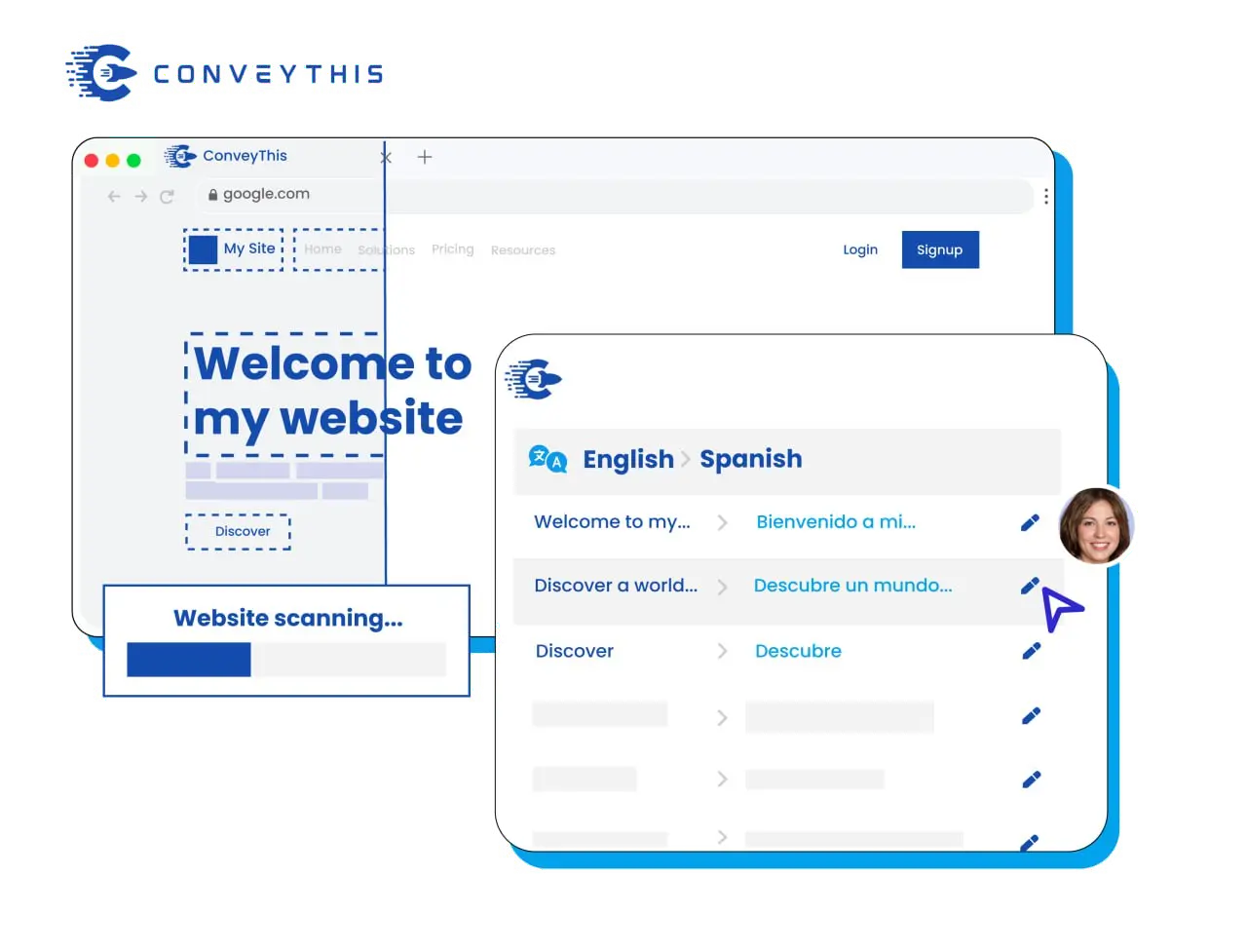
Escaparate de ConveyThis, páginas de pago de Shopify
ConveyThis traduce la tienda: productos, colecciones, el carrito, el texto del tema y el texto agregado por otras aplicaciones. Shopify representa el pago en sus propias páginas seguras y toma esa redacción de los idiomas que agrega y publica en su administrador Shopify. La configuración de ambos ofrece a los compradores un idioma desde la página del producto hasta el paso de pago.
Configúrelo una vez para cada idioma
Agregue el idioma en Configuración → Idiomas, ingrese el texto de pago en la pestaña Pago y sistema del editor de contenido del tema y publique. A partir de ese momento, un cliente que haya navegado por su tienda en alemán también verá los pasos de entrega, pago y confirmación en alemán.
Shopify URL de idiomas para su tienda
Subdominios en lugar de carpetas
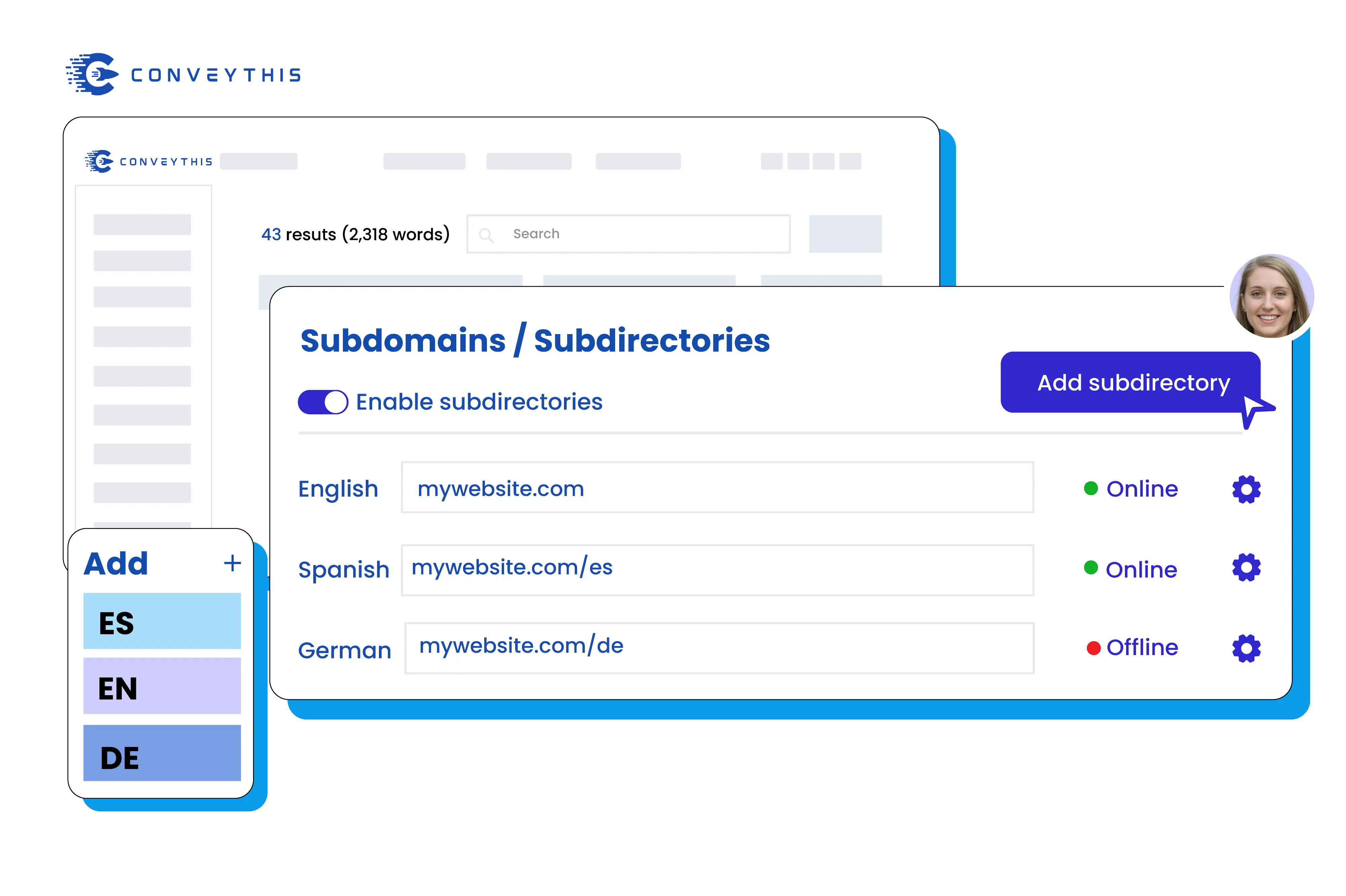
Una tienda Shopify no se puede servir a través de un proxy basado en ruta, por lo que ConveyThis ofrece subdominios de idioma como fr.yourstore.com en lugar de carpetas /fr/: un registro CNAME por idioma, en el plan de negocios o superior. Cada página de tienda traducida recibe etiquetas hreflang más un título traducido y una meta descripción, mientras que el pago en sí permanece con Shopify.
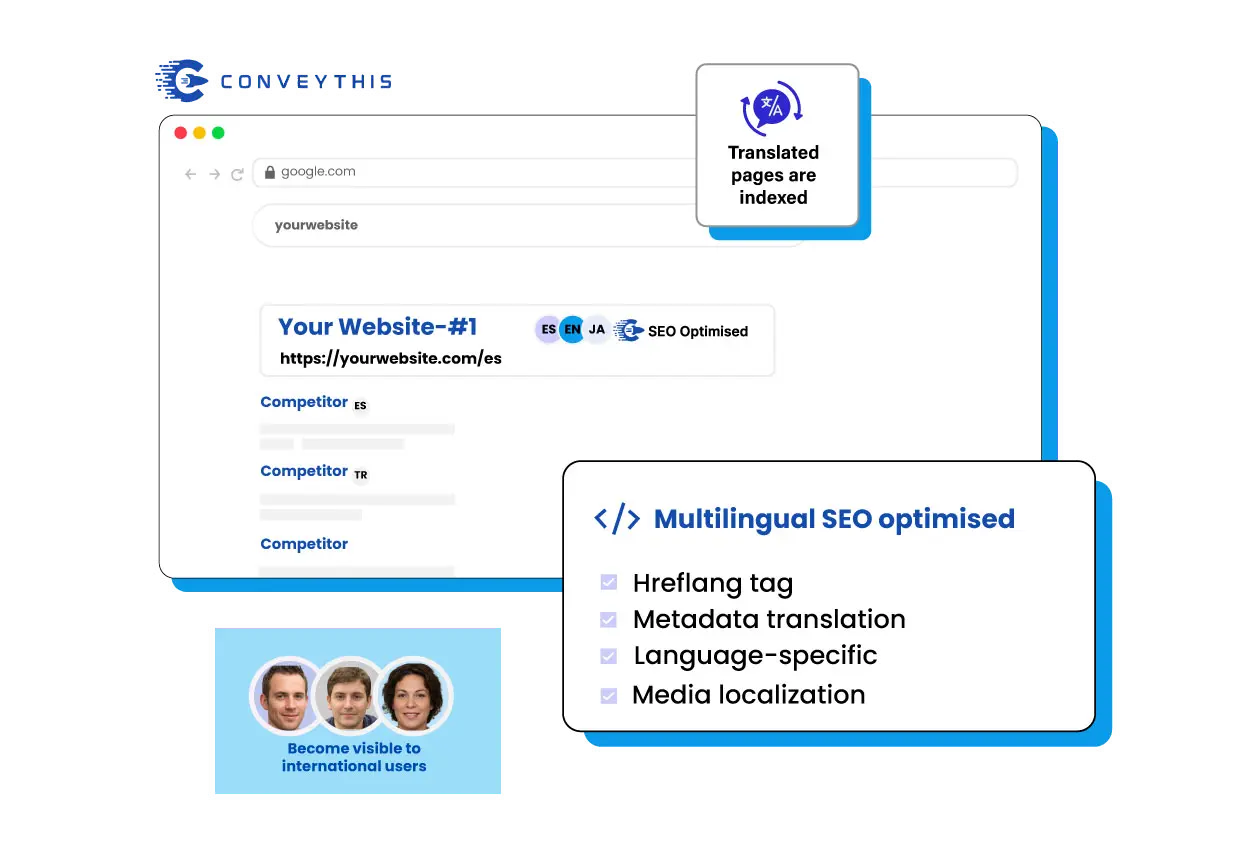
Comprueba la redacción que controlas
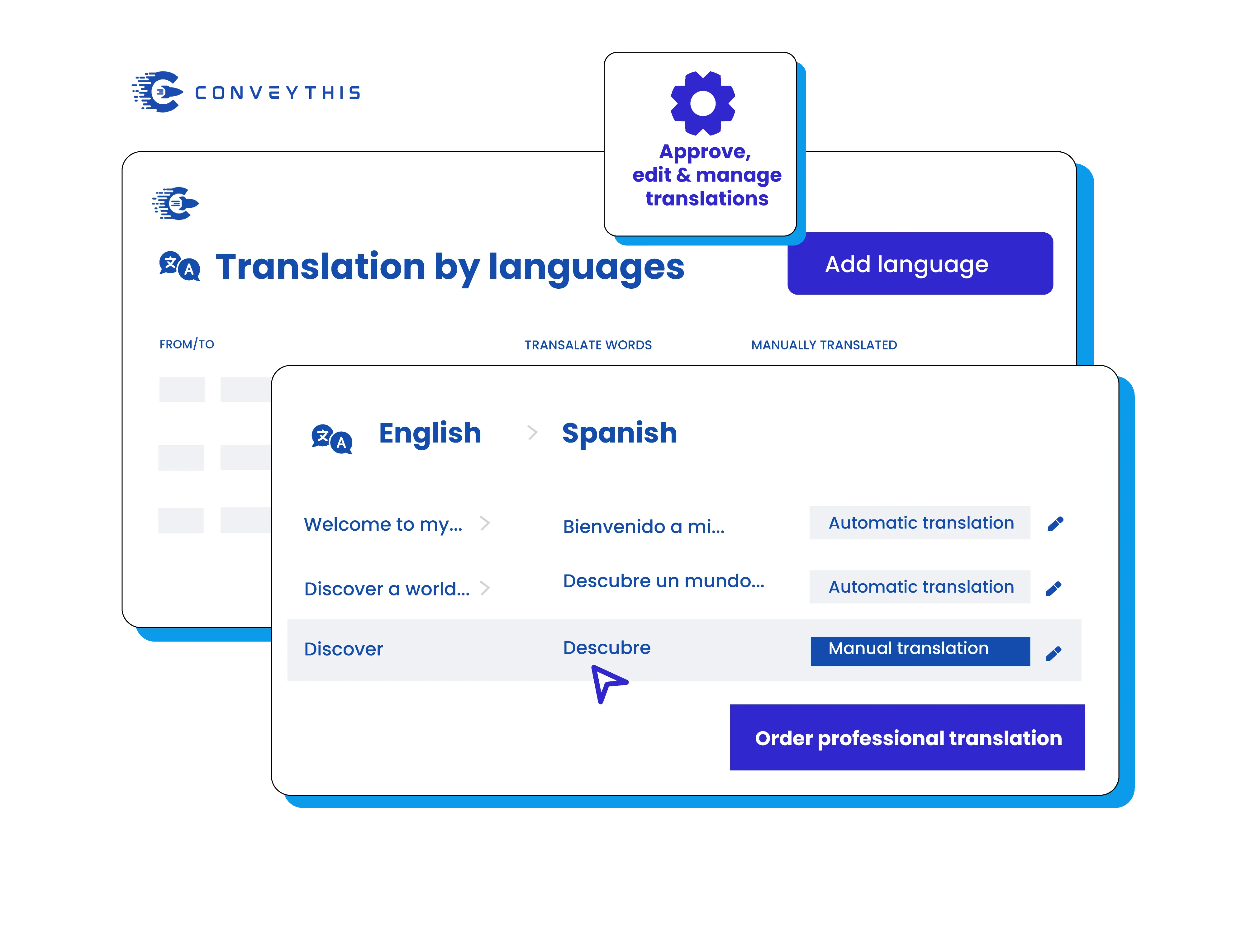
Sobrescribe cualquier línea de pago
Las notas de envío, las etiquetas de los botones, los mensajes de error y los enlaces de políticas en la pestaña Pago y sistema se pueden reescribir por idioma, de modo que el último paso de la compra mantenga el tono de las páginas de productos traducidas en lugar de recurrir a la redacción estándar.
Después de los correos electrónicos de pedido en el idioma del comprador
Notificaciones de pedidos y envíos
Shopify envía correos electrónicos de notificación él mismo, fuera de su tienda. Nuestra guía de correo electrónico le brinda un breve bloque líquido para cada plantilla en Configuración → Notificaciones, por lo que la confirmación se envía en el idioma en el que se realizó el pedido.
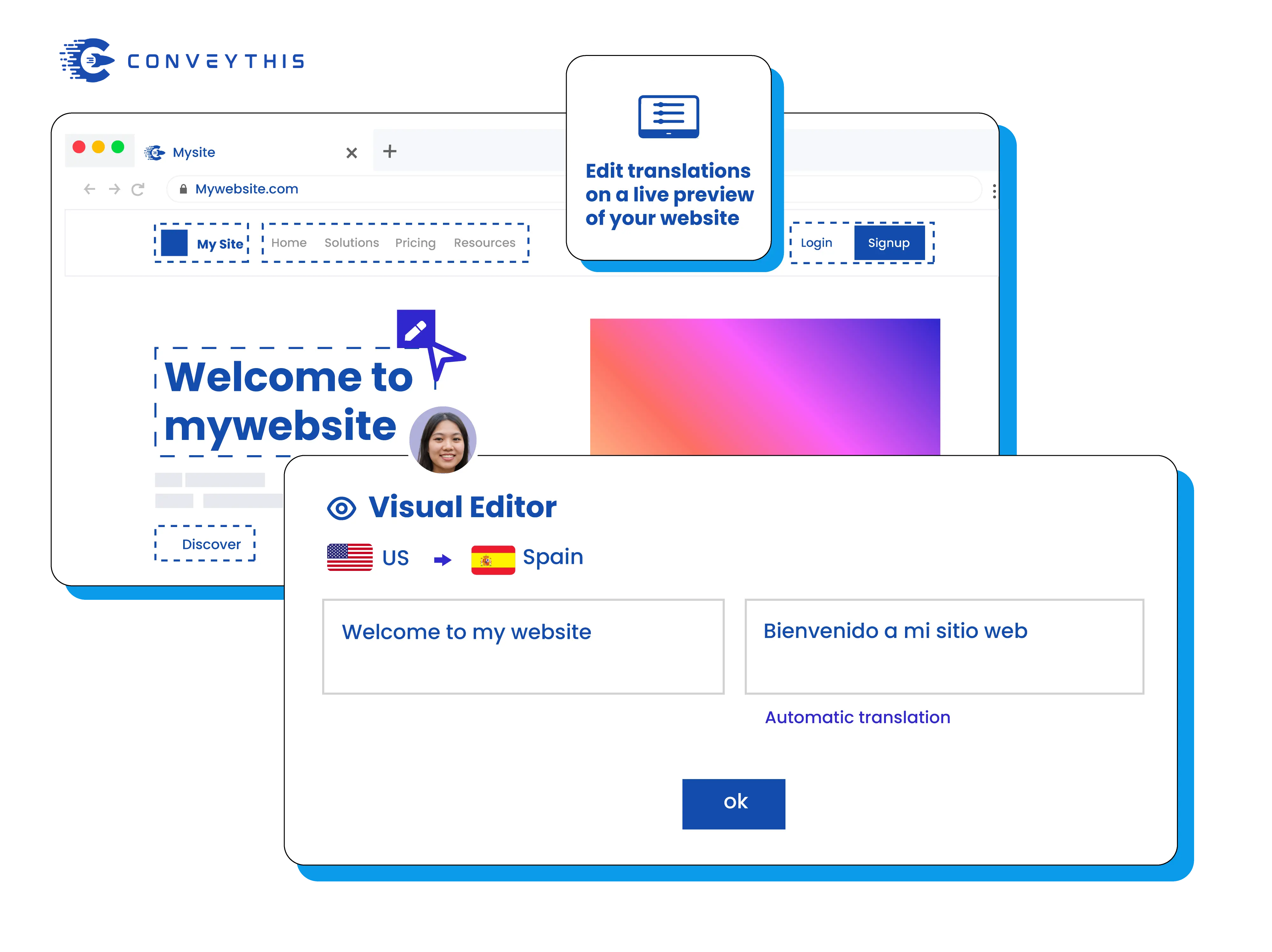
Antes de iniciar, pruebe cada idioma
Un orden de prueba por idioma
Recorre el carrito, cada paso de pago, la página de agradecimiento y el correo electrónico de confirmación en cada idioma que publiques. Si aparece un segundo selector de idioma en una página, oculte el nuestro allí con la configuración de exclusión para que los compradores vean solo uno.
Gestione fácilmente toda la ruta de compra
Escena
Traducido automáticamente por la aplicación ConveyThis, incluyendo nuevos productos a medida que los agregas y editable en el editor visual.
Checkout
Servido por Shopify desde los idiomas que publicas en Configuración → Idiomas, con palabras que puedes cambiar en la pestaña Pago y sistema.
Notificaciones
Enviado en el idioma del pedido una vez que cada plantilla de correo electrónico tenga el bloque Liquid de nuestra guía.
Por qué elegir ConveyThis para Shopify Traducir pago
Un solo panel
Administre cadenas, medios, SEO y contenido de aplicaciones en un solo espacio de trabajo.
Glosario y reglas
Bloquee los términos de marca y los nombres de productos para mantener la coherencia de las traducciones.
SEO multilingüe
Hreflang automático, metadatos localizados y URL limpias específicas del idioma.
Editor visual
Traducir en contexto — editar directamente en la página y obtener una vista previa por configuración regional.
Traducción automática
Comience rápidamente con traducciones automáticas, perfeccione las reglas y los recuerdos de la marca.
Estructura del sitio multilingüe
Los idiomas de Storefront viven en subdominios (Shopify no tiene carpetas /fr/); el pago sigue a Shopify.
Redirección automática de visitantes
Opcionalmente, dirija a los visitantes al idioma de su navegador para reducir el rebote.
Aprenda cómo empezar
Traduce el checkout Shopify en cuatro pasos.
Configure la traducción de pago para su tienda Shopify:
Traduce la fachada de la tienda primero
Agregue los idiomas en Shopify
Complete el texto de pago
Publicar y comprobar
Shopify pago y traducción por correo electrónico: preguntas comunes
¿Por qué el proceso de pago necesita su propio paso de configuración?
¿Qué idiomas debo agregar en Shopify?
¿Puedo cambiar la forma en que está redactada una etiqueta o botón de pago?
Después de agregar idiomas en Shopify, mi tienda muestra dos conmutadores de idiomas. ¿y ahora qué?
¿Pueden los correos electrónicos de bienvenida y de cuenta seguir también el idioma del comprador?
customer_tag: true al código ConveyThis en ConveyThis_switcher.liquid (Tienda en línea → Temas → Editar código), y ConveyThis etiqueta a cada cliente con el idioma en el que se registró. Luego, un bloque líquido en la notificación del cliente selecciona el texto coincidente. El método de envío de pedidos por correo electrónico no cubre la alerta de creación de tarjetas de regalo. Shopify también ofrece un botón Localizar en Configuración → Notificaciones a través de su aplicación Traducir y adaptar. Copie el código de nuestro Guía de notificaciones por correo electrónico.¿Tienes alguna otra pregunta?
Comuníquese con nuestro equipo de soporte dedicado — estamos aquí para ayudarlo, en varios idiomas