
What does each setting in the WordPress plugin do?
All settings of the ConveyThis plugin are on one page in your WordPress admin: click ConveyThis in the left menu. The page has eight tabs. This article goes through them in order and says what each option does and when to use it. After a change on any tab, click Save settings.
If you haven’t installed the plugin yet, start with How do I add ConveyThis to WordPress?
Main configuration
- Edit translations opens your ConveyThis dashboard, where you edit the translations themselves. See How do I edit my translations?
- Api Key connects the plugin to your ConveyThis account. You find the key on your dashboard under Public API key.
- Source Language is the language your website is written in.
- Target Languages are the languages you translate into. On the Free plan you can choose one.
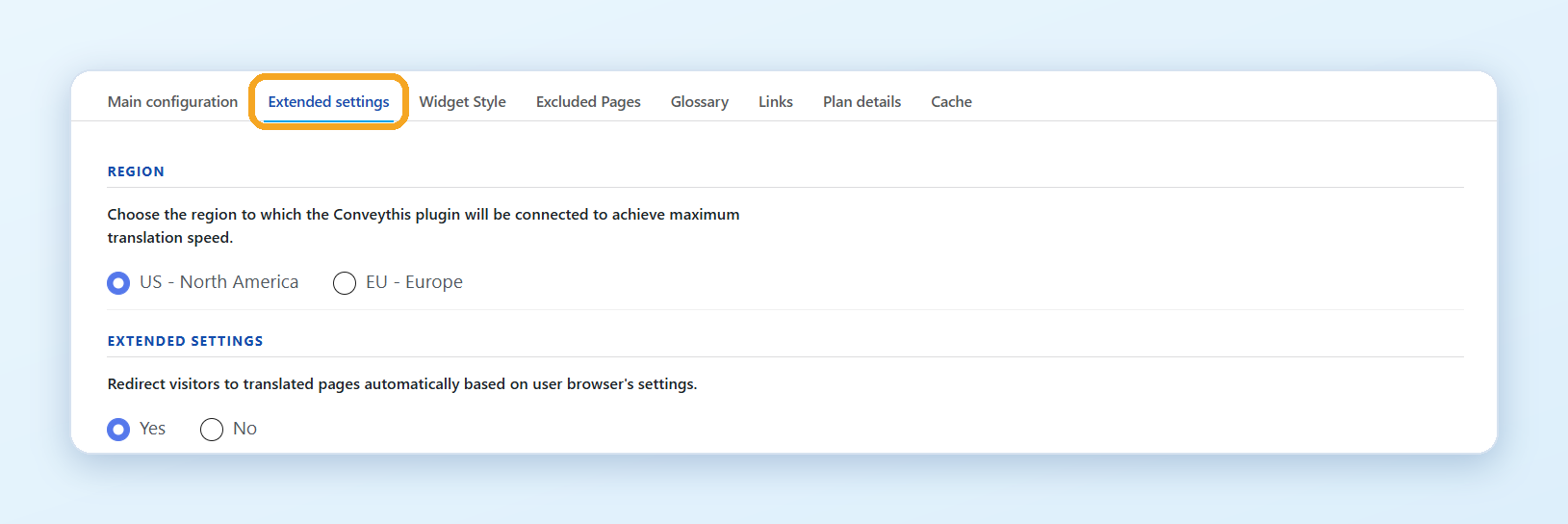
Extended settings
Region. The ConveyThis server the plugin talks to: US - North America or EU - Europe. Pick the one closer to your hosting for faster translation.
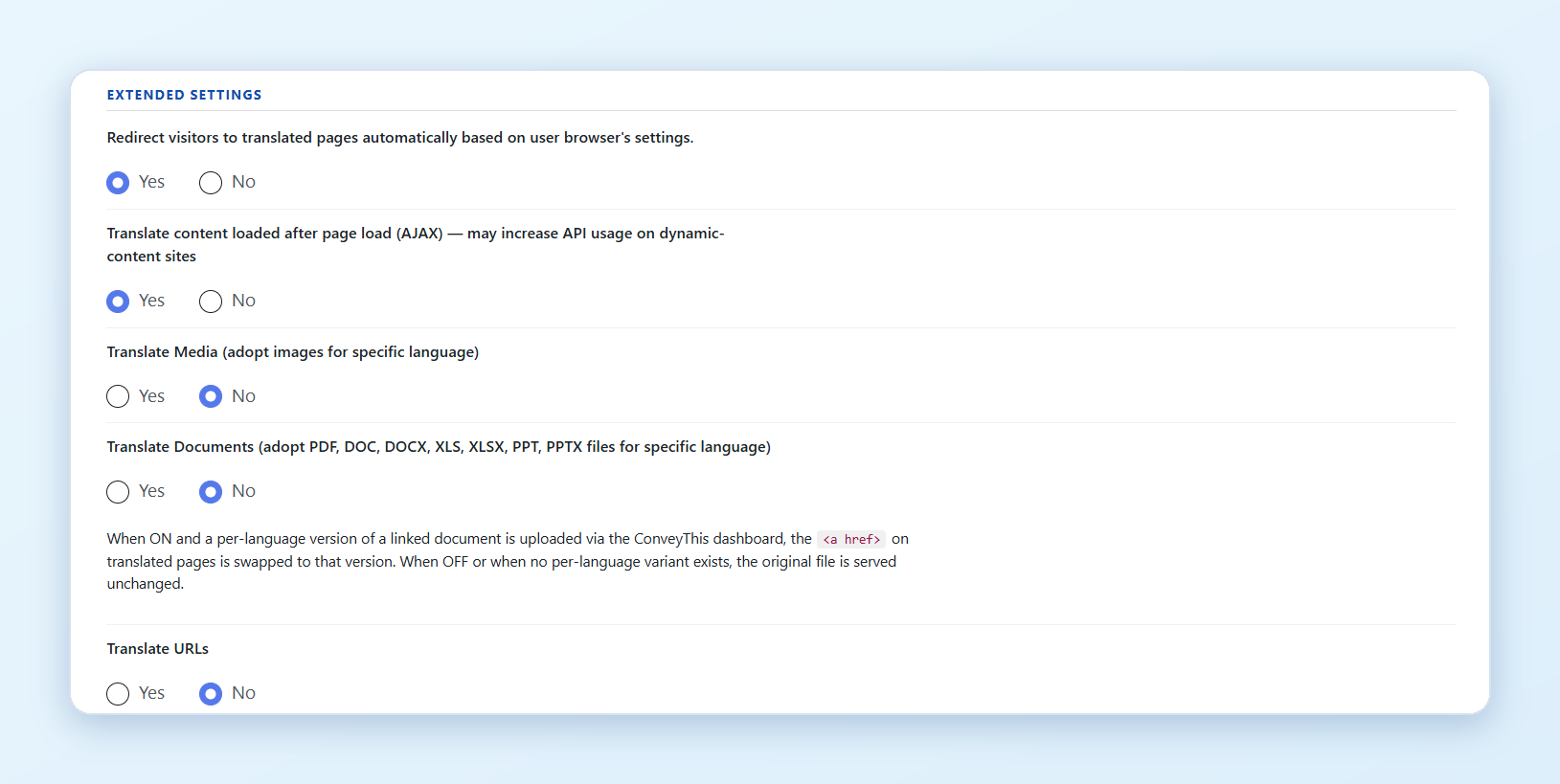
Redirect visitors to translated pages automatically based on user browser’s settings. On the first visit, a visitor whose browser is set to one of your languages lands on that language. Not available on the Free and Starter plans. See How can I automatically redirect my visitors to their own language?
Translate content loaded after page load (AJAX). Turn it on if parts of your pages appear after the page has loaded: pop-ups, product filters, “load more” lists. It can increase the number of translation requests on very dynamic pages.
Translate Media. Lets you show a different image in each language, for example a banner with text. Turn it on, then replace the image in the Visual Editor. See How do I show different images and videos in each language?
Translate Documents. Lets you link to a different PDF, Word, Excel or PowerPoint file in each language. ConveyThis doesn’t translate the file itself: you upload the translated file and replace the link in the Text Editor. See How do I show a different PDF in each language?
Translate URLs. Translates the page names in your addresses: example.com/es/about-us becomes example.com/es/sobre-nosotros. This is a beta feature. It may not work on pages with non-Latin addresses (Cyrillic, Arabic, Chinese, Japanese) or on some custom post types. After you turn it on, check your translated pages and ask Google Search Console to crawl your website again. The Links tab (below) gives you finer control. See Customize your URLs.
Allow to change text direction from left to right and vice versa. Turn it on when you translate into a right-to-left language, such as Arabic or Hebrew. See How do I show right-to-left languages correctly?.
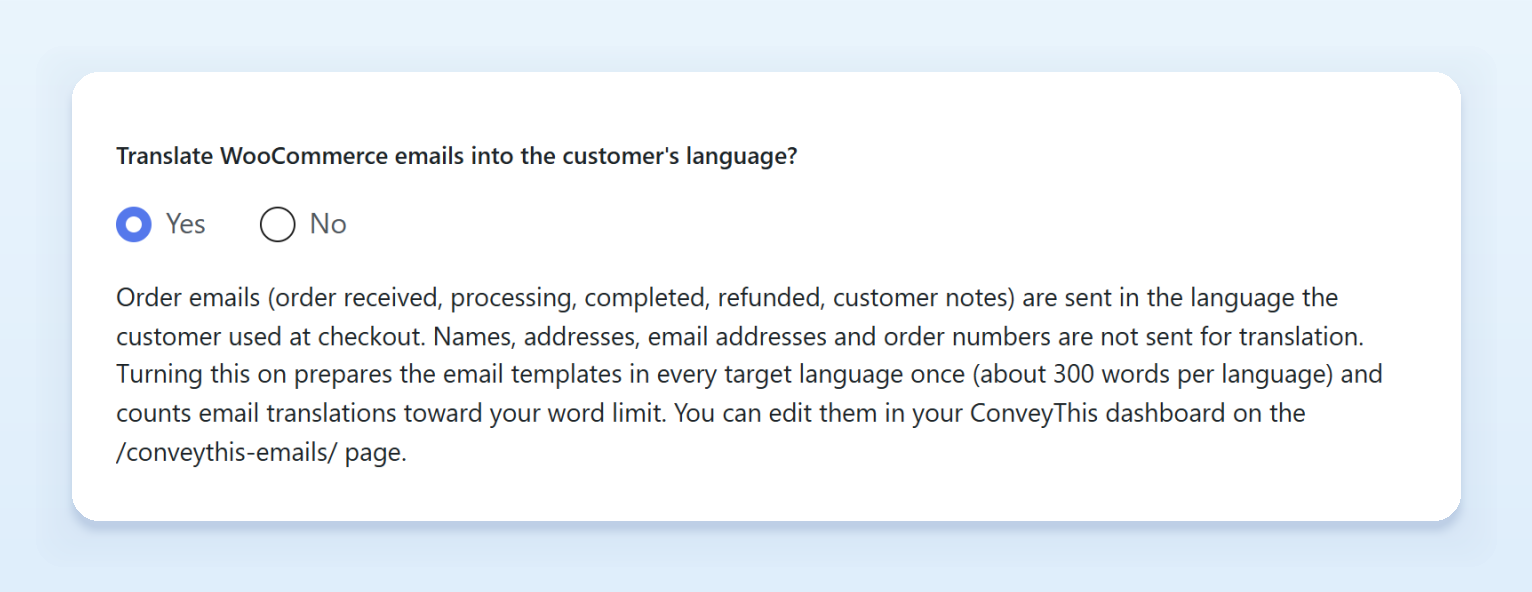
Translate WooCommerce emails into the customer’s language? Shown only when WooCommerce is active, and off by default. When it’s on, order emails to your customers (order received, on hold, processing, completed, refunded, invoice and customer notes) are sent in the language they used at checkout. Emails to you stay in your default language. Turning it on prepares the email templates in each of your languages once, which uses about 300 words per language. Names, addresses, contact details and order numbers are never sent for translation. You can edit the email translations in your dashboard, on the /conveythis-emails/ page. The line under the setting shows how the last email went.
Add trailing slash for links. Whether translated addresses end with a slash (/es/about/) or not (/es/about). Search engines treat these as two different addresses, so pick one style and keep it:
- Auto follows your WordPress permalink structure. This is the right choice for most websites.
- Always remove or Always add the slash.
- Custom (from sitemap) uses your sitemap to decide per address. Set it up on the Links tab.
Url Structure. How the addresses of translated pages look:
- Sub-directory (
example.com/es/) is the default. It needs no DNS changes. - Sub-domain (
es.example.com) needs one CNAME record per language pointing todns2.conveythis.com. The plugin shows the records and has a Test DNS connection button. See Sub-domain or sub-directory and How to add CNAME records in DNS manager?.
Default Target Language (Optional). The translated language you focus on most. Leave No value if all your languages matter equally.
SEO.
- Hreflang tags: adds hreflang tags to all pages, so that search engines know which address belongs to which language. Keep it on.
- Translate Structured Data (JSON-LD): translates the text fields in your structured data (headline, description, FAQ answers, name) and protects the parts that must not change (addresses, IDs, prices, dates). If a translated block isn’t valid JSON, the original is served instead. Check a translated page with Google’s Rich Results Test after you turn it on.
- SEO Translation Quality: Brand name protection keeps your brand untranslated in meta tags and structured data (the plugin fills it from your site title). Additional terms to preserve is a list of other words that must stay as they are. Enforce length limits trims translated meta descriptions to the lengths Google shows. JSON-LD post-translation validation falls back to the original block when the translation isn’t valid. Status shows how often these rules fired in the last 24 hours.
Widget Style
How the language switcher looks on your website.
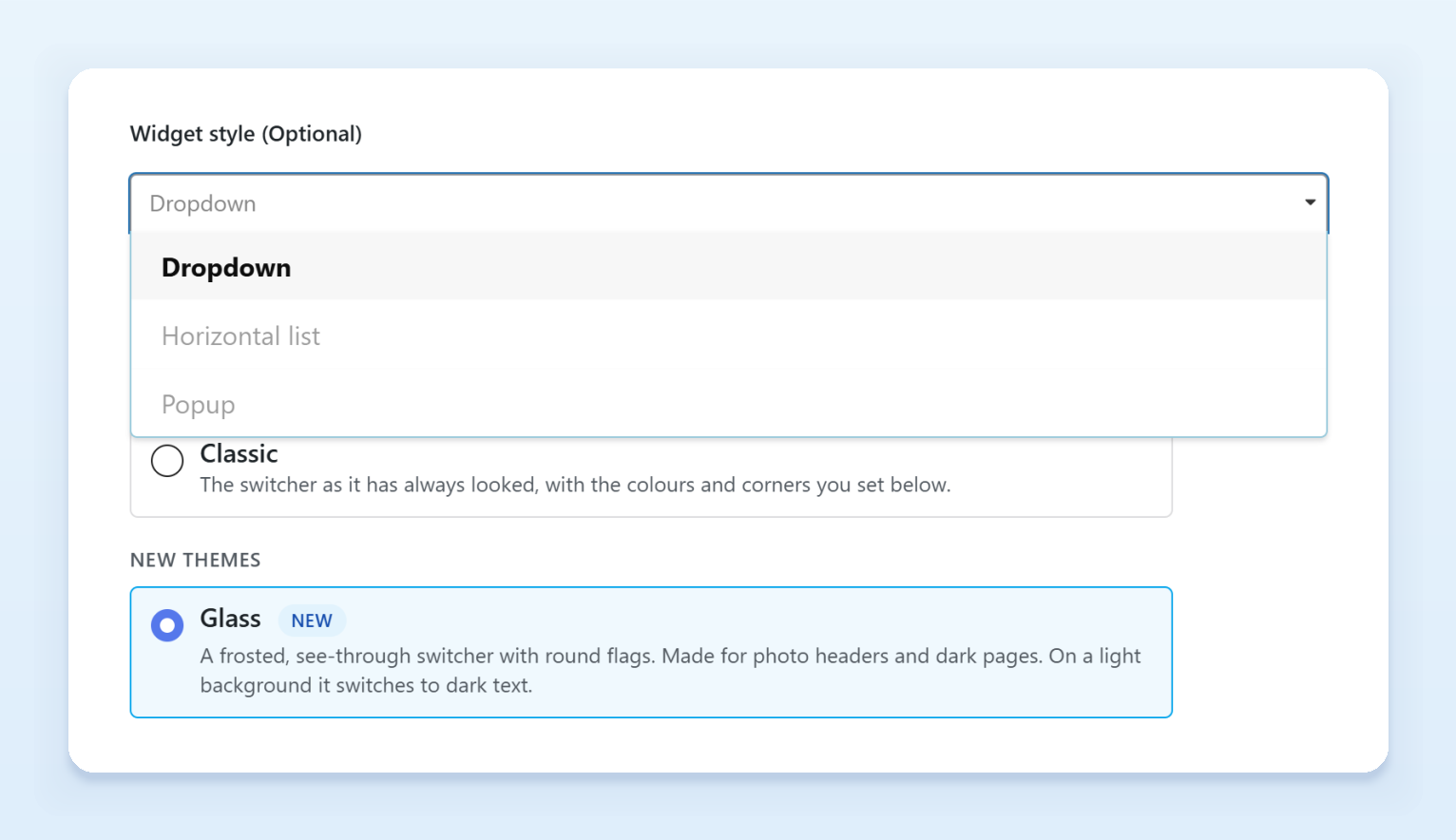
- Widget style: the switcher layout, Dropdown, Horizontal list or Popup.
- Switcher theme: a ready-made look for the Dropdown style. Classic (the switcher with the colours and corners you set below), Glass (frosted, see-through, for photo headers and dark pages), Bubble (a small round button, languages pop up as chips, good at the bottom of the page), Neon (glowing outlines, for dark bold sites) or Auto (a clean card that turns dark on dark pages). A theme sets its own colours and corners. While one is picked, the other widget styles aren’t available: choose Classic to use them.
- Picture: flag shape, Rectangle, Square, Circle or Without. See How do I change the flag for a language?.
- Text: how the language name is shown, full name in English, full name in the native language, short code or no text. Keep at least a flag or a text.
- Change flag: use a different flag for a language, for example the Brazilian flag for Portuguese.
- Color Style: background, hover, border and text colours of the widget.
- Hide ConveyThis logo: removes the logo from the switcher. Not available on the Free plan.
- Corner type: Circle or Rectangle.
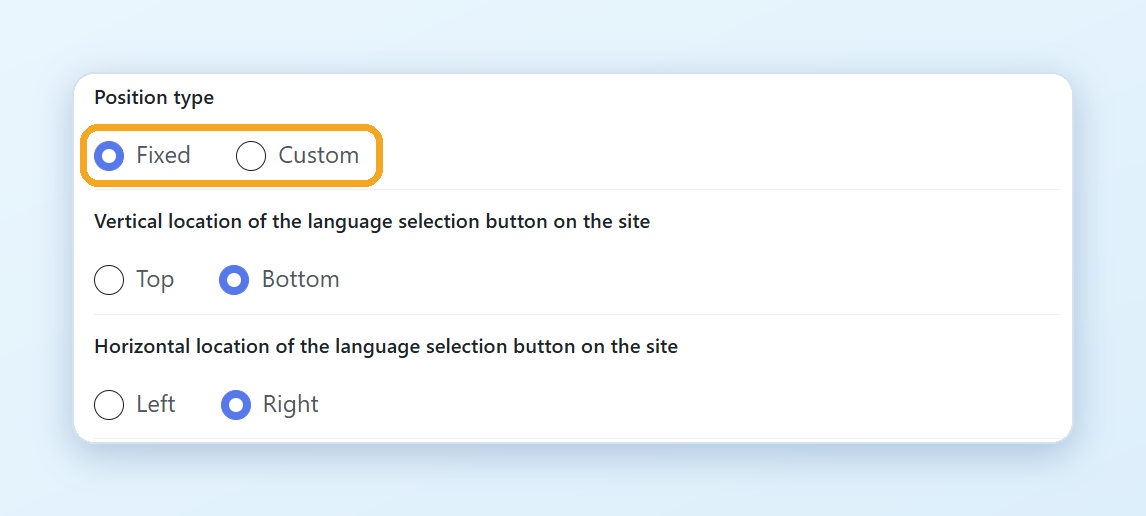
- Position type: Fixed puts the switcher in a corner (Top or Bottom, Left or Right, with Indenting to move it away from the edge). Custom puts it inside an element of your page: enter the element’s id and choose which way the menu opens. See Change the switcher position.
- Custom CSS: your own styles for the switcher. The tab lists the class names you can target, such as
#conveythis-wrapperand.conveythis-widget-language. Check CSS validates the code before you save.
Excluded Pages
Pages and parts of pages that stay in the original language. Not available on the Free plan.
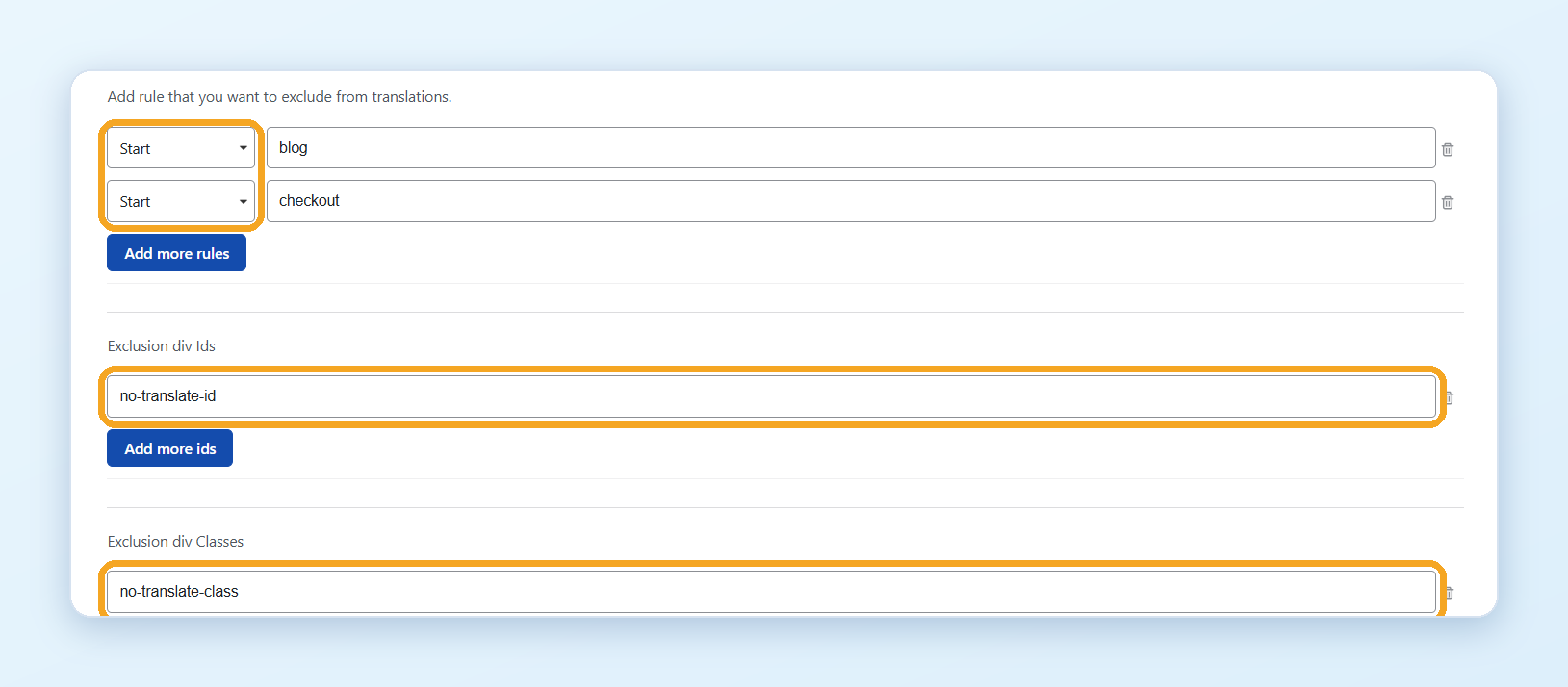
- Page rules: choose how the address is matched and enter it without the domain. Start excludes everything that begins with the value (
blogexcludes/blog/hello-worldand every other page under/blog/). End matches the end of the address, Contain anything that includes the value, Equal one exact page. - Exclusion div Ids and Exclusion div Classes: parts of a page that must not be translated, such as a code block or a user name. Enter the id or class name without
#or.. To find it, right-click the element on your page, choose Inspect and copy the value ofid="..."orclass="...".
See Exclude pages and elements from translation and Exclude pages from translation.
Glossary
Words and phrases that must always be translated the same way, or not translated at all. Not available on the Free plan.
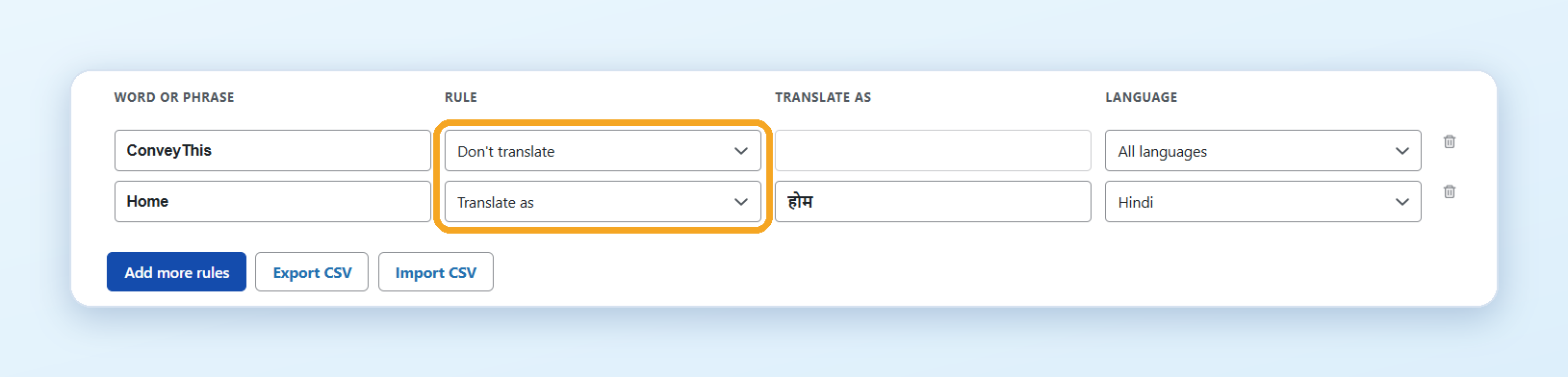
- For each rule, enter the word or phrase and choose Don’t translate or Translate as with the translation. A rule can apply to All languages or to one language.
- The glossary is case-sensitive:
ConveyThisandCONVEYTHISare two different entries. - Export CSV and Import CSV let you edit many rules at once or move them to another website.
- If you use a caching plugin, clear its cache for the pages that contain the words after you change a rule.
See Glossary.
Links
Fine control over translated addresses when Translate URLs is on.
- Sitemap & Trailing Slash Discovery: paste your sitemap address (Yoast, Rank Math and the WordPress sitemap all work) and click Scan Sitemap. The plugin records for every address whether it ends with a slash and uses that when Add trailing slash for links is set to Custom (from sitemap).
- Link Translation Rules: Translation Scope limits address translation to the whole page, the content area or the navigation. URL Pattern Rules include or exclude addresses by pattern (starts with, ends with, contains, exact match or regex); rules are checked from top to bottom and the first match wins. Post Type Slug Translation turns address translation off for a post type: those addresses still get the language prefix, but the page name stays in the original language.
Plan details
Your current plan with the number of languages and words it includes. To change the plan, go to Plan & billing in your ConveyThis dashboard. See How do I upgrade my ConveyThis plan?
Cache
The plugin keeps a copy of your translations in WordPress, so that pages load fast. After you edit translations in the ConveyThis dashboard, click Clear translation cache here to see the changes on your website right away. The button clears both the local copy and the server-side cache for your domain.
What lives in the ConveyThis dashboard
Some things aren’t in the plugin, because they are the same for every platform:
- Editing translations. Click Edit Translations in the left menu of the dashboard and choose your website. Every page has a Text Editor (a list of all texts) and a Visual Editor (edit on the page itself). See How do I edit my translations?
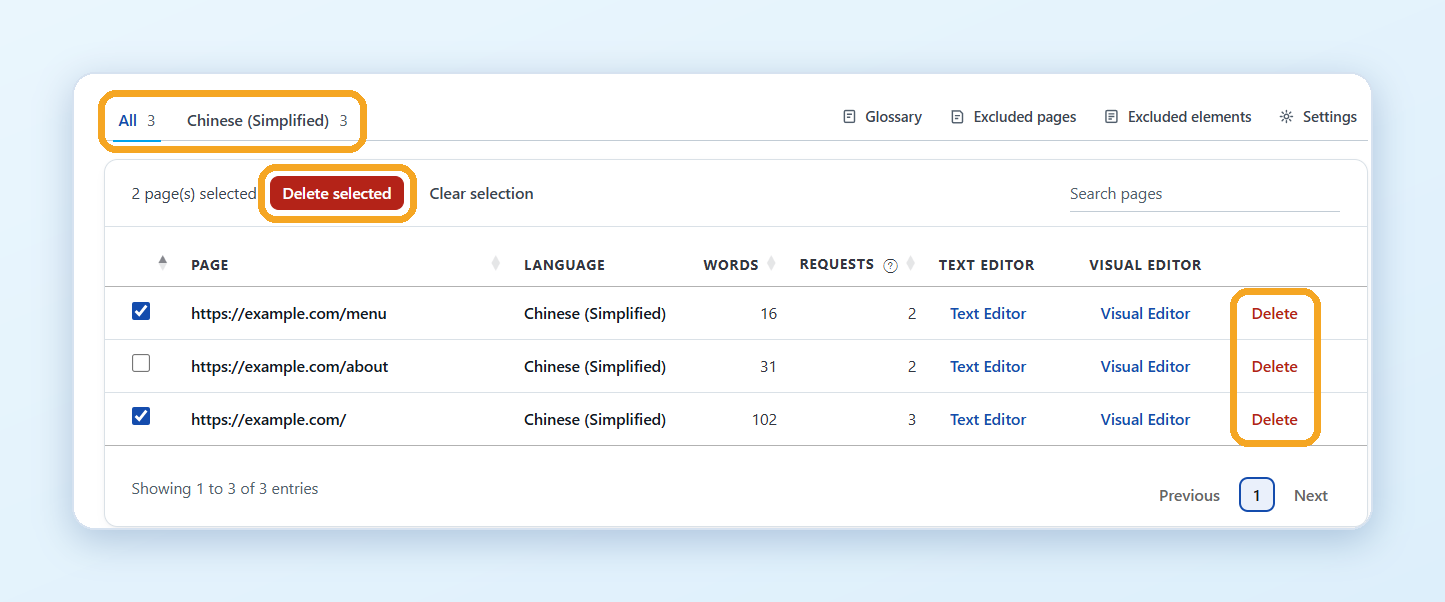
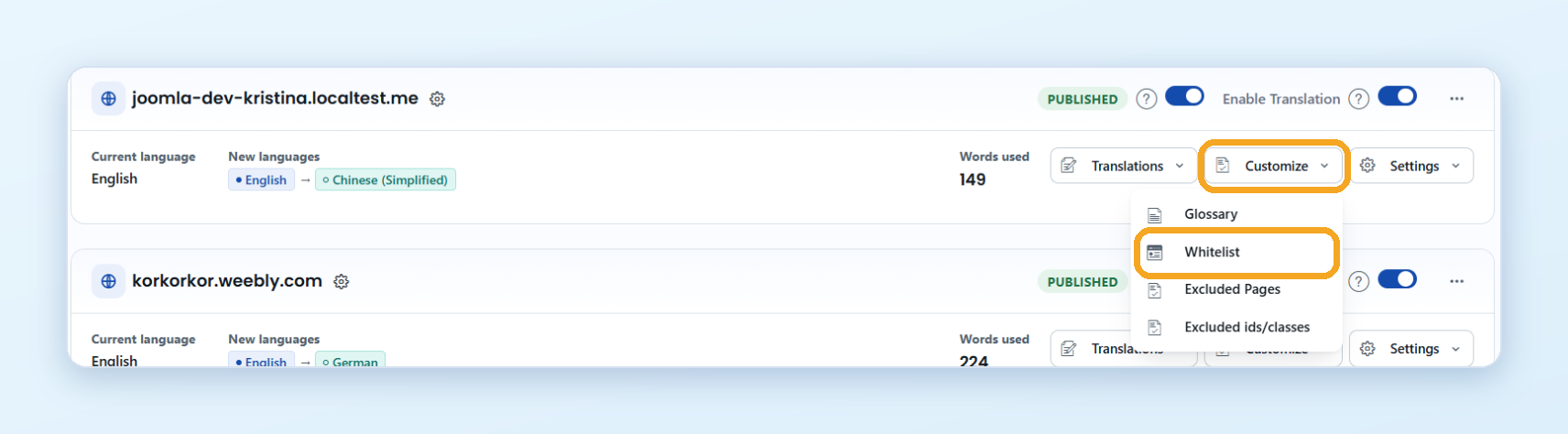
- Whitelist. The opposite of excluded pages: only the pages on the list are translated, everything else stays in the original language. Go to Domains, open the Customize menu on your website and choose Whitelist. Start with your most important pages and add more later. If the whitelist is on but empty, nothing is translated.
- Statistics, team members, import and export of translations are in the dashboard too. See Does ConveyThis provide any statistics?, How do I add team members to my website? and How do I import and export translations?.