Importing/Exporting Translations and Glossary
Importing translations (free on all plans)
Translation import is included on every ConveyThis plan — including the free plan. There are no per-import fees.
Use it when you are switching from Weglot, Bablic, or another tool and want to keep translations you have already paid for. You can also import CSV or TMX files from any compatible source.
Step 1 — Open the import page
- Log in to your ConveyThis dashboard.
- Go to the Domains page.
- Open Translation Management and select CSV/TMX.
You will land on the Import translations page for that domain.
Step 2 — Upload a CSV or TMX file
On the Import translations form:
- Choose your Source Language (the original language of your content).
- Choose your New Language(s) (the language you imported translations for).
- Click Browse… and select a CSV or TMX file.
- Click UPLOAD.

Tip: For the best match, let ConveyThis scan your site first so your pages are indexed. Imported strings are then applied to matching content on your website.
CSV file format
A ConveyThis CSV file has two columns, with one translation per row:
- Column 1 — source text (original language)
- Column 2 — translated text (target language)
Example:
House,Casa
Try ConveyThis,Prueba ConveyThis
Contact us,ContáctanosYou can also download sample CSV and TMX files from the links at the bottom of the import page in your dashboard.
Importing from Weglot
If you exported a CSV from Weglot, use the Import Weglot Translations section on the same page. ConveyThis converts the Weglot file format automatically — no manual editing required.
- Select the Source Language and New Language(s).
- Click Browse… and choose your Weglot CSV export.
- Review the Conversion Preview (ConveyThis maps Weglot columns to the ConveyThis format).
- Click CONVERT & UPLOAD.

The same import page also accepts standard CSV and TMX files from Bablic and other translation tools — upload them in the Import translations section above.
Step 3 — View imported language pairs
After a successful import, your language pairs appear in the table below the upload forms. Each row shows the source language, target language, and links to edit or delete that import package.

Step 4 — Review and edit imported strings
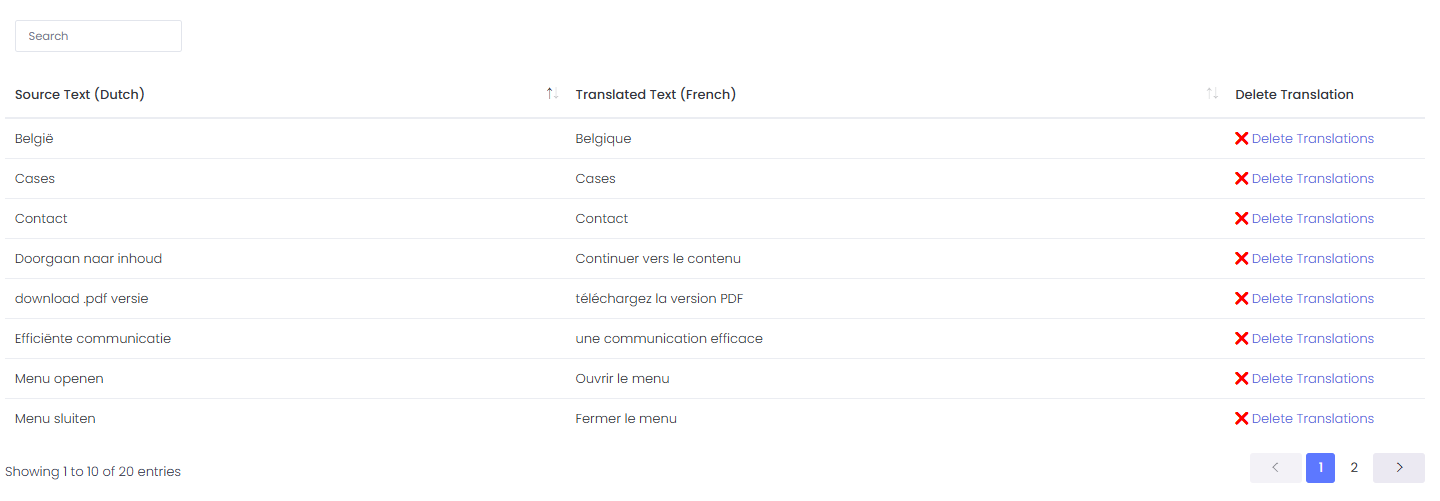
Click Edit Translations on any row to open the full list of imported strings. Search, review, and delete individual entries as needed before publishing changes on your site.
Exporting translations (Pro+ and higher)
Exporting translations requires a Pro+ plan or higher. If you are on a lower plan, upgrade from the pricing page to download your translations.
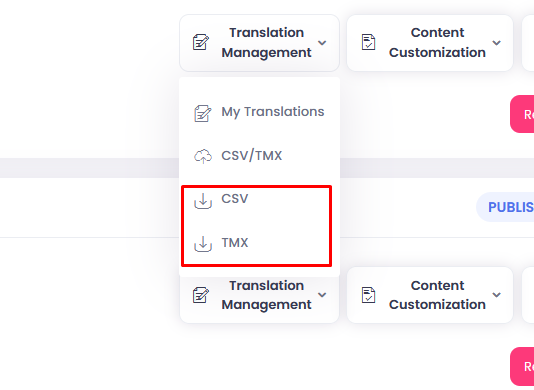
Go to the Domains page and click on Translation Management. Select CSV or TMX to export.
Importing/Exporting Glossary
Note that importing/exporting glossary is only for paid plans.
Exporting glossary
Go to the Domains page and click on the Content Customization dropdown menu. Select Glossary.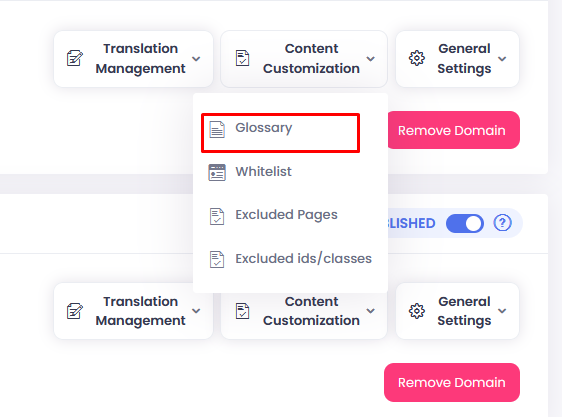
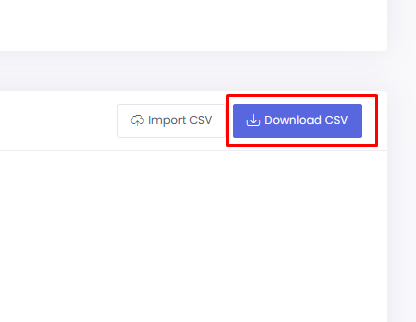
Under Glossary rules, click on the blue Download CSV button to export glossary.
Importing glossary
Go to the Domains page and click on the Content Customization dropdown menu. Select Glossary.
Under Glossary rules, click on the Import CSV button to import glossary.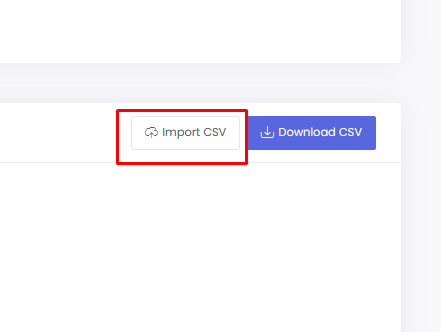
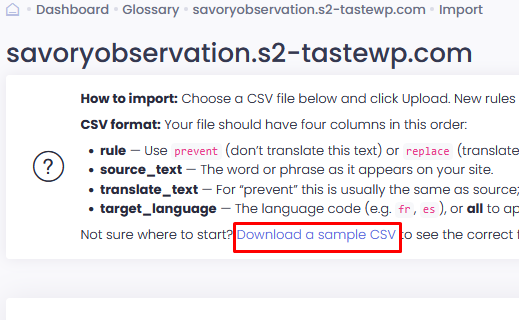
If you are unsure of the format for the CSV file, you can download a sample.