
How do I exclude pages from translation?
You don’t have to translate every page of your website. Excluded pages are always shown in the original language, for example your privacy policy, terms of service or a blog in one language only.
Excluding pages is available on paid plans. It isn’t included in the Free plan.
How do I exclude a page?
- Log in to your ConveyThis dashboard and open Domains.
- On your website, open the Customize menu and choose Excluded Pages.
- Under Add page exclusion, choose how to match the page in Match by.
- In Path, enter the page address relative to your site, for example
/privacy-policy, nothttps://example.com/privacy-policy. - Click Add exclusion.
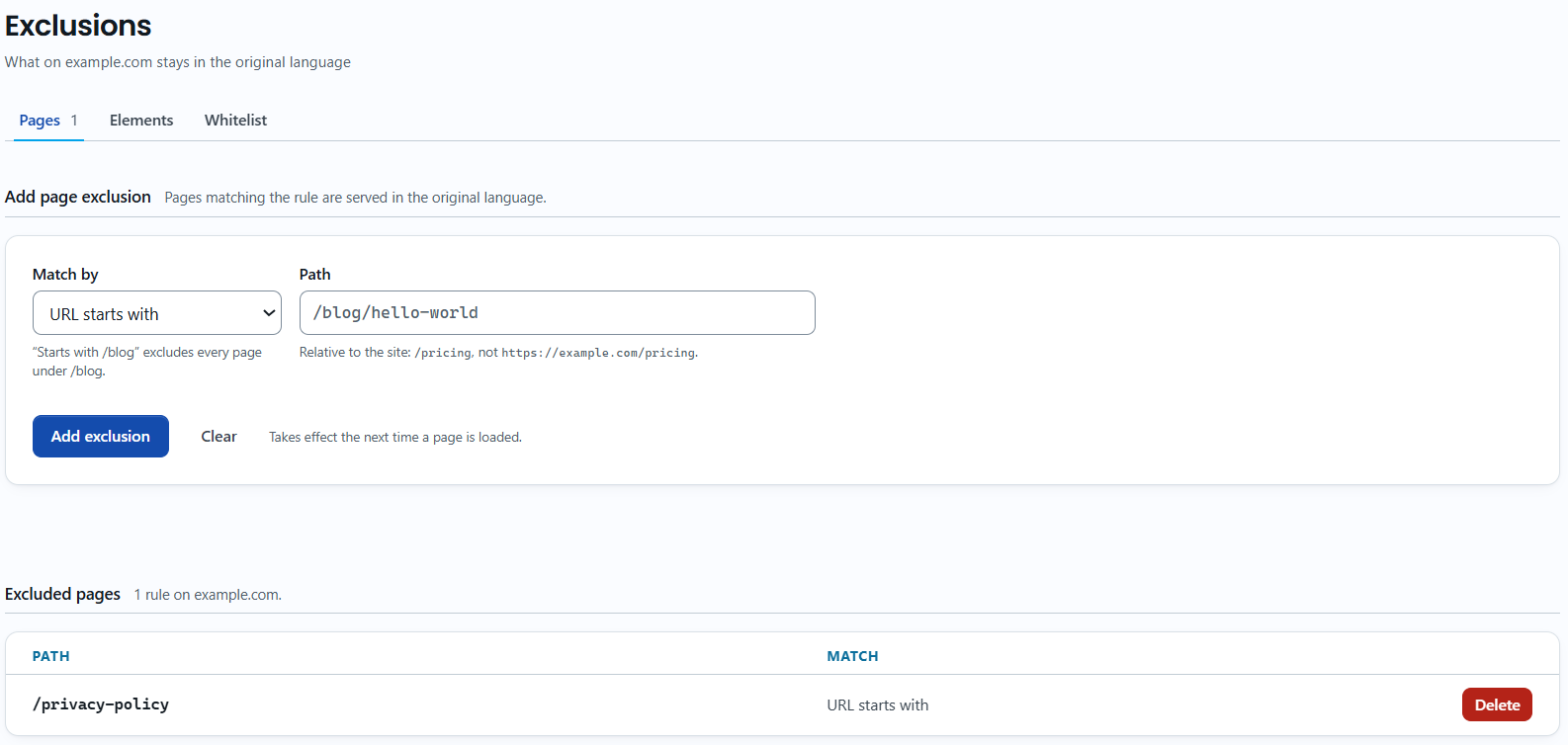
The rule takes effect the next time a page is loaded. On an excluded page, the language switcher isn’t shown either, so visitors aren’t offered a translation that doesn’t exist. To remove a rule, click Delete next to it.
Which match option should I use?
| Match by | Excludes | Example path | Excluded pages |
|---|---|---|---|
| URL starts with | Every page whose address begins with the path | /blog | /blog, /blog/hello-world, /blog/news |
| URL ends with | Every page whose address ends with the path | /hello-world | /blog/hello-world, /news/hello-world |
| URL contains | Every page whose address includes the path anywhere | hello | /blog/hello-world, /hello |
| URL is exactly | Only the one page with exactly this address | /blog/hello-world | /blog/hello-world |
To keep a whole section untranslated, URL starts with is usually the right choice.
Enter the path exactly as it appears in your browser’s address bar, including capital letters. /Blog and /blog are different paths.
Can I exclude pages in WordPress, Shopify or Joomla?
Yes. The ConveyThis plugins have the same rules, and they’re saved to your ConveyThis account, so they also appear in your dashboard:
- WordPress: in your WordPress admin, open ConveyThis and go to the Excluded Pages tab. Click Add more rules, choose Start, End, Contain or Equal, enter the address and click Save settings.
- Shopify: in your Shopify admin, open the ConveyThis app and go to Whitelist & Exclusions. Under Page Exclusions, click Add page, enter the address and click Save Exclusions.
- Joomla: in your Joomla administrator, open Components → ConveyThis and go to the Excluded pages tab. Under Whole pages, add a rule to Pages to leave untranslated and save.
What if I want to translate only a few pages?
Then use the whitelist instead of excluding pages one by one. With the whitelist on, only the pages on the list are translated. See How do I keep parts of my website from being translated?
To keep just one block of a page untranslated, such as a header or footer, exclude it by id or class. See How do I exclude part of a page?