
How do I show different images and videos in each language?
You can show a different image or video in each language. For example, a banner with English text can be replaced with the same banner in Spanish on your Spanish pages.
Step 1. Turn on media translation
- Go to Domains in your ConveyThis dashboard, open the Settings menu on your website and choose Settings.
- Expand Advanced.
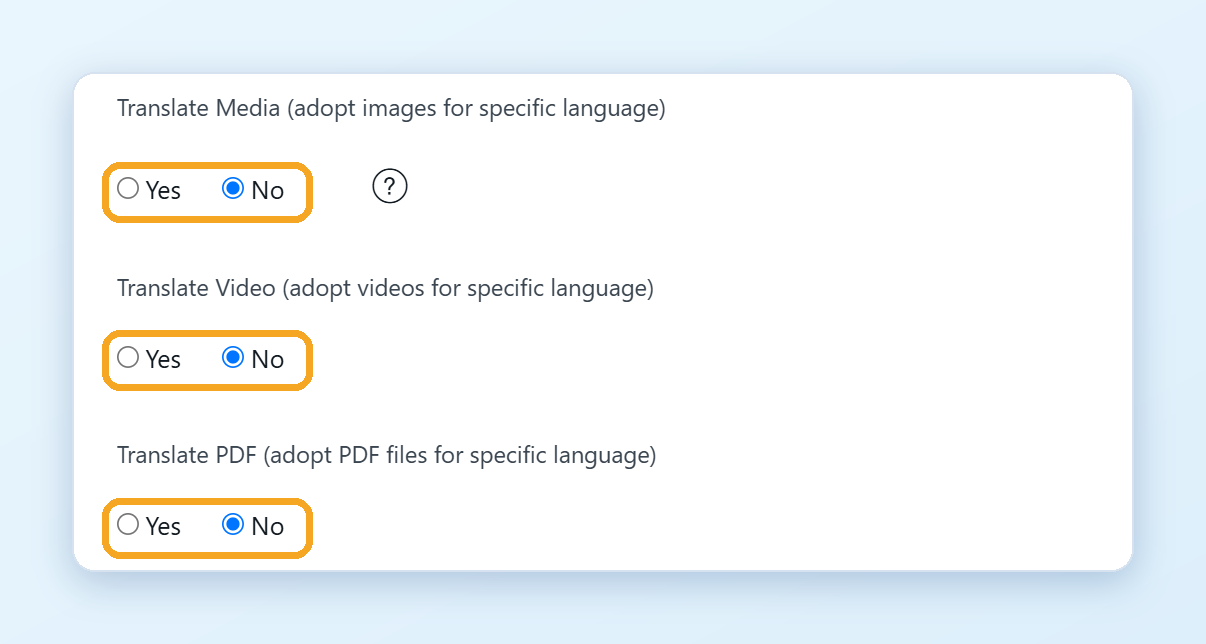
- Set Translate Media (adopt images for specific language) to Yes for images.
- Set Translate Video (adopt videos for specific language) to Yes for videos.
Your changes are saved automatically.
Step 2. Replace the image
- Click Edit Translations in the left menu, choose your website and open the Visual Editor on the page.
- Switch to the language you want to change.
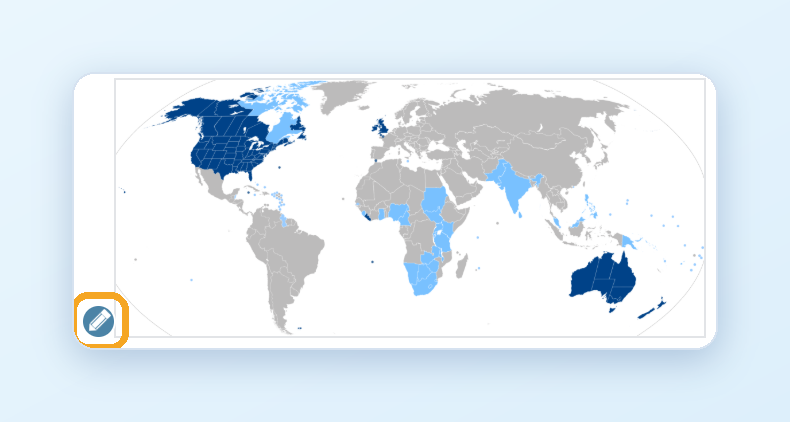
- Hover over the image and click the pencil icon.
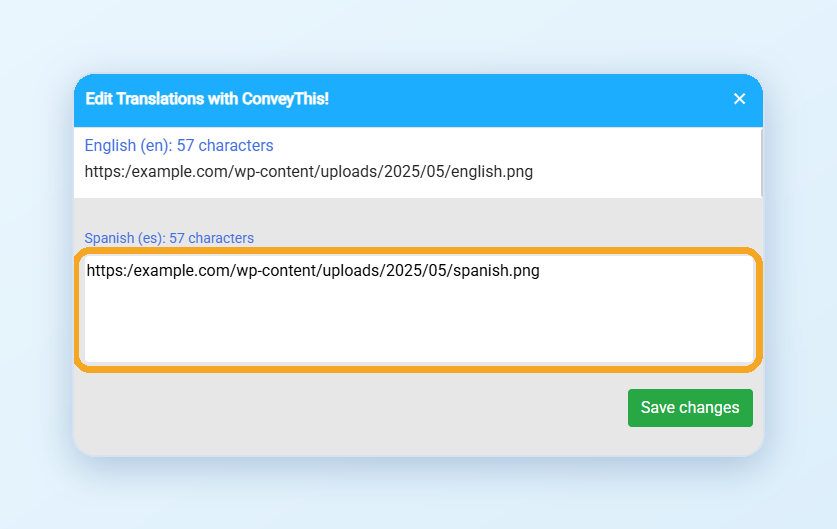
- Paste the link to the image you want to show in this language and save. You can paste any link, for example an image you uploaded to your website’s media library.
Open the translated page to check it. Use an image of the same size as the original, so your layout stays the same.
What can be replaced?
- Images (
<img>) in common formats, and background images set on an element. - Videos (
<video>) and YouTube videos embedded on your page. - PDF and Office files that your page links to. See How do I show a different PDF in each language?
Good to know
- Images you don’t replace stay the same in every language.
- WordPress: in the plugin, go to ConveyThis > Extended settings and turn on Translate Media.