
How do I show a different PDF in each language?
You can link to a different PDF in each language. For example, your Spanish pages can link to a Spanish price list instead of the English one.
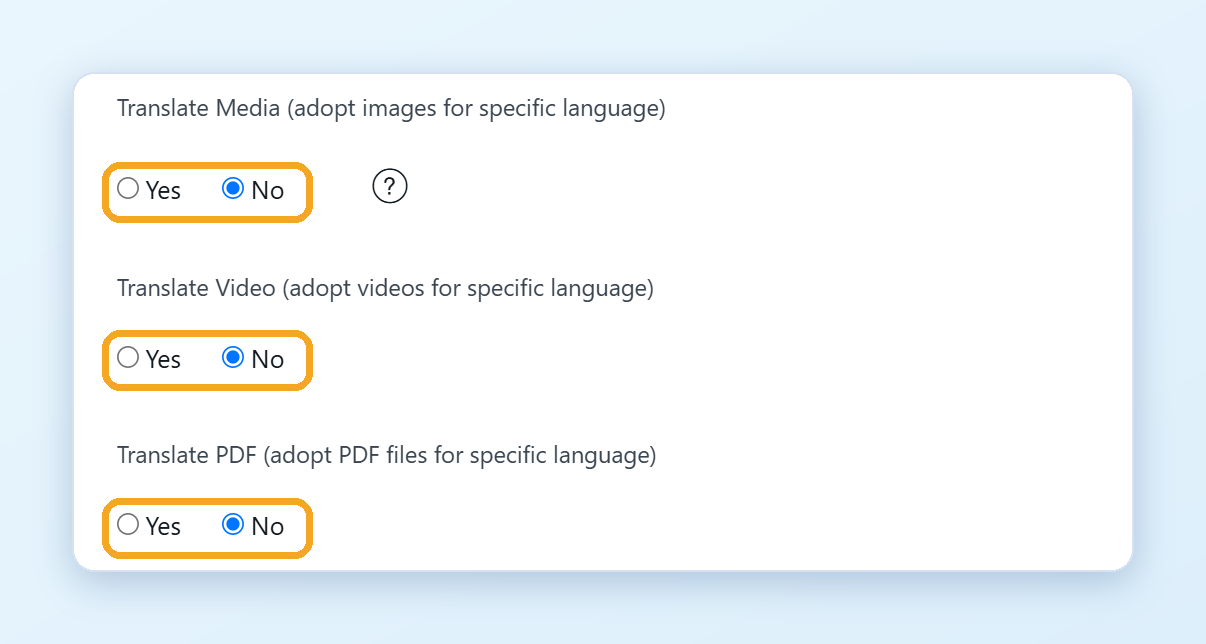
Step 1. Turn on PDF translation
- Go to Domains in your ConveyThis dashboard, open the Settings menu on your website and choose Settings.
- Expand Advanced.
- Set Translate PDF (adopt PDF files for specific language) to Yes. Your changes are saved automatically.
Step 2. Upload the translated file
Upload the translated PDF to your website, for example to its media library, and copy its link.
Step 3. Replace the link
Open the page once in the translated language, so that ConveyThis picks up the file link. Then:
- Click Edit Translations in the left menu, choose your website and click Text Editor on the page.
- Find the row with the file address. It is marked DOCUMENT, and the translation starts out as the same address.
- Replace the translation with the link to the translated PDF. The change is saved when you leave the field.
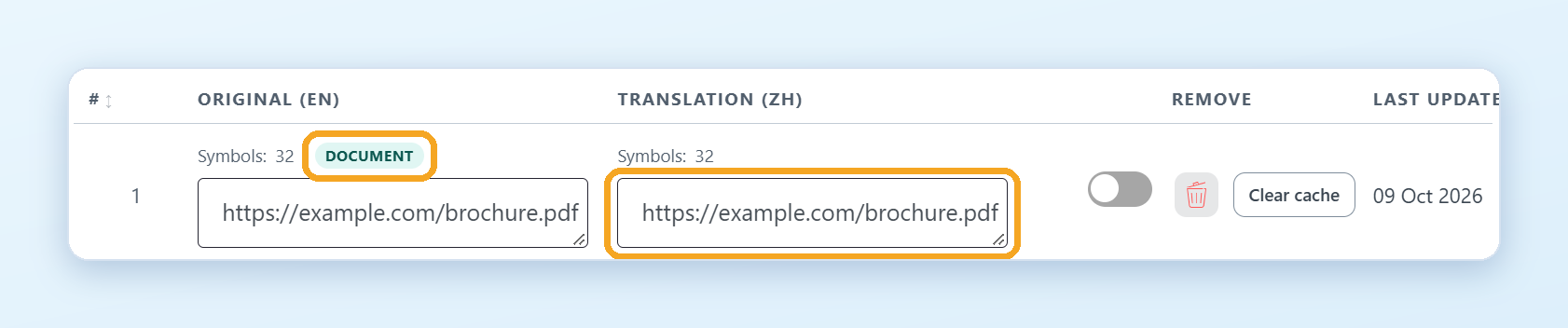
Open the translated page and click the link to check it.
The pencil icon on the link in the Visual Editor edits the link text (for example “Download the brochure”), not the file. The file address is changed in the Text Editor.
Good to know
- The same works for Word, Excel and PowerPoint files (
.doc,.docx,.xls,.xlsx,.ppt,.pptx). - ConveyThis doesn’t translate the text inside the file. You upload the translated file yourself.
- Links you don’t replace keep pointing to the original file.
- WordPress: in the plugin, go to ConveyThis > Extended settings and turn on Translate Documents.
- For images and videos, see How do I show different images and videos in each language?