


Your Squarespace site already looks great. Now let visitors read it in their own language, so someone in Madrid or Paris understands your offer as easily as someone in New York.
There’s no “translate” button in the Squarespace editor, and the language setting you’ll find in Squarespace doesn’t touch the text you wrote. The practical way to translate a Squarespace website is to add a translation tool through Code Injection, with no rebuilding and no copied pages. Setup takes a few minutes. Once it’s installed, ConveyThis automatically translates your pages and any new content as your site grows.
Squarespace is popular with businesses that go multilingual: in our research into multilingual website trends, it was the second most common named platform among websites using ConveyThis, after WordPress. This guide shows the exact steps, then how to style the language switcher, review translations and get each language found in search.
ConveyThis in numbers: 20,000+ websites translated, 4,500+ paying customers, rated 4.8/5 on Capterra from 36 reviews.
Before you start
- Your Squarespace plan. Squarespace includes Code Injection in the Core, Plus and Advanced plans and some older plans. It isn’t available on the Basic plan.
- Your Squarespace version. Both 7.0 and 7.1 work, because the code goes into Code Injection.
- A ConveyThis account. The Free plan covers one language and 10,000 words, with no card required.
- Your languages. Decide which language your visitors need most. Most websites start with one: in our research, 73% of multilingual websites translate into a single language.
Step by step: translate your Squarespace website
Step 1. Add your website in ConveyThis
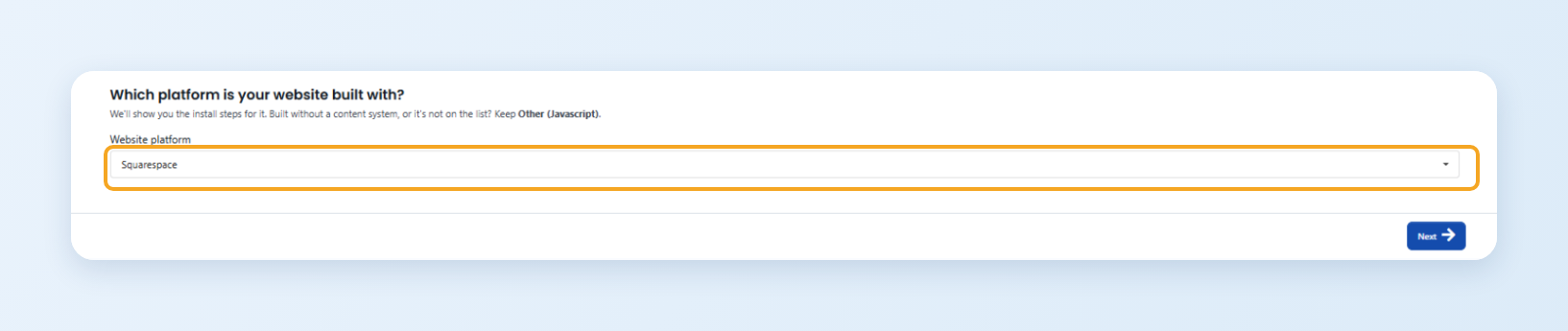
Log in to ConveyThis (or create a free account) and click Add Domain. Under Website platform, choose Squarespace. Then enter your domain, your site’s current language and the language you want to add.
Step 2. Copy the code
Keep the default page addresses if you’re not sure; you can change them later. On the Install step, click Copy next to the code.
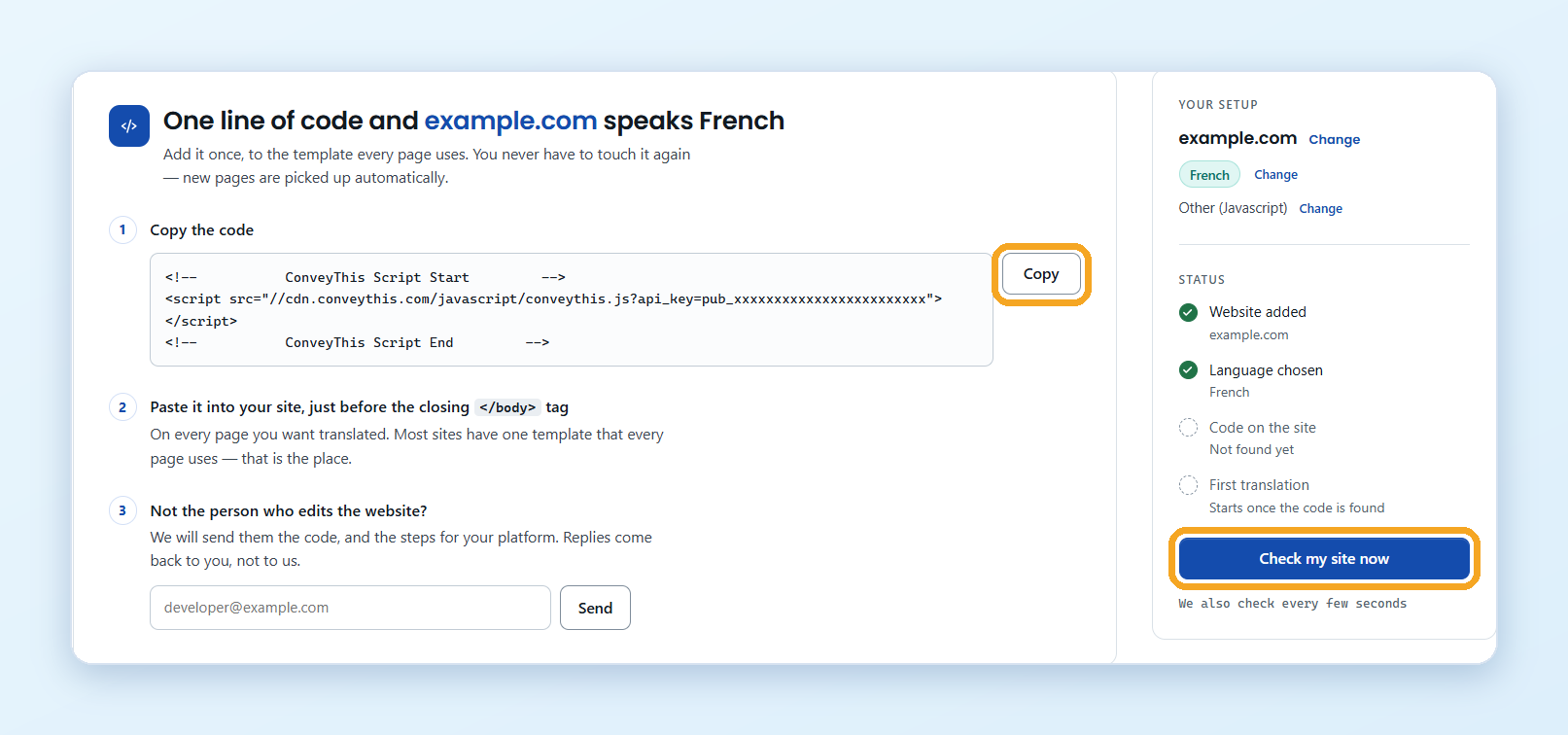
Not the person who edits the website? Enter your developer’s email on the same step and click Send. They get the code and the steps for Squarespace.
Step 3. Paste the code into Squarespace
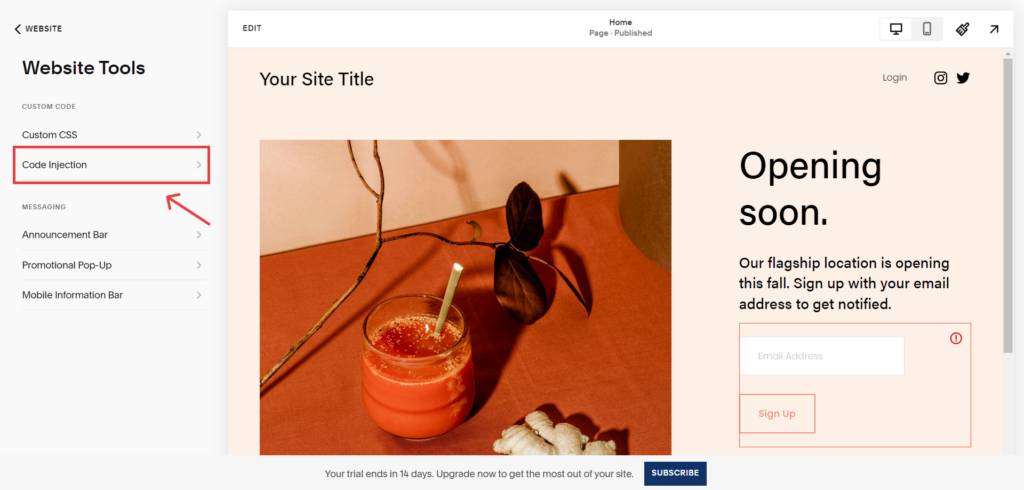
In your Squarespace dashboard, go to Website, then Pages. Scroll down to Custom Code and open Code Injection.
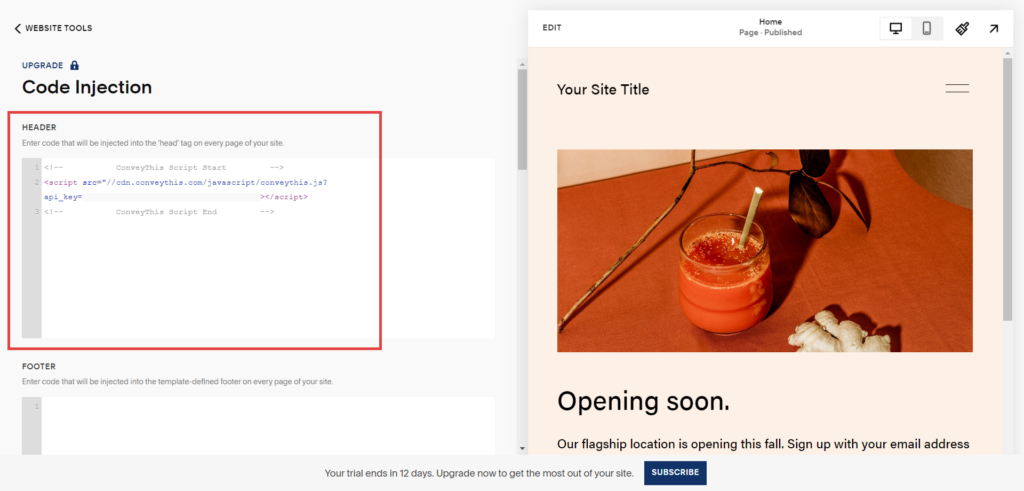
Paste the code into the Header field and click Save. If the field already has code in it, that’s fine: add the ConveyThis code after it.
Step 4. See your site in another language
Back in ConveyThis, click Check my site now. Then open your website: a language switcher appears in the bottom-right corner. Pick a language and the page is translated.
From now on, ConveyThis translates your Squarespace pages automatically, including pages and blog posts you publish later. The one exception is Squarespace’s checkout, which doesn’t run custom code (more on that below).
The same steps, with more detail, are in our help article: How do I add ConveyThis to Squarespace?
Ready to see your own site in another language? The Free plan needs no card, and setup takes a few minutes.
Add a language switcher that fits your design
The switcher is what your visitors actually see, so it’s worth two minutes of styling. In ConveyThis, go to Domains and open Settings on your website. You can:
- Move it to another corner. See Change the switcher position.
- Change the flags: rectangle, square, circle or no flag at all, and pick a different flag for a language, for example the UK flag for English. See Change a language flag.
- Pick a theme. The new switcher themes include Glass, which looks especially good over Squarespace’s large photos.
Edit and review your translations
ConveyThis translates with AI and machine translation, which reads naturally most of the time. Still, a few minutes of review makes a big difference:
- Start with the pages that matter most: your home page, prices, contact details and anything legal.
- Fix any wording in the visual editor, right on the page. Your edit replaces the automatic translation. See How do I edit my translations?
- Keep brand and product names as they are. If a name gets translated, correct it once in the editor.
Multilingual SEO for Squarespace
Translating your site helps the visitors who already arrive. To get new visitors from search in other languages, search engines need to find each language. Here’s what that takes.
Give each language its own address. By default, translated pages use the same address as the original, and the visitor switches language on the page. That’s great for visitors, but search engines mostly see your original language. On the ConveyThis Business plan and above, each language can have its own address:
- a subdomain, such as
es.example.com, with one DNS record per language; - a subfolder, such as
example.com/es/. On Squarespace this needs a DNS change, which the setup shows you: you replace thewwwrecord with the record from the wizard. With a subfolder, all of your site’s traffic goes through ConveyThis.
See Sub-domain or sub-directory and Customize your URLs for the details.
Let search engines connect the versions. ConveyThis adds hreflang tags, which tell search engines which page is the Spanish or French version of which. With a subdomain or subfolder, they’re in the page’s HTML. Our hreflang guide explains how they work.
Translate titles and descriptions too. ConveyThis translates each page’s title and meta description, which are what people see in search results.
Check it in Google Search Console. Once a language has its own address, make sure your Search Console property covers it, then use URL Inspection on a translated page to confirm Google can read it.
What Squarespace can and can’t do on its own
You may wonder whether you need a tool at all. Squarespace has two built-in options, and both have real limits:
- The site language setting (in Language and region) changes Squarespace’s built-in text, such as the wording on the checkout page, and how dates and currency are formatted. It doesn’t translate your page text, blog posts or product descriptions, and it shows one language at a time, so visitors can’t switch.
- Duplicating your pages by hand is free. You copy every page, translate it yourself and add a drop-down menu per language to your navigation. But every change has to be made two or three times, and Squarespace notes you can’t give each language its own domain or subdomain this way.
| Site language setting | Duplicate pages by hand | ConveyThis | |
|---|---|---|---|
| What gets translated | Built-in text only | What you copy and translate | Your content on every page, including new pages |
| Visitors can switch language | No | Yes, through menus | Yes, with a switcher |
| Time to set up | Minutes | Hours, plus every update | A few minutes |
| Language addresses for search | None | Separate pages on one domain | Subdomain or subfolder on Business and above |
| Cost | Free | Free, plus your time | Free up to 10,000 words, paid plans from $12/month |
How much does it cost to translate a Squarespace website?
- Squarespace: a plan that includes Code Injection (Core or higher).
- ConveyThis: start on the Free plan, which is enough for many small sites, and upgrade from your dashboard when you need more.
| Free | Starter | Business | |
|---|---|---|---|
| Price | $0, no time limit | $12/month | $24/month |
| Words | 10,000 | 60,000 | 200,000 |
| Languages | 1 | 1 | 3 |
| Card required | No | Yes | Yes |
| Own address per language for search | No | No | Yes |
Larger plans add more languages, words and websites. See them all on the pricing page.
Common problems and quick fixes
- The switcher doesn’t appear. Check that the code is in the Header field of Code Injection and that you clicked Save. It can take a few minutes the first time: clear your browser cache and reload.
- Code Injection is missing. Your Squarespace plan doesn’t include it. It’s available from the Core plan.
- Some text isn’t translated. See Translations are not displayed. Text inside images isn’t translated, but you can show a different image for each language.
- The checkout stays in one language. Squarespace doesn’t run custom code on checkout pages, so no code-based tool can translate them. Squarespace’s own site language setting controls the checkout’s built-in wording.
Frequently asked questions
Does Squarespace translate websites automatically? Not by itself. The site language setting only changes Squarespace’s built-in text. To translate your own content automatically, you need a translation tool such as ConveyThis.
Can I translate a Squarespace site for free? Yes. The ConveyThis Free plan covers one language and 10,000 words. Duplicating pages by hand is also free, but it takes much more time.
Will my translated pages show up in Google? They can, once each language has its own address (a subdomain or subfolder, on the Business plan and above). ConveyThis then adds hreflang tags and translates titles and meta descriptions.
Does it work on Squarespace 7.0 and 7.1? Yes. ConveyThis is added through Code Injection, so the version doesn’t matter. What matters is that your plan includes Code Injection.
Can I translate my Squarespace store? Yes. Product pages, collections and descriptions are translated like any other page. The checkout itself doesn’t run custom code, so its built-in wording follows Squarespace’s site language setting.
Translate your Squarespace site for free
Start with the language your visitors need most. The Free plan gives you one language and 10,000 words with no card required, and setup takes a few minutes.












;fill-opacity:1;'%20d='M%2019.511719%2039.964844%20C%208.304688%2039.964844%200%2031.289062%200%2020.324219%20L%200%2020.230469%20C%200%209.363281%208.160156%200.46875%2019.847656%200.46875%20C%2027.023438%200.46875%2031.320312%202.878906%2034.847656%206.375%20L%2029.519531%2012.492188%20C%2026.59375%209.820312%2023.59375%208.179688%2019.800781%208.179688%20C%2013.390625%208.179688%208.761719%2013.53125%208.761719%2020.085938%20L%208.761719%2020.203125%20C%208.761719%2026.757812%2013.273438%2032.203125%2019.800781%2032.203125%20C%2024.144531%2032.203125%2026.808594%2030.46875%2029.808594%2027.722656%20L%2035.136719%2033.121094%20C%2031.199219%2037.335938%2026.855469%2039.964844%2019.511719%2039.964844%20'/%3e%3cpath%20style='%20stroke:none;fill-rule:nonzero;fill:rgb(26.274511%25,42.352942%25,94.901961%25);fill-opacity:1;'%20d='M%2035.878906%200.0351562%20L%2044.136719%200.0351562%20L%2044.136719%2039.867188%20L%2035.878906%2039.867188%20Z%20M%2035.878906%200.0351562%20'/%3e%3cpath%20style='%20stroke:none;fill-rule:nonzero;fill:rgb(26.274511%25,42.352942%25,94.901961%25);fill-opacity:1;'%20d='M%2059.472656%2016.15625%20C%2056.039062%2016.15625%2053.808594%2018.613281%2053.160156%2022.375%20L%2065.617188%2022.375%20C%2065.113281%2018.664062%2062.953125%2016.15625%2059.472656%2016.15625%20M%2073.535156%2027.578125%20L%2053.28125%2027.578125%20C%2054.097656%2031.335938%2056.710938%2033.3125%2060.40625%2033.3125%20C%2063.191406%2033.3125%2065.183594%2032.445312%2067.464844%2030.300781%20L%2072.191406%2034.492188%20C%2069.480469%2037.867188%2065.566406%2039.941406%2060.289062%2039.941406%20C%2051.527344%2039.941406%2045.070312%2033.769531%2045.070312%2024.832031%20L%2045.070312%2024.710938%20C%2045.070312%2016.347656%2051%209.480469%2059.472656%209.480469%20C%2069.191406%209.480469%2073.65625%2017.074219%2073.65625%2025.363281%20L%2073.65625%2025.457031%20C%2073.65625%2026.300781%2073.609375%2026.808594%2073.535156%2027.578125%20'/%3e%3cpath%20style='%20stroke:none;fill-rule:nonzero;fill:rgb(26.274511%25,42.352942%25,94.901961%25);fill-opacity:1;'%20d='M%2089.375%2039.796875%20L%2081.863281%2039.796875%20L%2070.390625%2010.324219%20L%2079.152344%2010.324219%20L%2085.679688%2029.914062%20L%2092.257812%2010.324219%20L%20100.847656%2010.324219%20Z%20M%2089.375%2039.796875%20'/%3e%3cpath%20style='%20stroke:none;fill-rule:nonzero;fill:rgb(26.274511%25,42.352942%25,94.901961%25);fill-opacity:1;'%20d='M%20111.550781%2016.15625%20C%20108.121094%2016.15625%20105.886719%2018.613281%20105.238281%2022.375%20L%20117.695312%2022.375%20C%20117.191406%2018.664062%20115.03125%2016.15625%20111.550781%2016.15625%20M%20125.617188%2027.578125%20L%20105.359375%2027.578125%20C%20106.175781%2031.335938%20108.792969%2033.3125%20112.488281%2033.3125%20C%20115.246094%2033.3125%20117.265625%2032.445312%20119.542969%2030.300781%20L%20124.273438%2034.492188%20C%20121.558594%2037.867188%20117.648438%2039.941406%20112.367188%2039.941406%20C%20103.609375%2039.941406%2097.152344%2033.769531%2097.152344%2024.832031%20L%2097.152344%2024.710938%20C%2097.152344%2016.347656%20103.078125%209.480469%20111.550781%209.480469%20C%20121.273438%209.480469%20125.734375%2017.074219%20125.734375%2025.363281%20L%20125.734375%2025.457031%20C%20125.734375%2026.300781%20125.6875%2026.808594%20125.617188%2027.578125%20'/%3e%3cpath%20style='%20stroke:none;fill-rule:nonzero;fill:rgb(26.274511%25,42.352942%25,94.901961%25);fill-opacity:1;'%20d='M%20143.566406%2018.757812%20C%20138.070312%2018.757812%20134.710938%2022.085938%20134.710938%2029.074219%20L%20134.710938%2039.867188%20L%20126.457031%2039.867188%20L%20126.457031%2010.613281%20L%20134.710938%2010.613281%20L%20134.710938%2016.519531%20C%20136.390625%2012.46875%20139.128906%209.867188%20144%2010.085938%20L%20144%2018.757812%20Z%20M%20143.566406%2018.757812%20'/%3e%3c/g%3e%3c/svg%3e)




;fill-opacity:1;'%20d='M%20144.558594%2039.894531%20L%20155.4375%209.839844%20C%20155.4375%209.839844%20147.28125%209.839844%20139.121094%2011.515625%20L%20128.867188%2039.894531%20Z%20M%20142.675781%201.78125%20L%20140.585938%207.539062%20C%20148.738281%205.863281%20156.902344%205.863281%20156.902344%205.863281%20L%20158.992188%200.105469%20C%20158.992188%200.105469%20150.832031%200.105469%20142.675781%201.78125%20M%2085.980469%2032.773438%20C%2090.898438%2033.71875%2095.914062%2034.136719%20101.039062%2034.136719%20C%20106.375%2034.136719%20110.140625%2032.984375%20110.554688%2029.320312%20C%20110.765625%2027.640625%20109.089844%2026.382812%20106.167969%2024.707031%20C%20102.816406%2022.824219%2099.894531%2021.878906%2096.960938%2019.886719%20C%2094.03125%2017.898438%2092.78125%2014.859375%2093.71875%2011.507812%20C%2094.871094%207.636719%2097.585938%205.4375%20101.664062%203.34375%20C%20106.480469%200.9375%20110.242188%20-0.0078125%20119.550781%20-0.0078125%20C%20125.40625%20-0.0078125%20131.054688%200.515625%20136.597656%201.667969%20L%20134.609375%207.113281%20C%20129.691406%206.167969%20124.675781%205.75%20119.550781%205.75%20C%20114.214844%205.75%20110.453125%206.90625%20110.035156%2010.570312%20C%20109.828125%2012.246094%20111.5%2013.503906%20114.425781%2015.179688%20C%20117.773438%2017.066406%20120.695312%2018.011719%20123.628906%2020%20C%20126.558594%2021.988281%20127.808594%2025.027344%20126.871094%2028.378906%20C%20125.71875%2032.253906%20123.003906%2034.449219%20118.925781%2036.542969%20C%20114.113281%2038.949219%20110.347656%2039.894531%20101.039062%2039.894531%20C%2095.183594%2039.894531%2089.535156%2039.375%2083.992188%2038.21875%20Z%20M%2062.34375%2039.894531%20L%2071.441406%2014.867188%20C%2074.476562%206.488281%2063.390625%209.527344%2060.875%2011.515625%20C%2058.890625%2012.984375%2055.332031%2016.441406%2054.078125%2020.105469%20L%2046.859375%2040%20L%2031.175781%2040%20L%2040.273438%2014.867188%20C%2043.308594%206.488281%2032.222656%209.527344%2029.710938%2011.515625%20C%2027.722656%2012.984375%2024.167969%2016.441406%2022.910156%2020.105469%20L%2015.691406%2040%20L%200.0078125%2040%20L%2014.441406%200.105469%20C%2019.464844%200.105469%2022.179688%201.257812%2024.375%203.457031%20C%2025.207031%204.289062%2025.734375%205.339844%2026.046875%206.496094%20C%2028.980469%204.714844%2031.589844%203.351562%2033.371094%202.726562%20C%2036.613281%201.46875%2040.691406%200.105469%2045.714844%200.105469%20C%2050.734375%200.105469%2053.453125%201.257812%2055.644531%203.457031%20C%2056.480469%204.289062%2057.007812%205.339844%2057.320312%206.496094%20C%2060.25%204.714844%2062.863281%203.351562%2064.640625%202.726562%20C%2067.886719%201.46875%2071.964844%200.113281%2076.984375%200.113281%20C%2082.007812%200.113281%2084.722656%201.265625%2086.917969%203.464844%20C%2089.21875%205.660156%2089.113281%209.742188%2088.28125%2012.050781%20L%2078.027344%2039.902344%20L%2062.34375%2039.902344%20Z%20M%2062.34375%2039.894531%20'/%3e%3c/g%3e%3c/svg%3e)

;fill-opacity:1;'%20d='M%202.453125%209.882812%20L%202.453125%2012.851562%20L%207.304688%2012.851562%20L%2016.800781%2030.734375%20L%2028.488281%2030.734375%20L%2037.980469%2012.824219%20L%2042.832031%2012.792969%20L%2042.84375%209.882812%20L%2028.328125%209.882812%20L%2028.328125%2012.804688%20L%2032.195312%2012.804688%20L%2025.488281%2025.515625%20L%2018.234375%2012.847656%20L%2023.527344%2012.824219%20L%2023.515625%209.882812%20Z%20M%2096.097656%209.882812%20L%2096.097656%2012.851562%20L%20100.949219%2012.851562%20L%20110.445312%2030.734375%20L%20122.128906%2030.734375%20L%20131.625%2012.824219%20L%20136.476562%2012.792969%20L%20136.484375%209.882812%20L%20121.972656%209.882812%20L%20121.972656%2012.804688%20L%20125.835938%2012.804688%20L%20119.132812%2025.515625%20L%20111.878906%2012.847656%20L%20117.167969%2012.824219%20L%20117.160156%209.882812%20Z%20M%2072.222656%209.882812%20L%2072.222656%2012.851562%20L%2077.078125%2012.851562%20L%2077.082031%2027.453125%20L%2071.96875%2027.453125%20L%2071.96875%2030.707031%20L%2077.085938%2030.734375%20L%20101.3125%2030.734375%20L%20101.3125%2021.027344%20L%2098.15625%2021.027344%20C%2097.984375%2026.167969%2093.542969%2027.457031%2091.675781%2027.457031%20C%2089.960938%2027.457031%2086.640625%2027.453125%2086.640625%2027.453125%20L%2086.640625%2012.847656%20L%2091.417969%2012.824219%20L%2091.410156%209.882812%20Z%20M%2055.890625%209.285156%20C%2047.644531%209.285156%2040.960938%2014.214844%2040.960938%2020.292969%20C%2040.960938%2026.375%2047.644531%2031.304688%2055.890625%2031.304688%20C%2064.136719%2031.304688%2070.824219%2026.375%2070.824219%2020.292969%20C%2070.824219%2014.214844%2064.136719%209.285156%2055.890625%209.285156%20Z%20M%2055.675781%2028.0625%20C%2052.769531%2028.0625%2050.414062%2024.566406%2050.414062%2020.25%20C%2050.414062%2015.933594%2052.769531%2012.4375%2055.675781%2012.4375%20C%2058.582031%2012.4375%2060.941406%2015.933594%2060.941406%2020.25%20C%2060.941406%2024.566406%2058.582031%2028.0625%2055.675781%2028.0625%20Z%20M%20149.539062%208.921875%20C%20141.289062%208.921875%20134.605469%2013.933594%20134.605469%2020.113281%20C%20134.605469%2026.292969%20141.289062%2031.300781%20149.539062%2031.300781%20C%20157.78125%2031.300781%20164.46875%2026.292969%20164.46875%2020.113281%20C%20164.46875%2013.933594%20157.78125%208.921875%20149.539062%208.921875%20Z%20M%20149.324219%2028.007812%20C%20146.417969%2028.007812%20144.0625%2024.453125%20144.0625%2020.066406%20C%20144.0625%2015.679688%20146.417969%2012.125%20149.324219%2012.125%20C%20152.230469%2012.125%20154.585938%2015.679688%20154.585938%2020.066406%20C%20154.585938%2024.453125%20152.230469%2028.007812%20149.324219%2028.007812%20Z%20M%20149.324219%2028.007812%20'/%3e%3c/g%3e%3c/svg%3e)