
Why is my website not translated some parts?
Why website is not fully translated?
If you chose a language using the ConveyThis button and noticed that some parts of your content weren’t translated, there could be four possible causes. The following provides the causes and solutions to this issue:
1. Limit of words
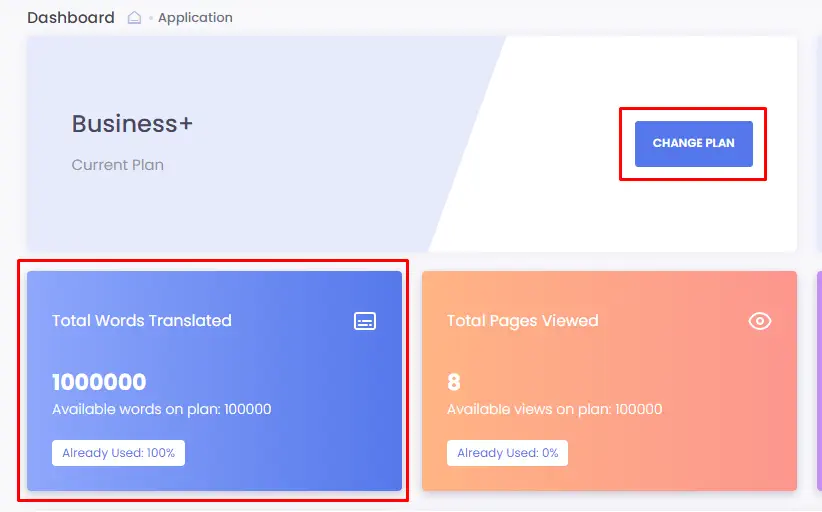
If you want to ensure that all the content on your website is translated, you can upgrade to a more advanced ConveyThis plan by going to your ConveyThis Dashboard, clicking on ‘Change plan’, and selecting the desired plan and billing frequency.
2. Excluded pages or divs
Check if you already excluded the untranslated part directly in the ConveyThis Exclusions.
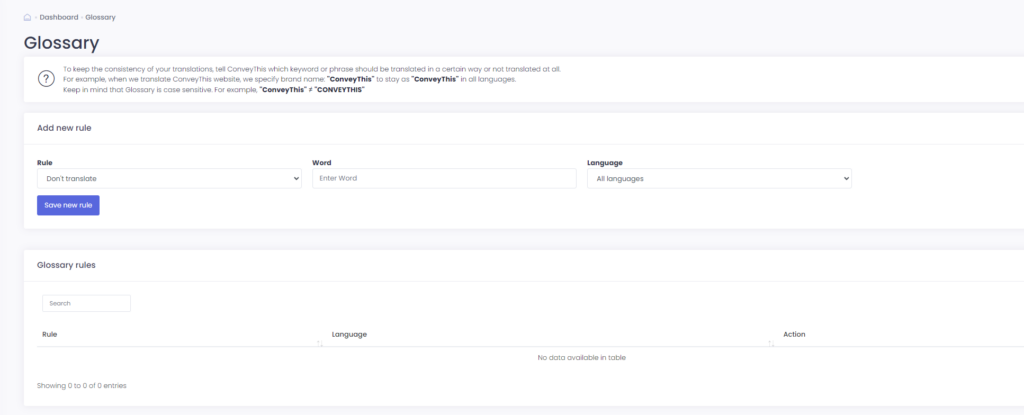
3. Glossary rules
Check if you have an exception rule in ConveyThis Glossary.
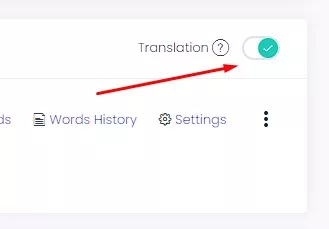
4. Translation switch
Check if you have switched translation on Domains page.
5. Javascript content
Check if the untranslated content is generated by JavaScript.