
Shopify Translate Checkout Page
How to Translate Shopify Checkout Page?
Step #1
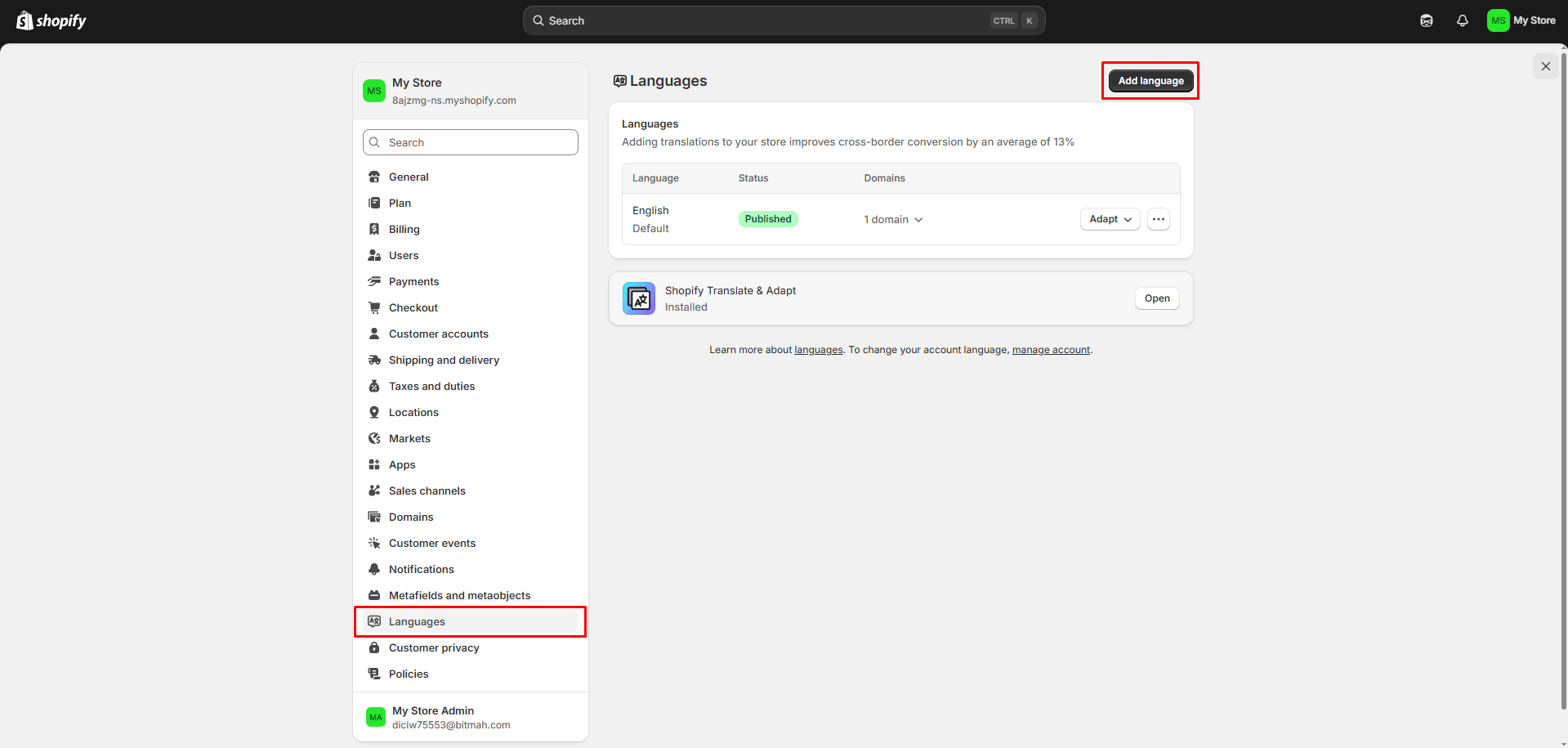
Firstly, you have to go to your admin dashboard and click on Settings on the bottom left
From there go to Languages > Add Language on the top right corner
Step #2
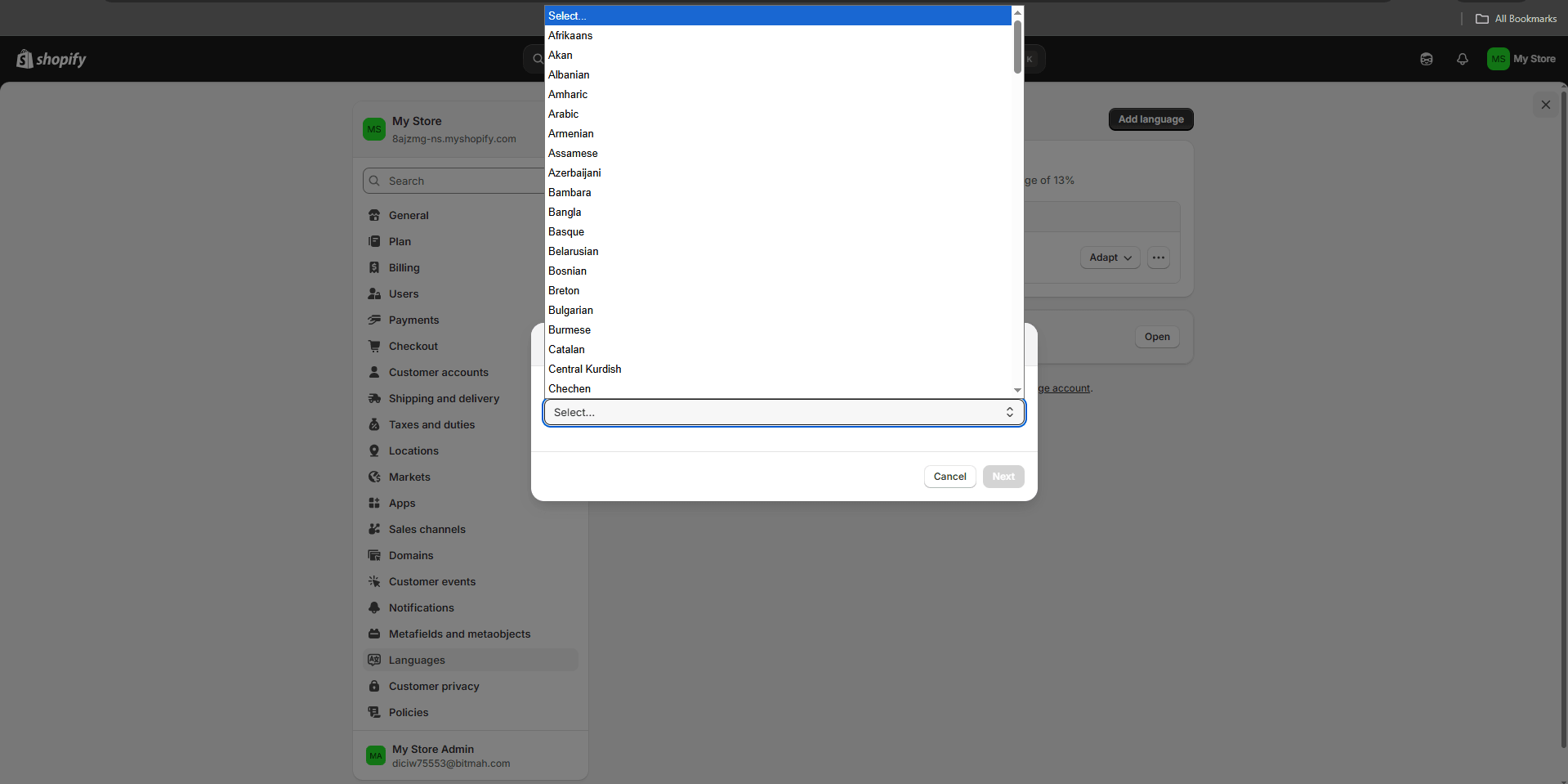
Then choose language you want to translate:
Step #3
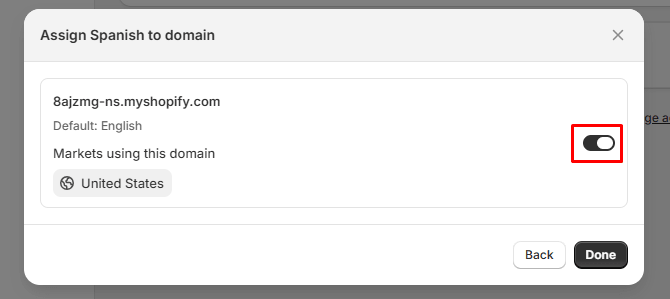
Then turn the language on for your domain:
Step #4
Go back to your admin dashboard and go to Online Store > … > Edit default theme content 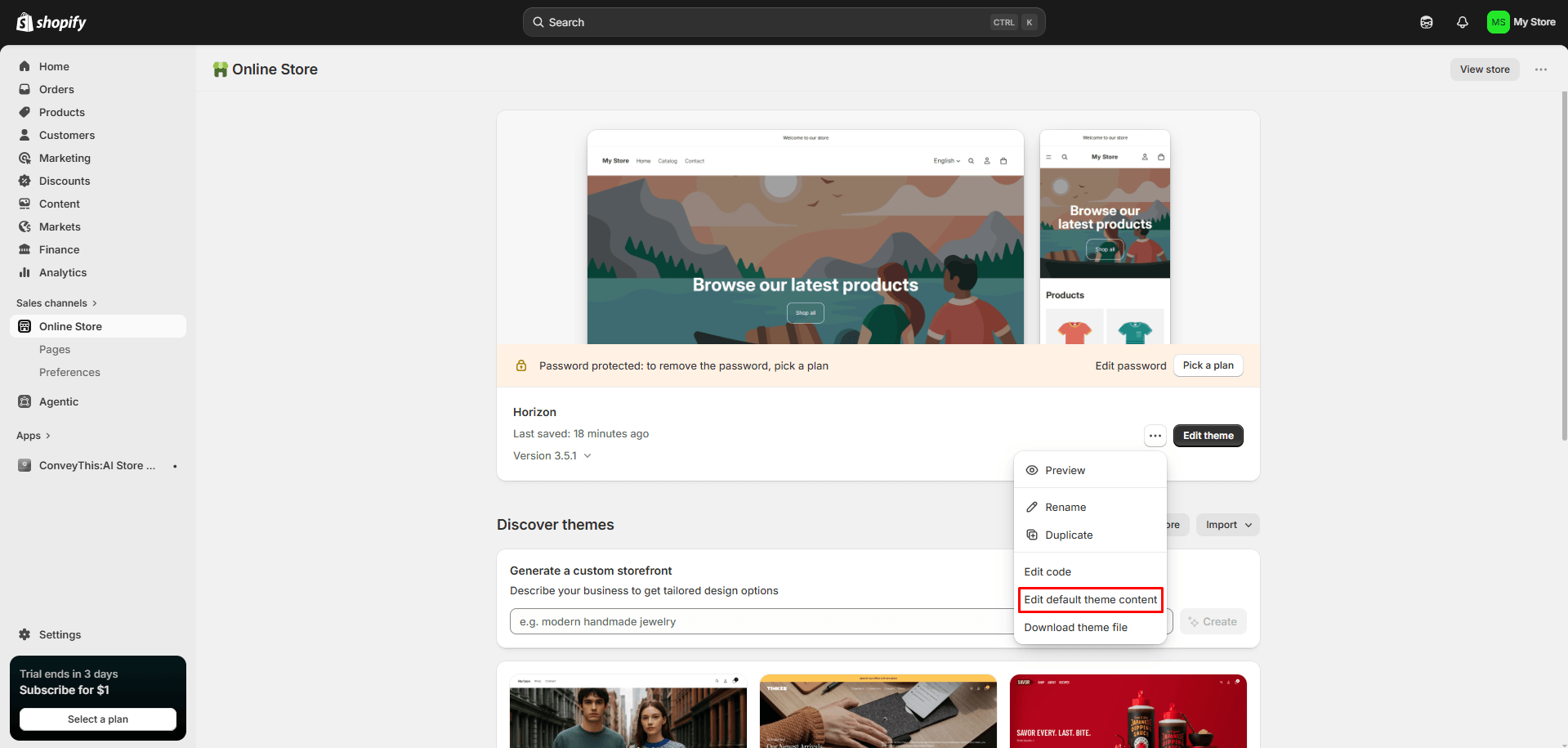
Step #5
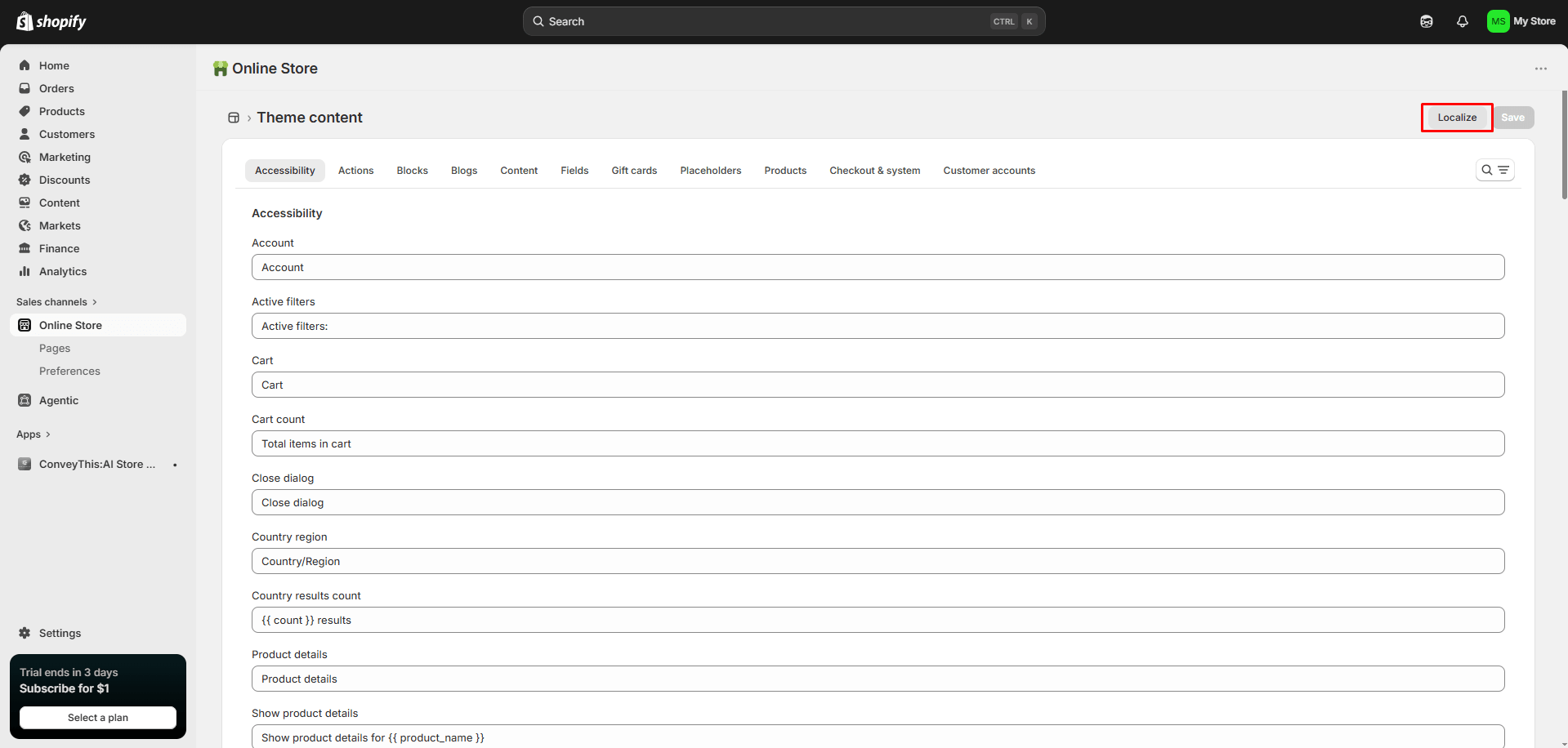
Click on the Localize button on the top right
Step #6
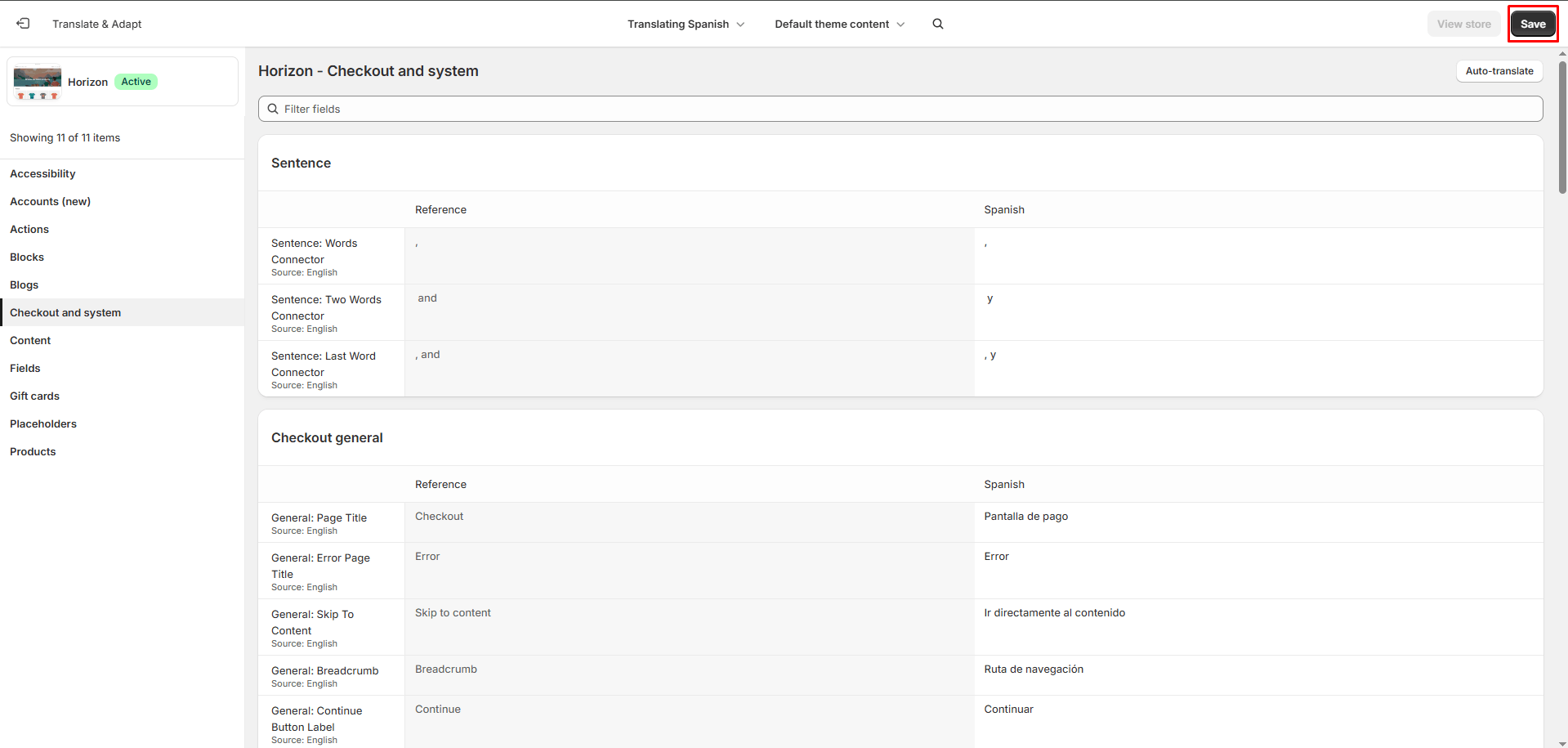
Go to the Checkout and system tab, add your translations, and click save.
Step #7
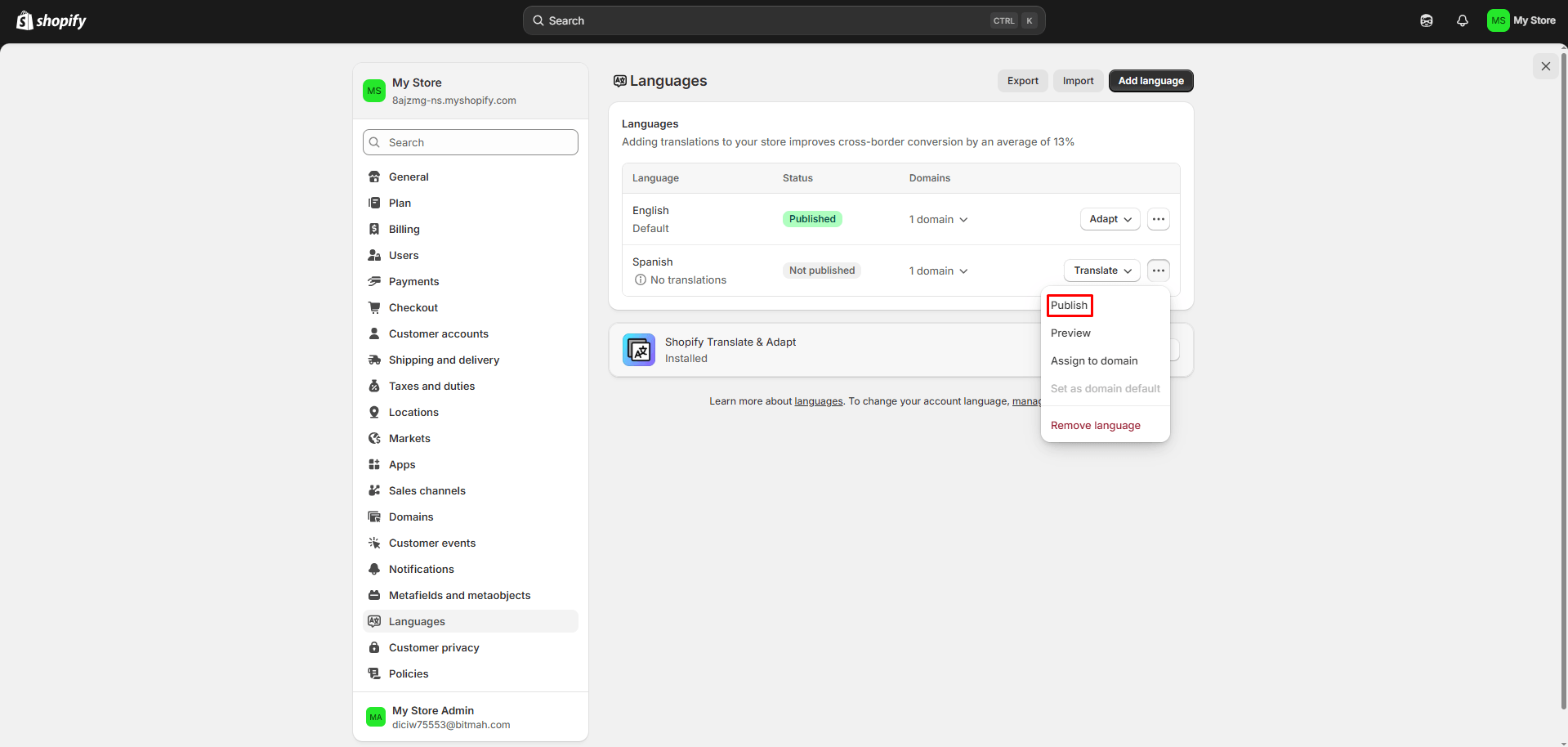
Go back to Settings > Languages > … > Publish to publish your translations
Step #6 – Save and Refresh
That’s it. Please visit your website, refresh the page and the shopify checkout page will be also translated.
Your Shopify store should be fully translated now.
Note:
If you are seeing multiple language switchers on the page, you can use our whitelist feature to exclude the switcher from appearing on specific pages.
You can learn more here: Exclude Pages and Divs from Translation with ConveyThis