
How do I keep parts of my website from being translated?
ConveyThis translates everything on your website by default. You can keep parts of it in the original language in three ways:
- Exclude elements: keep a block of a page untranslated, such as a header, a price table or a code sample.
- Exclude pages: keep whole pages untranslated, such as your privacy policy.
- Use a whitelist: translate only the pages you choose, and nothing else.
All three are available on paid plans. They aren’t included in the Free plan.
How do I exclude part of a page?
Exclude an element by its id or class. The element and everything inside it stay in the original language, on every page where it appears.
- Log in to your ConveyThis dashboard and open Domains.
- On your website, open the Customize menu and choose Excluded ids/classes. The Exclusions page opens on the Elements tab.
- Under Add element exclusion, choose id or class.
- Type the name exactly as it appears in your HTML, without
#or.. For example, for<div class="site-footer">typesite-footer. - Click Add exclusion.
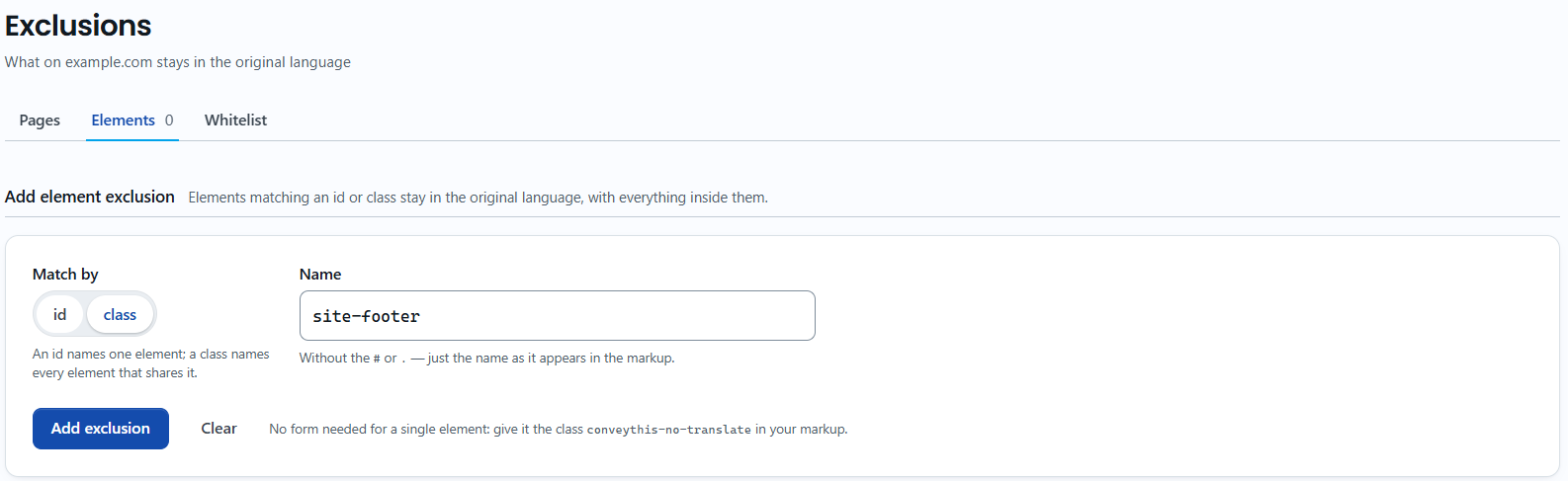
An id names one element. A class names every element that shares it, so one class rule can cover the same block on all your pages.
Can I exclude elements in WordPress, Shopify or Joomla?
Yes. The ConveyThis plugins have the same option, and the rules you add there are saved to your ConveyThis account, so they also appear in your dashboard.
- WordPress: in your WordPress admin, open ConveyThis and go to the Excluded Pages tab. Under Exclusion div Ids, click Add more ids, or under Exclusion div Classes, click Add more classes. Enter the name and click Save settings.
- Shopify: in your Shopify admin, open the ConveyThis app and go to Whitelist & Exclusions. Under Element Exclusions, add the id or class and click Save Exclusions.
- Joomla: in your Joomla administrator, open Components → ConveyThis and go to the Excluded pages tab. Under Parts of a page, add the id or class to Elements to leave untranslated and save.
Can I exclude text without the dashboard?
Yes. Add the class conveythis-no-translate to any element in your HTML:
<p class="conveythis-no-translate">This text will not be translated.</p>The common notranslate class works the same way.
ConveyThis also leaves some things untranslated on its own. On Shopify, prices and the payment buttons stay as they are. On WordPress, the admin bar and code blocks aren’t translated.
How do I exclude whole pages?
Go to Domains, open Customize on your website and choose Excluded Pages. Add a rule that matches the page address, for example URL starts with /blog to keep every blog post in the original language.
For all four match options and examples, see How do I exclude pages from translation?
How do I translate only some pages?
Use the whitelist. When it’s on, ConveyThis translates only the pages on the list, and everything else stays in the original language. It’s useful when you roll out translation page by page.
Go to Domains, open Customize on your website and choose Whitelist. Turn the whitelist on for your website, then click Edit pages to choose the pages to translate. In the Shopify app, you’ll find the whitelist on the Whitelist & Exclusions page, under Translate ONLY whitelisted pages.
What about single words, like my brand name?
Excluding an element keeps the whole block untranslated. To keep only one word or phrase untranslated wherever it appears, such as your brand name, use a Glossary rule with Do not translate.
When do changes show?
Exclusions take effect the next time a page is loaded. If you still see a translation, clear your website’s cache and check the page in a private window. See Why aren’t my translation changes showing on my website?