
How do I translate my Shopify email notifications?
ConveyThis translates your store, but Shopify sends its emails itself, so they aren’t translated automatically. You can still send each customer emails in their language: ConveyThis saves the language the customer shopped in on their order, and your email template shows the right text for it.
How does it work?
When a customer switches language in your store, ConveyThis adds the language code to their cart as the attribute lang, for example fr or es. The code stays on the order, so your notification templates can read it as attributes.lang.
This works for order notifications, such as Order confirmation and Shipping confirmation. It doesn’t work for emails that aren’t linked to an order, such as gift card emails.
How do I translate an email?
- In your Shopify admin, go to Settings > Notifications and open the email you want to translate, for example Order confirmation.
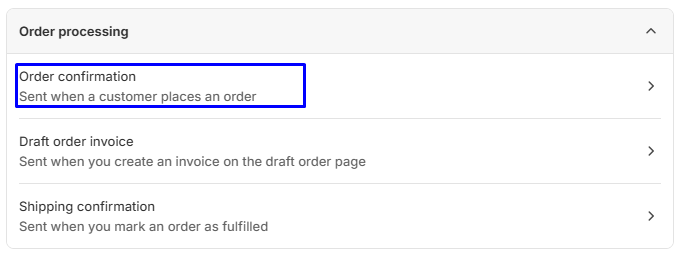
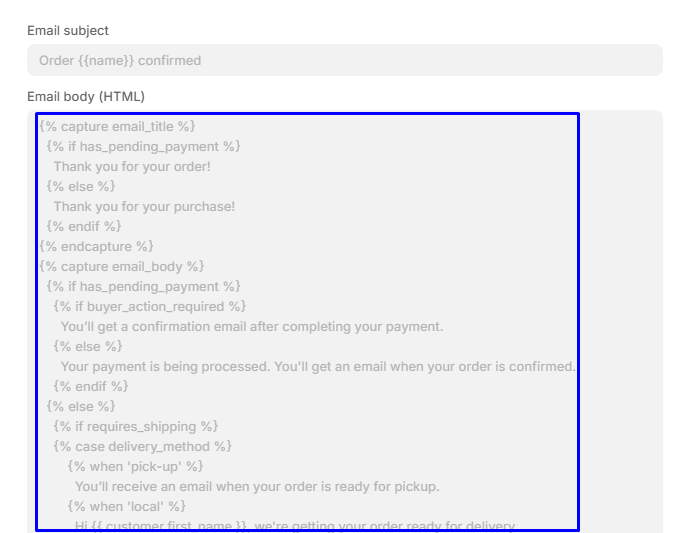
- Click Edit code and copy the whole email body into a text editor.
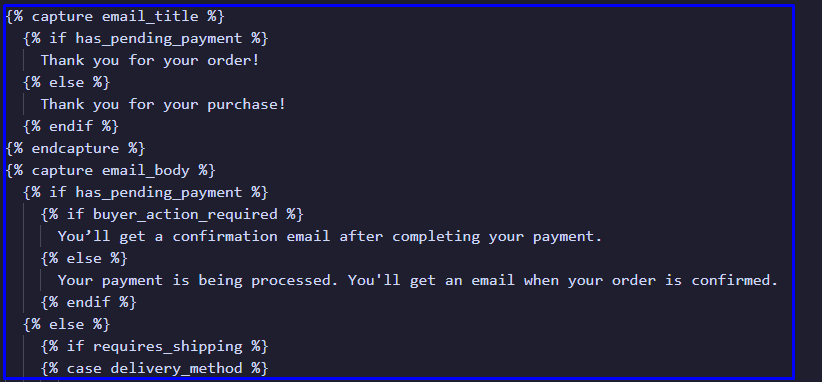
- Wrap the body in a case block, with one part for each of your languages. Use the language codes from your ConveyThis languages:
{% case attributes.lang %}
{% when 'fr' %}
  EMAIL IN FRENCH HERE
{% when 'es' %}
  EMAIL IN SPANISH HERE
{% else %}
  EMAIL IN THE ORIGINAL LANGUAGE HERE
{% endcase %}- Paste the original email body in place of EMAIL IN THE ORIGINAL LANGUAGE HERE.
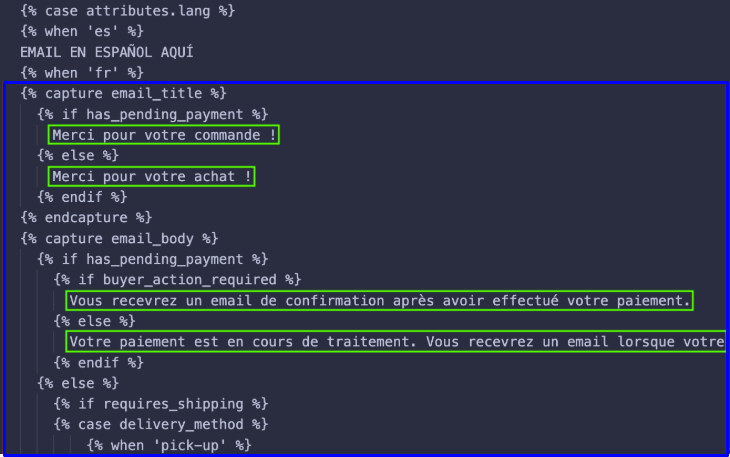
- Paste the body again in place of each language, and translate only the sentences. For example, change “Thank you for your purchase!” to “Merci pour votre achat !”. Don’t change anything inside
{% %}or{{ }}.
- Copy everything back into the email in Shopify and click Save.
- Do the same for the Email subject, which has its own field.
Good to know
- Customers who shop in your original language, or who never switch language, get the else part.
- Send yourself a test email from the notification page to check every part.
- To translate the checkout, see How do I translate the Shopify checkout?