
Why can’t I access the Visual Editor?
If the Visual Editor won’t open, go through the checks below in order. Most problems are solved by the first three. Further down you’ll find how to open the Visual Editor and how to edit translations in it.
Why won’t the Visual Editor open?
The Visual Editor loads your page from ConveyThis servers, the same way a visitor would. If our servers can’t load the page, or the ConveyThis widget isn’t on it, the editor can’t open.
Step 1. Open the page in a private window
Open the page in a private (incognito) browser window, where you aren’t logged in to your site. This is what our servers see.
If you see a password prompt, a login page, or a maintenance or “coming soon” page, the Visual Editor can’t get past it either. Turn the protection off while you edit, then reload the editor. A site that only runs on your own computer or company network can’t be opened by the editor at all.
Step 2. Check that the language switcher is on the page
In the same private window, look for the ConveyThis language switcher. If it isn’t there, the widget isn’t installed on that page, and the editor shows “ConveyThis plugin was not found!”.
Check that the ConveyThis plugin is active, or that the script is on every page and uses the API key from your dashboard.
Step 3. Check the domain name
The domain in your dashboard has to be the address of your live site. To check it, go to Domains, open Settings on your domain and choose Edit Technologies.
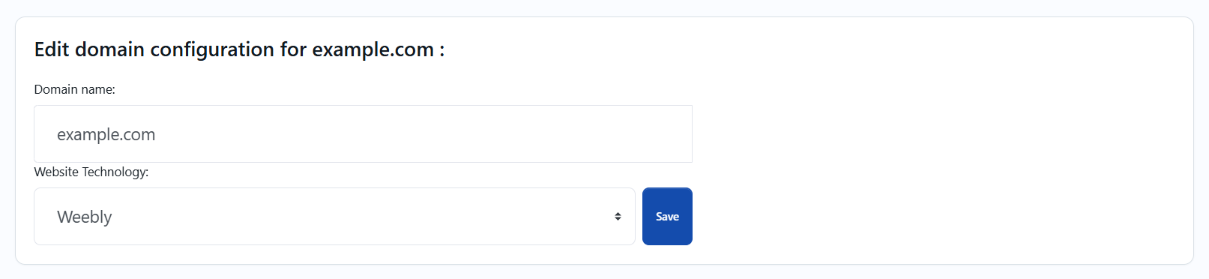
The most common mismatches:
- www and no www. If your site opens at
www.example.combut the dashboard saysexample.com, or the other way around, make them the same. - Subdomains. A shop at
shop.example.comis a different domain fromexample.com. - Staging or old address. If the dashboard has your staging site or the address you used before a move, change it to the live address.
Step 4. Check your firewall
Cloudflare, your host’s bot protection or a security plugin can block our servers. If Cloudflare is blocking the editor, the editor shows a message with the IP address of our servers. To allow it:
- Copy the IP address from the Visual Editor message.
- In your Cloudflare dashboard, open your site and go to Security → Security rules.
- Select Create rule → IP access rules.
- Paste the IP address, set Action to Allow, and choose this website.
- Select Create, then reload the Visual Editor.
This works on all Cloudflare plans, including Free. For other firewalls, or if you don’t see an IP address, contact support and we’ll send it to you.
Still not working?
You can edit the same translations with the Text Editor link next to the page. If you need the Visual Editor, contact support and send us the page URL.
How do I open the Visual Editor?
Log in to your ConveyThis dashboard, open Edit Translations in the left menu and pick your domain. You can also go to Domains and choose Translations → My Translations on your domain.
Every translated page has a Visual Editor link. Click it and the editor opens in a new tab.
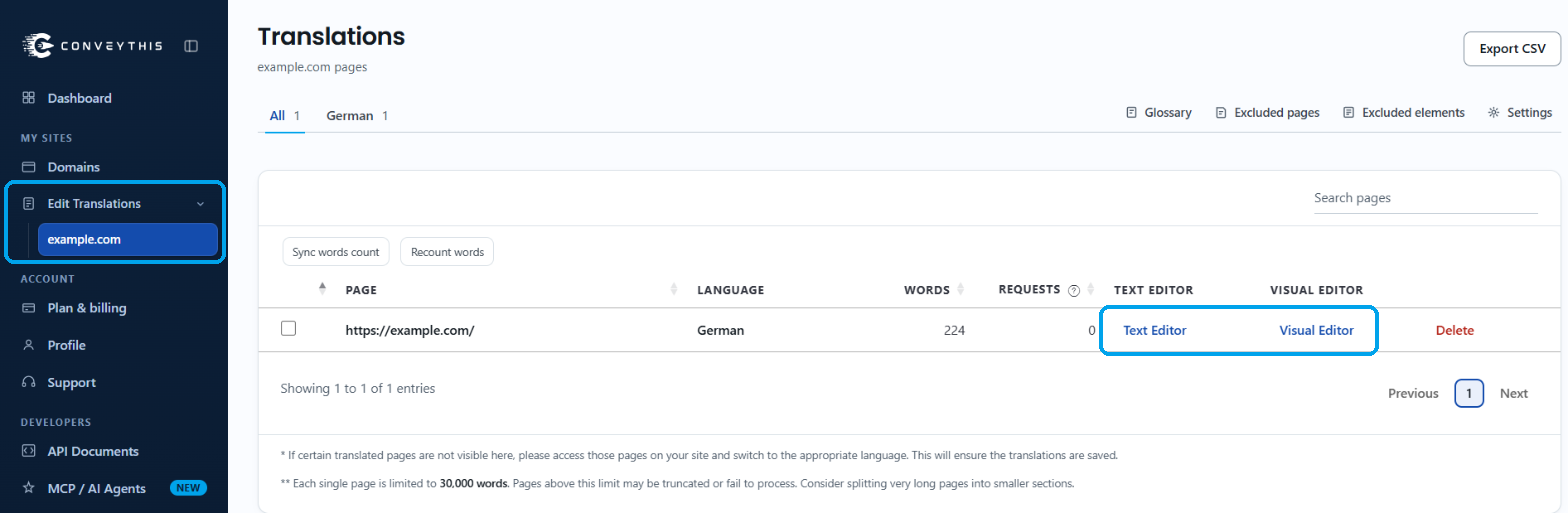
A page shows up in this list only after someone has visited it in a translated language. If your page is missing, open it on your site, switch the language, and refresh the list.
How do I edit a translation in the Visual Editor?
The editor shows your page in the translated language, with a small toolbar on top. Hover over any text and a blue outline and a pencil icon show what you can edit.
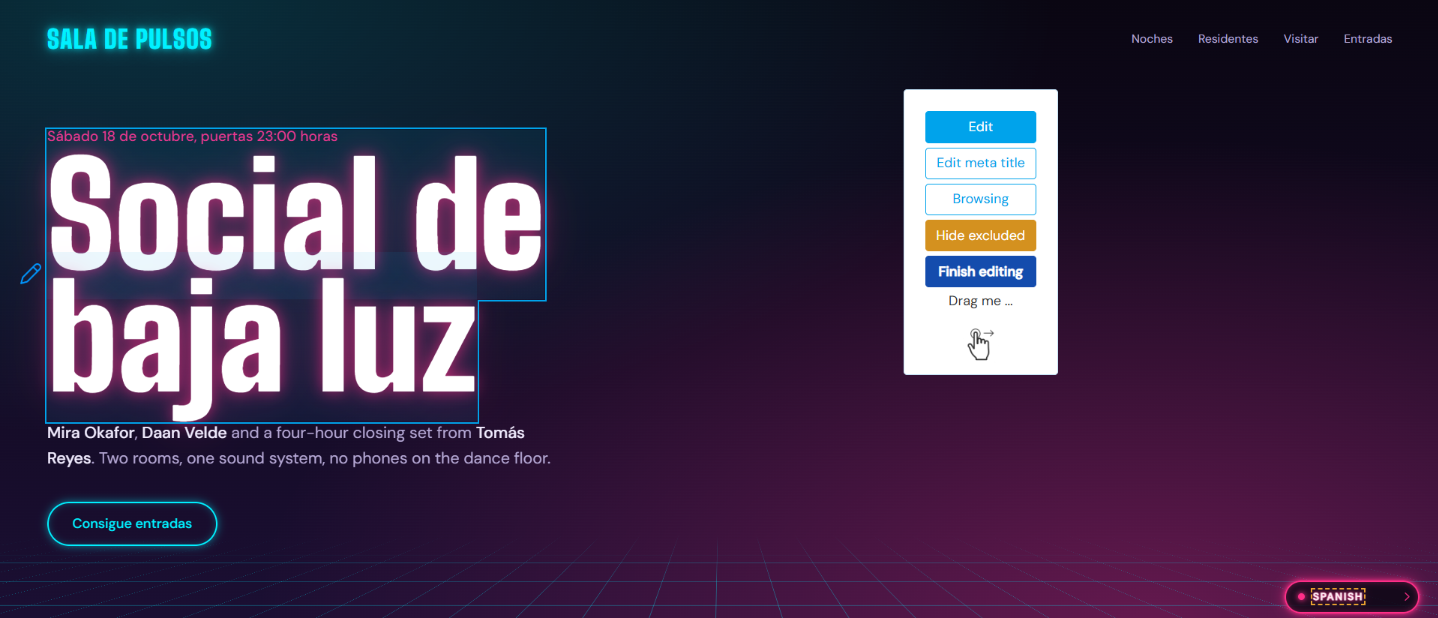
The toolbar buttons:
- Edit: click any text on the page to edit its translation.
- Edit meta title: edit the translated page title, shown in the browser tab and in search results.
- Browsing: click links and buttons to move around your site. Editing is paused until you click Edit again.
- Show excluded / Hide excluded: show or hide text that is excluded from translation.
- Finish editing: go back to your domains list.
The toolbar can be dragged anywhere on the page if it covers the text you need.
When you click a text, a box opens with the original text and its translation. Change the translation and click Save changes.
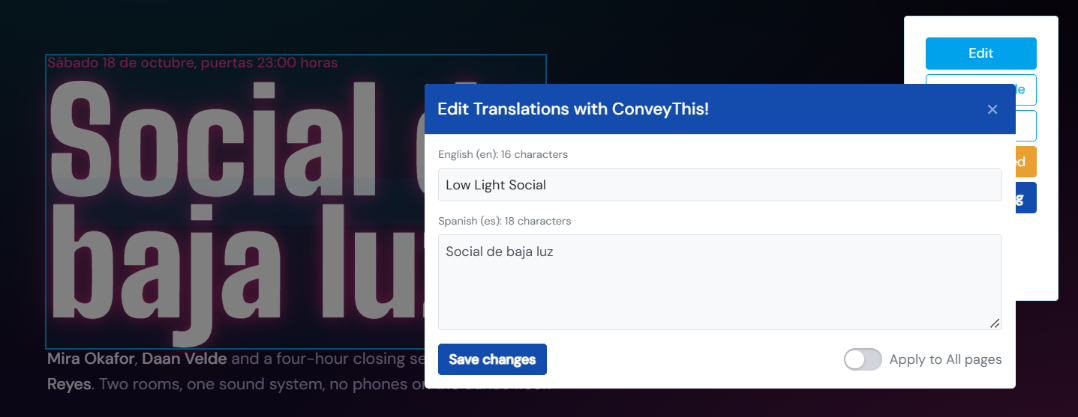
Note: Apply to All Pages (Add Glossary Rule) With this switch off, your change is saved for this exact text on every page where it already appears. With it on, your change is saved on this text and also added as a Glossary rule for this language, so other texts that contain this phrase use it too, including longer sentences. Only their machine translations are translated again: texts you edited by hand and professional translations are kept, so update those yourself if needed.