
Weebly Integration
Integrating ConveyThis into your site is fast and easy, and Weebly is no exception. In just a few minutes you’ll learn just how to install ConveyThis to Weebly and start giving it the multilingual functionality you need.
1) Create a ConveyThis Account
Your ConveyThis dashboard is where you view and manage all your translations. Create a free account here.

2) Choose Weebly and add your languages
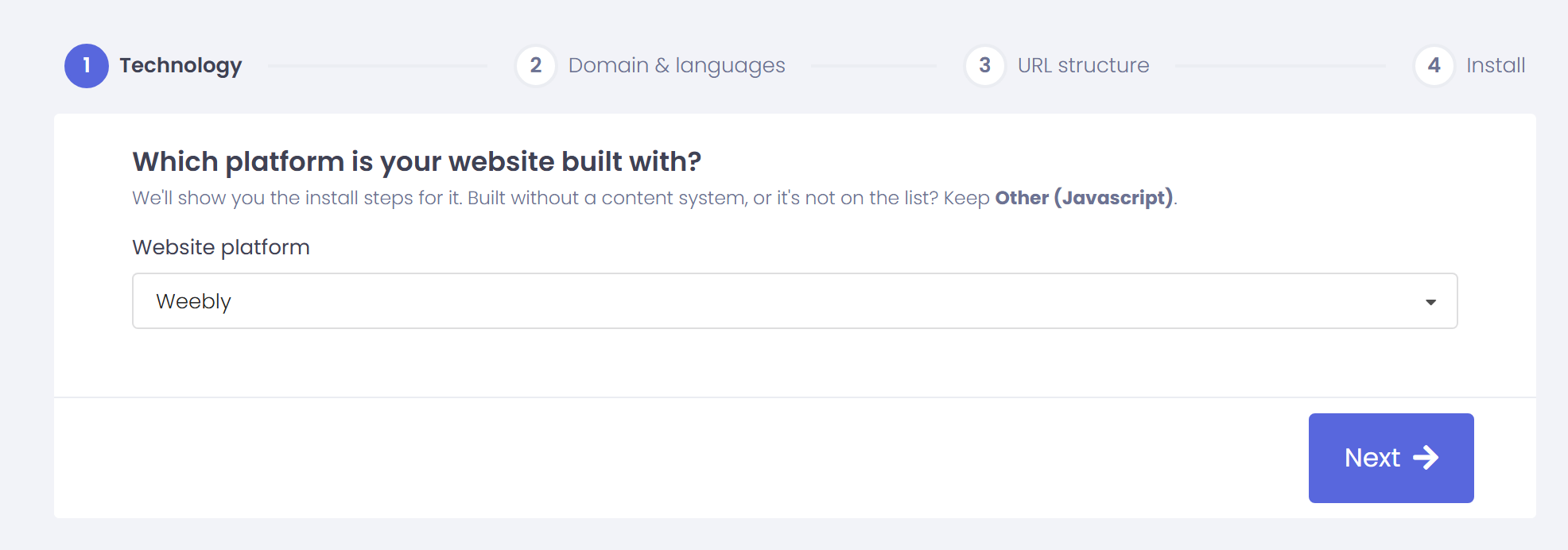
After you sign up, the setup wizard asks which platform your website is built with. Select Weebly and click Next.
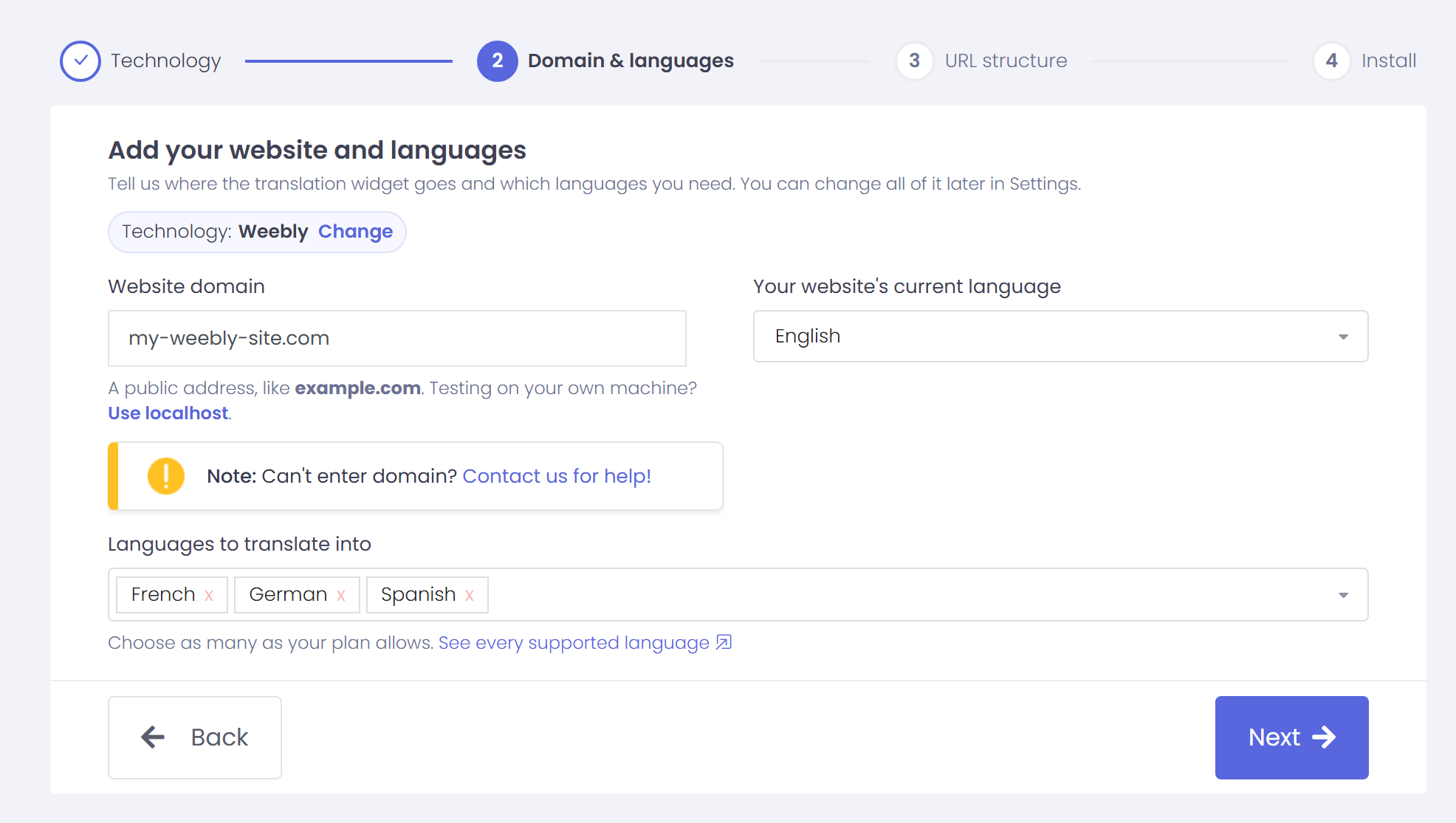
Enter your website domain, choose the language your site is written in, and pick the languages you want to translate into. Click Next.
On the URL structure step, keep the default option unless you plan to use sub-domains, and click Next. You can change it later in Settings.
3) Add the ConveyThis code to Weebly
The last wizard step shows your personal code snippet. Click Copy to clipboard.
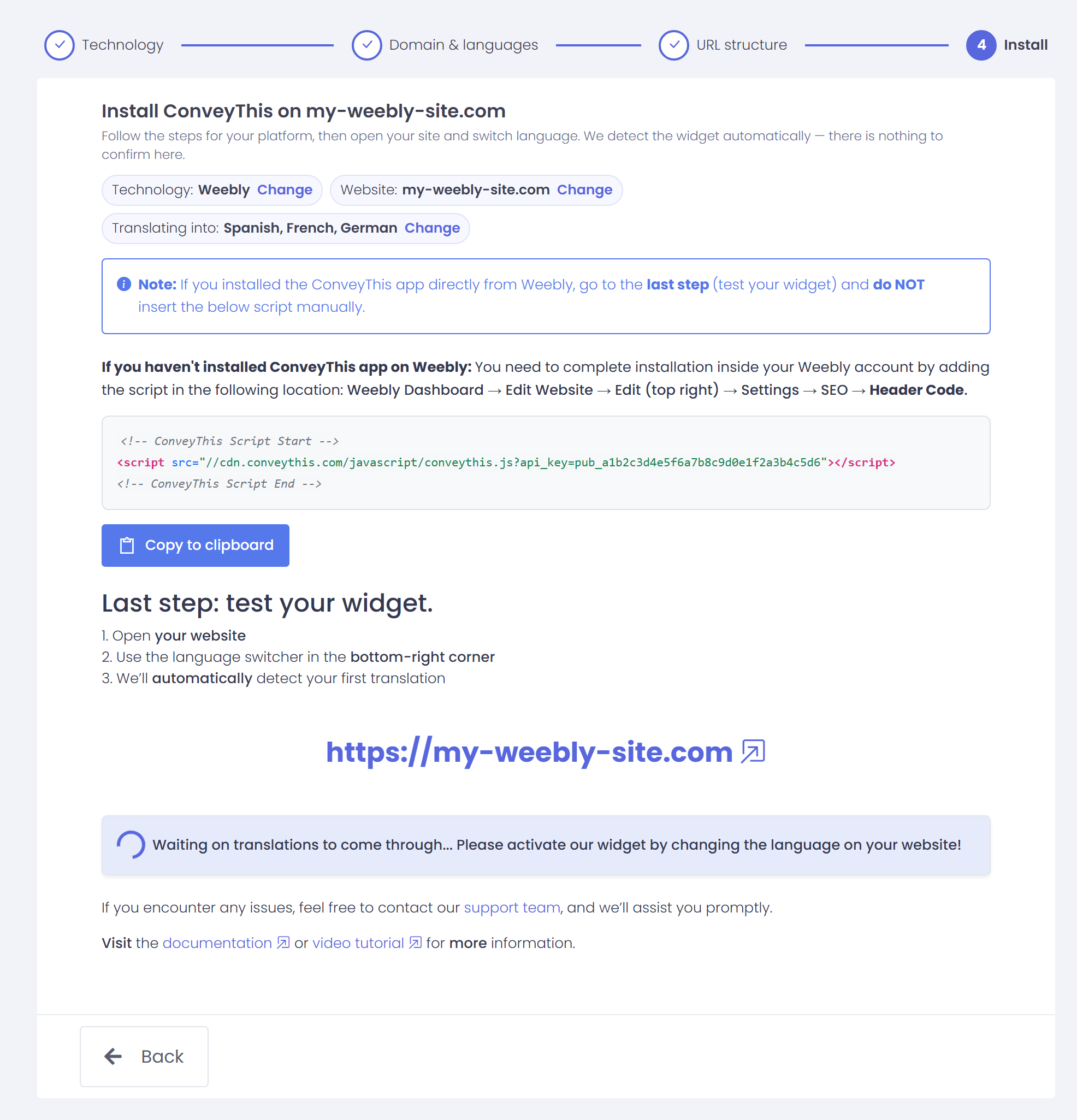
Now add the code in your Weebly account:
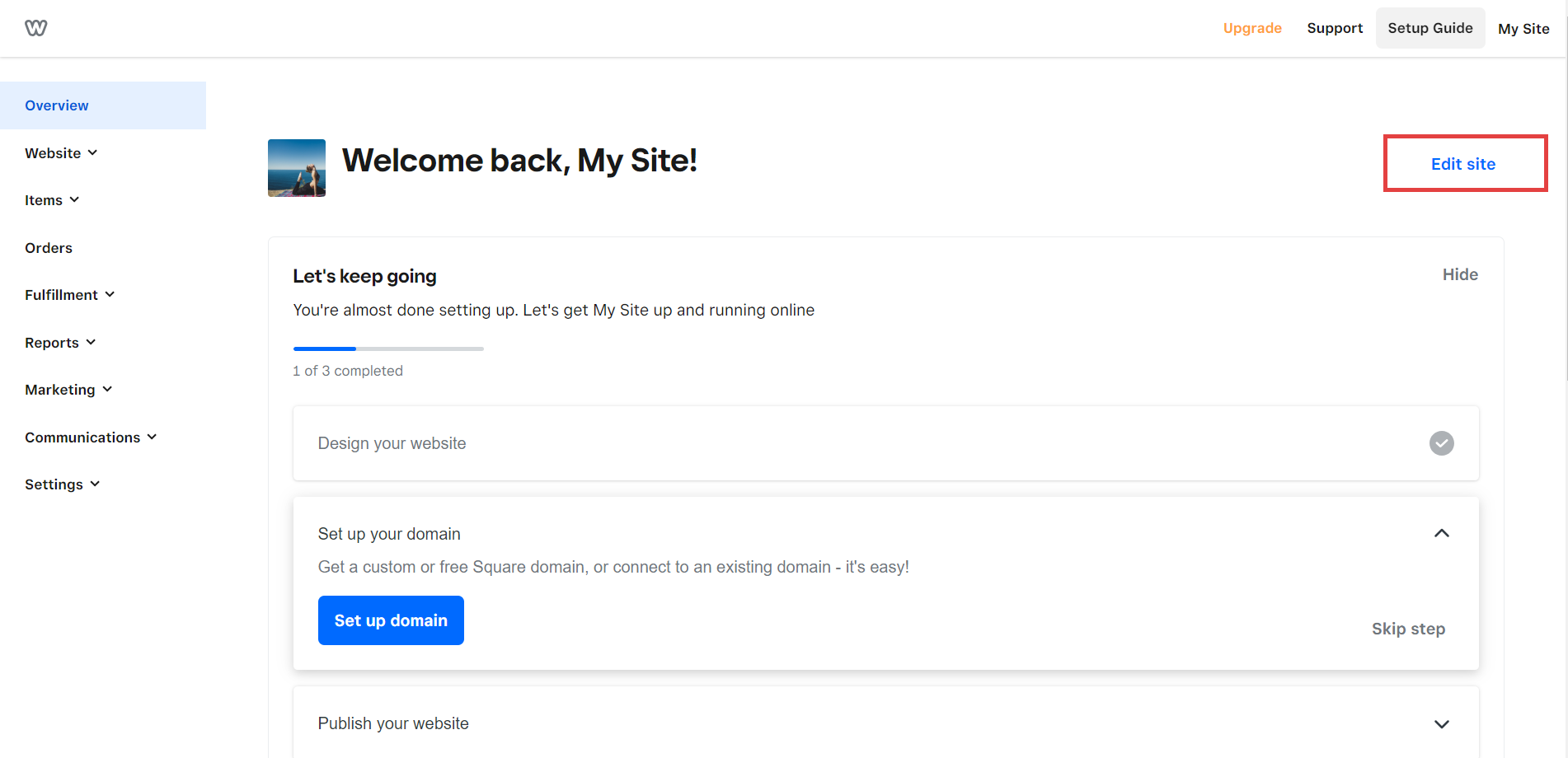
Once you reach your Weebly dashboard, click on “Edit site”.
After you get redirected to the “Edit site” page, navigate to “Settings” in the top bar of the navigation menu.
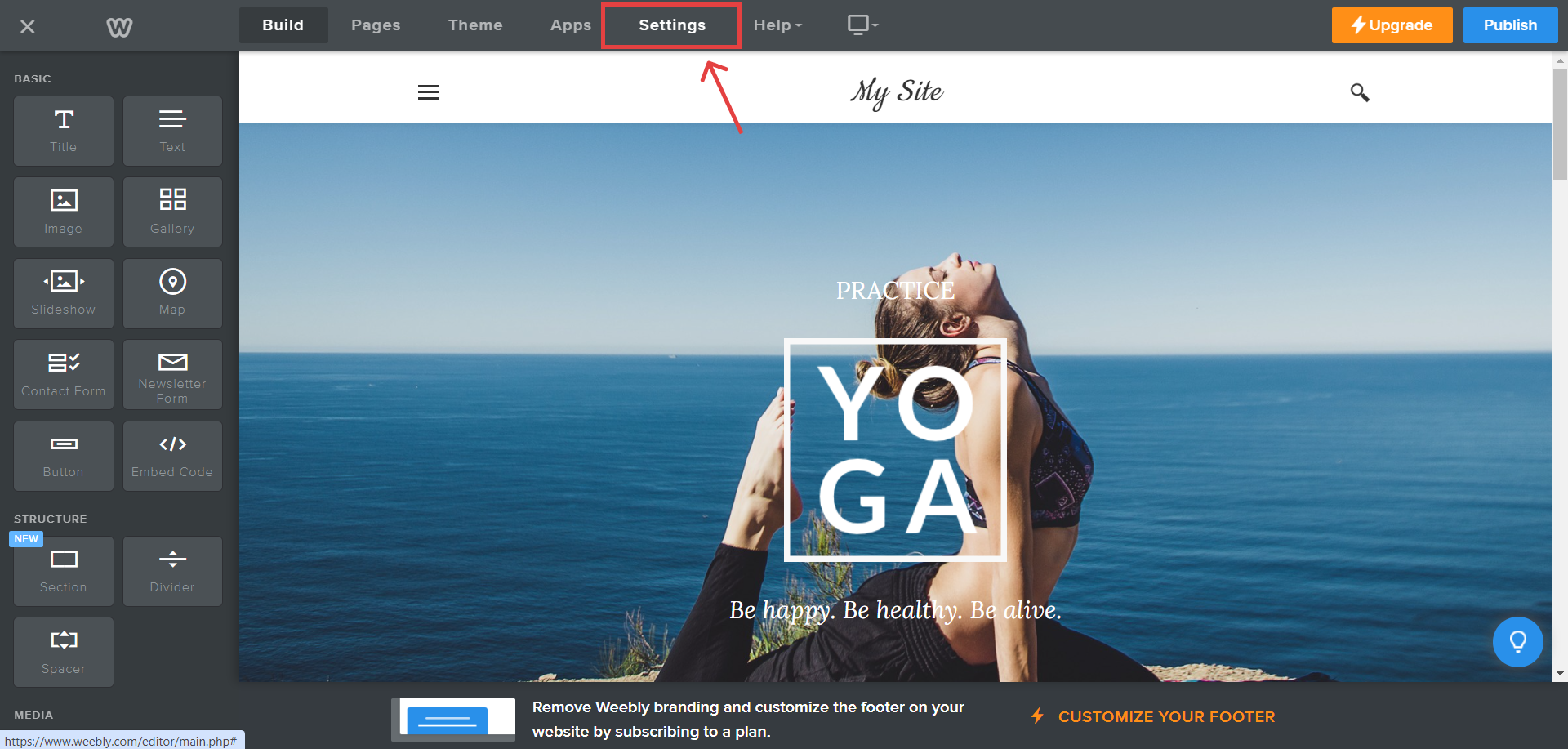
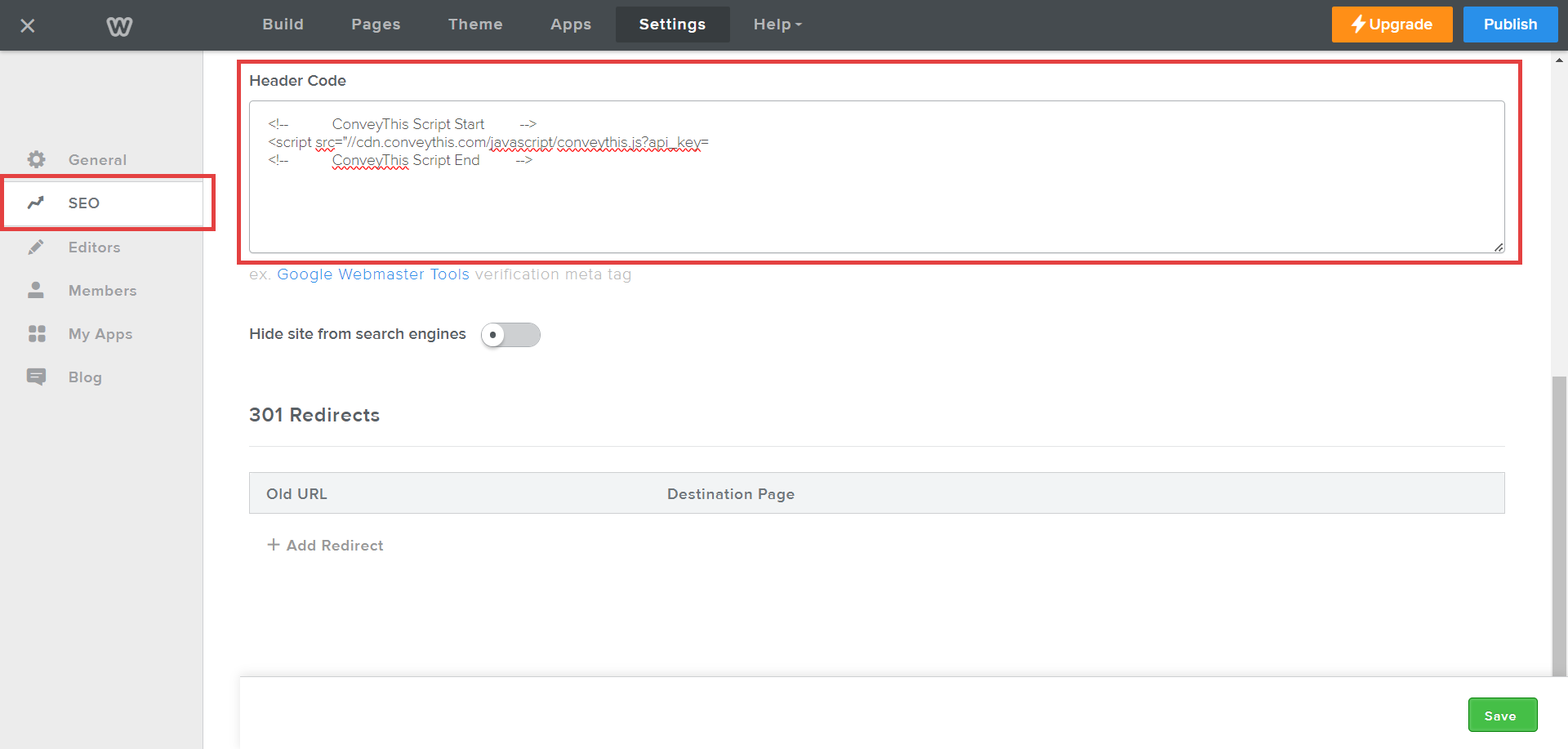
Once you reach the “Settings” page navigate to SEO in the side bar; find the “Header Code” section, and copy/paste the JavaScript snippet provided on your ConveyThis installation page. Finally, click “Save” and then click “Publish”.
4) You’re all done!
That’s it. Go to your website and see the language-switch button at the bottom right. It might take a few minutes to appear, so don’t worry if you must wait a bit.
Try changing the language when the language switcher appears–and, like magic, your website is multilingual! You can now go to your ConveyThis dashboard to manage all your translations.
Congratulations, now you can start translating your website!
*To customize the language switcher or change other options, open your domain in the ConveyThis dashboard and go to Settings.