
How do I upgrade my ConveyThis plan?
You can move to a bigger plan at any time, from the Free plan or from one paid plan to another. You do it yourself from the Plan & billing page of your ConveyThis dashboard.
How do I upgrade my plan?
Log in to your ConveyThis dashboard and click Plan & billing in the left menu.
At the top of the Plans page you see your current plan and what you use of it. Below, under All plans, choose Monthly or Yearly billing. Yearly billing gives you two months free.
Click Choose on the plan you want. In the List view, the button is called Upgrade.
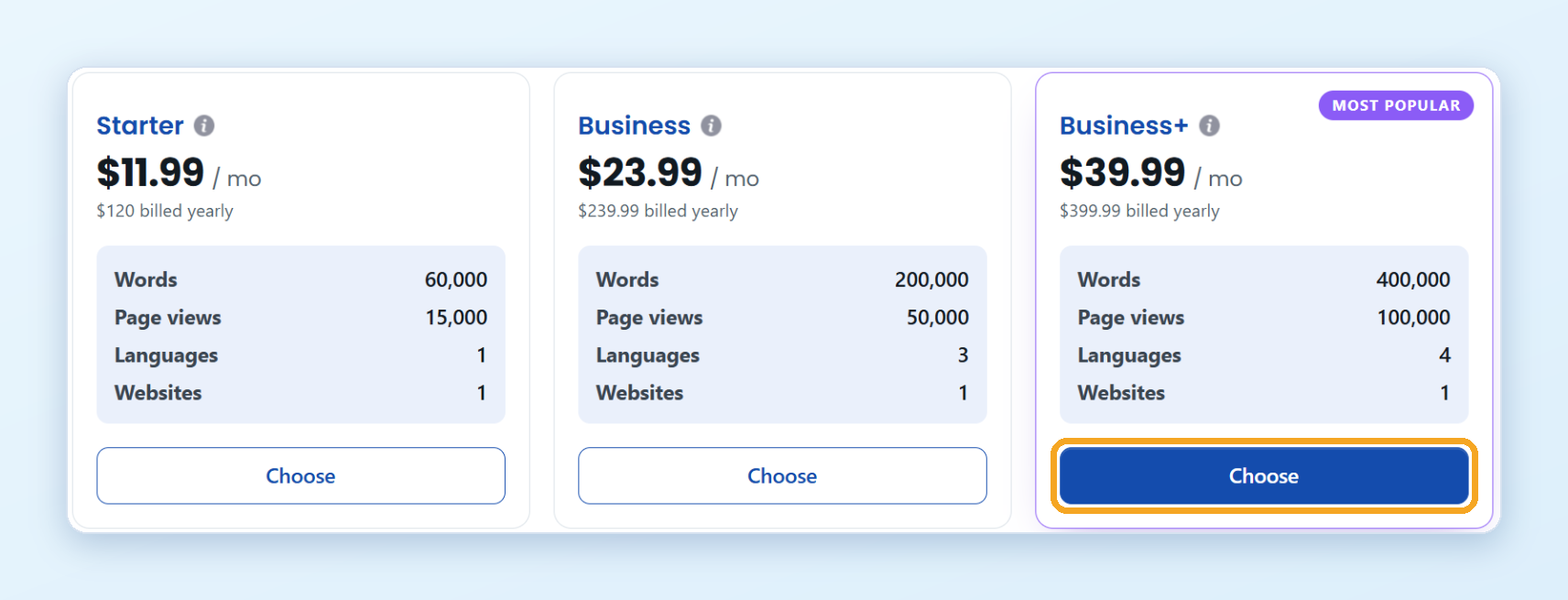
On the next page, check the plan and its price.
Under When your site outgrows this plan, choose one option:
- Move me up automatically: when your website passes the plan’s word limit, you move to the next plan. See auto-upgrade.
- Pause new translations at my limit: your plan and price stay the same, and new text stays in the original language until you upgrade.
Click Proceed.
If you’re on the Free plan, the secure Stripe checkout page opens. Enter your card details and confirm the payment.
If you already pay for a plan by card, there is no checkout page: the new plan is charged to your card on file right away, minus a credit for the unused time on your current plan. See Am I charged the full price when I upgrade?
When the payment goes through, your new plan is active right away. Your websites, languages and translations stay as they are. The receipt appears on the Billing page.
To compare what each plan includes, see the pricing page.
I use ConveyThis through Shopify or Wix
If you installed ConveyThis from the Shopify App Store or the Wix App Market, the plan is billed by Shopify or Wix. Change it in the ConveyThis app inside your Shopify or Wix admin.