
How do I add ConveyThis to BigCommerce?
You can add ConveyThis to BigCommerce with the ConveyThis app or with a script in Script Manager. The app is the quickest: it adds the script to your store for you.
Option 1. Install the app (recommended)
- Open ConveyThis in the BigCommerce App Marketplace and click Get this app. Or, in your BigCommerce admin, go to Apps > Marketplace and search for ConveyThis.
- Click Install and confirm the access BigCommerce asks for.
- ConveyThis creates your account with your store’s email address and opens the setup. Enter your store’s domain, choose the language your store is written in and the Languages to translate into, and finish the steps.
The app adds the ConveyThis script to your storefront. Open your store: the language switcher appears in the bottom right corner.
To open ConveyThis later, go to Apps > My Apps in BigCommerce, or log in to your ConveyThis dashboard.
Option 2. Add the script yourself
- In your ConveyThis dashboard, click Add Domain and choose BigCommerce under Website platform. Enter your domain and languages. Then use this code:
<!-- ConveyThis Script Start -->
<script src="//cdn.conveythis.com/javascript/conveythis.js?api_key=YOUR_API_KEY"></script>
<!-- ConveyThis Script End -->
Replace YOUR_API_KEY with your API key. You find it on your ConveyThis dashboard under Public API key (it starts with pub_).
- In your BigCommerce admin, go to Storefront > Script Manager and click Create a Script.
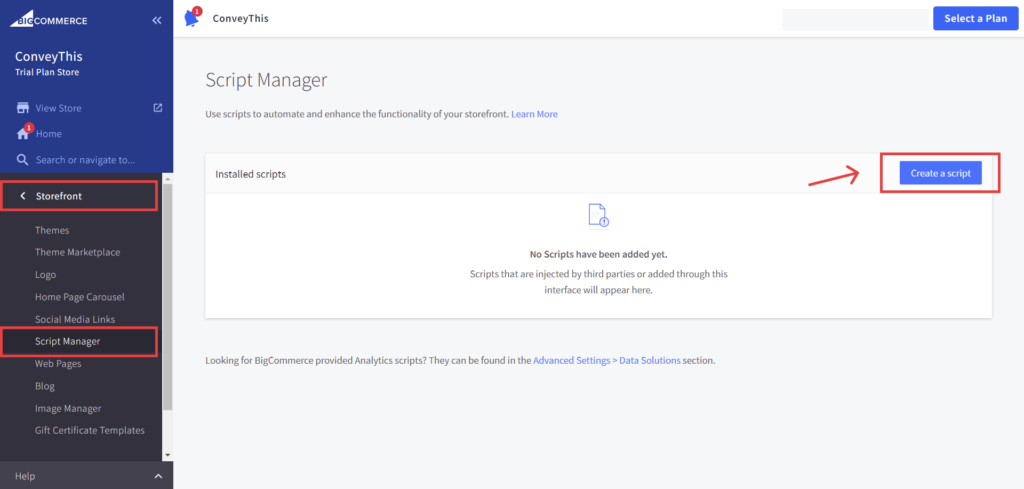
- Fill in the form:
- Name of script: ConveyThis
- Location on page: Footer
- Select pages where script will be added: All pages
- Script category: Essential
- Script type: Script
- Script contents: paste the code
- Click Save.
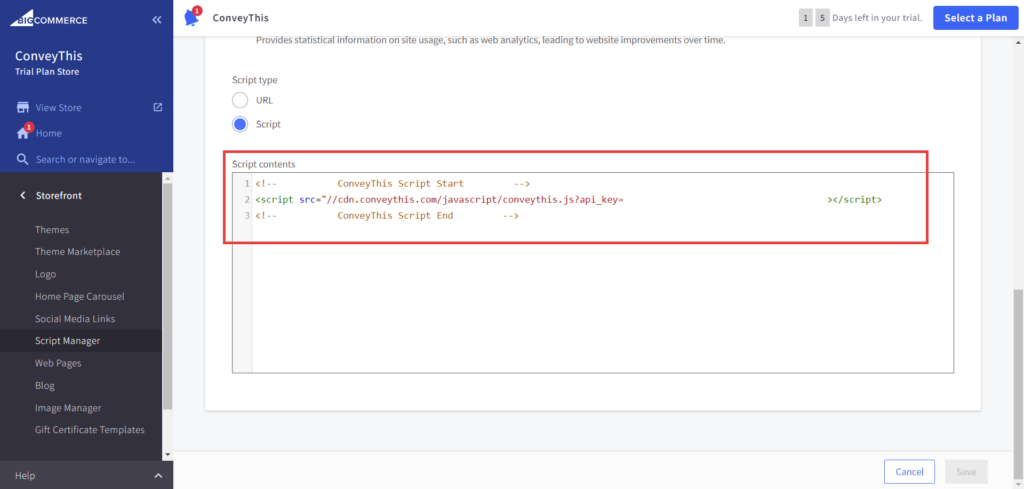
Then open your store: the language switcher appears in the bottom right corner.
Good to know
- Use only one option. If you installed the app, don’t add the script as well.
- To change the switcher’s look or position, go to Domains and open Settings on your website. See Change the switcher position.
- Translations don’t appear? See Translations are not displayed.