
Is there a translation history?
ConveyThis doesn’t keep a full log of every change. For each text on your site, it keeps two versions: the automatic (machine) translation and your latest edit. You can see when each text was last changed and switch back to the automatic translation at any time.
How do I see which translations were changed?
- Log in to your ConveyThis dashboard, open Edit Translations in the left menu and pick your domain.
- Click Text Editor next to the page you want to check.
- Open the Sort by menu and choose USER Translations to see only the texts you or your team edited.
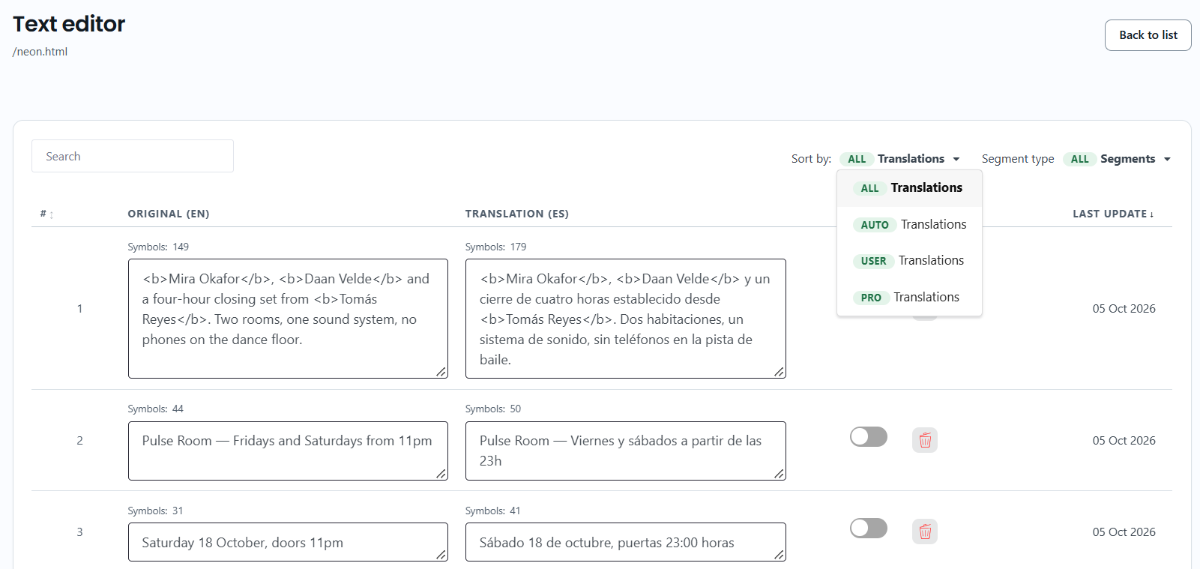
The Sort by menu has four options:
- ALL: every text on the page.
- AUTO: texts that use the automatic translation.
- USER: texts that use your own edit.
- PRO: texts that use a professional translation.
The Last update column shows the date each text was last translated or changed. Click the column title to sort by it.
How do I go back to the automatic translation?
Each text in the Text Editor has a switch next to the translation:
- On: the text uses your edit.
- Off: the text uses the automatic translation.
Turn the switch off to bring back the automatic translation. The change is saved right away. Your edit isn’t deleted, so you can turn the switch on again to use it.
ConveyThis only keeps your latest edit. If you change a translation again, the earlier version is replaced.
How can I keep a copy of my translations?
To keep earlier versions, export your translations before you make big changes. Go to Domains, open Translations on your domain and choose CSV or TMX. You can import the file later to bring the translations back. See Import and export translations.