How Can We Help?
ConveyThis WordPress: Extended settings & Key Controls
A multilingual site isn’t just a translation toggle — it’s about giving visitors the right language fast, keeping navigation consistent, and making sure Google can index each language properly.
ConveyThis does this in two layers:
- WordPress plugin settings (where you choose your languages, set up the language switcher, control translated URL structure and SEO options, and manage tools like Block pages and Glossary to exclude pages or keep key terms consistent)
- ConveyThis dashboard settings (where you manage advanced translation controls such as editing translations, whitelist rules, and import/export)
Extended settings in the WordPress Plugin
If you haven’t installed and connected ConveyThis yet, follow the official step-by-step installation guide here.
After installing and activating the plugin, you’ll see ConveyThis in the left-side WordPress admin menu. Click it to open the plugin settings page, where the main configuration tabs appear at the top
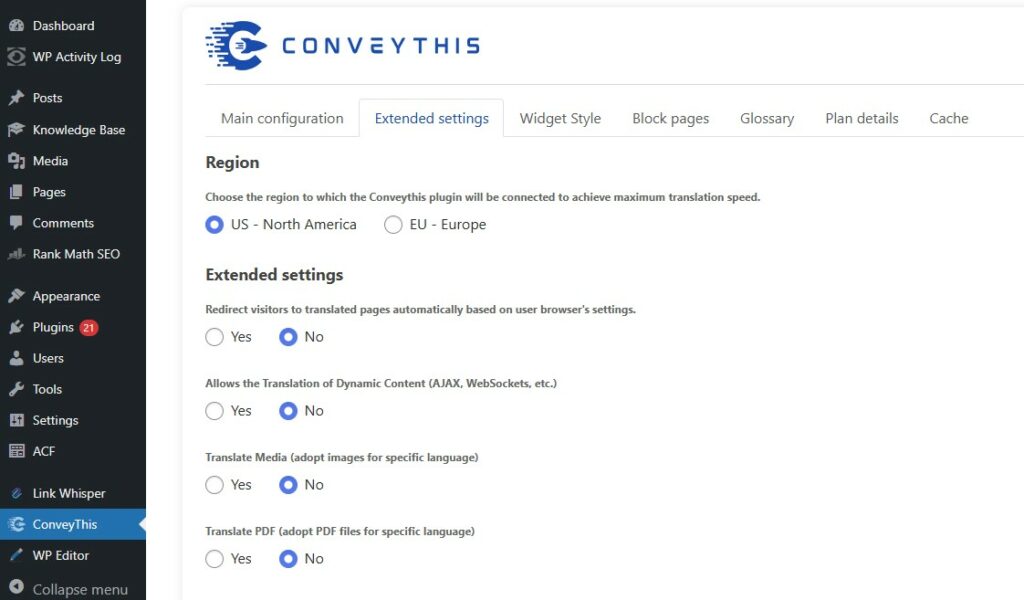
Example of the WordPress admin dashboard with the ConveyThis plugin open
Region
What it does: This is the very first setting in Extended settings. It lets you choose which server region the ConveyThis plugin connects to for the best performance.
Why it matters: Picking the closest region can improve translation speed and responsiveness.
Redirect based on the browser
What it does: Automatically sends visitors to the matching language version based on their browser language
When to enable:
- You serve visitors in distinct languages and want “auto language detection.”
- Example: users with Spanish browser settings land on
/es/automatically
When to keep OFF:
- If you need visitors to always start on the default language (some companies prefer this)
- If you run region-specific marketing campaigns and want users to choose manually
Important SEO note: If this option is enabled for a long time, search engines may start showing the translated version of your site in search results. This happens because search engine bots can be redirected to a language version (like /es/) and then treat that version as the main page
Translate Dynamic Content (AJAX / WebSockets)
What it does: Translates text that appears after the page loads (without a full refresh), such as popups, infinite scroll/product filters, and other script-generated sections
When to enable: Turn this on if parts of your site load content after clicking, scrolling, or filtering
Translate Media
What it does: Lets you show different images per language
Perfect for:
- Homepage banners with text
- Infographics
- Promo images that contain language-specific text
How it’s typically used:
- Turn Translate Media = Yes
- Save changes
- In the ConveyThis Editor, select the image and provide the translated version (image URL) per language.
- You can find more information here.
Common pitfall: Replacing an image with a different size can break layout spacing—try to keep dimensions similar.
Translate PDF
What it does
Lets you show a different PDF per language by swapping the PDF link (so visitors download the right file for their language).
Important
This setting doesn’t translate the PDF automatically — it only switches the link to a language-specific PDF you provide.
Recommended workflow
- Translate your PDF first (DocTranslator is a great option if you want a fast, layout-friendly way to generate translated PDFs)
- Upload each language PDF somewhere public (e.g., your WordPress Media Library or a CDN)
- Enable Translate PDF = Yes
- In the Visual Editor, swap the PDF link per language so each language points to the correct file.
Why DocTranslator is mentioned?
Most people discover they don’t need “PDF translation” inside the site — they need translated PDF files. DocTranslator fits naturally here because it helps you create those translated PDFs, so this feature can do its job: serve the right PDF to the right audience.
Quick tip
Name files clearly (e.g., catalog-en.pdf, catalog-es.pdf) to avoid mixing links across languages.
Translate Links
The Translate Links feature automatically adjusts your page links to match each translated language version.
This helps improve both the user experience and SEO visibility for multilingual websites.
For example:
- Original page:
https://example.com/about-us - Translated (Spanish):
https://example.com/es/sobre-nosotros - Translated (French):
https://example.com/fr/a-propos
Each translated version of your website will have a clean, language-specific URL that makes navigation intuitive for international visitors.
Text direction (LTR ↔ RTL)
What it does: Switches layout direction for RTL languages (Arabic, Hebrew, etc.)
Enable when: You add an RTL language
Trailing Slash
What it does: Controls whether translated URLs end with a slash:
- No trailing slash: /es/page
- Trailing slash: /es/page/
Why it matters: Search engines treat these as different URLs. Changing this later can create extra redirects or duplicate URL versions unless the old URLs are properly redirected
Recommendation: Pick one style and stick with it
Quick tip: Match your site’s existing URL style (check your default language URLs)
Default Target Language (Optional)
Choose the main translated language you want ConveyThis to treat as the default target (e.g., Spanish if that’s your primary translation).
- Set it if you mainly focus on one translated language.
- Leave “No value” if you support multiple languages equally.
SEO
This section controls SEO signals on your multilingual pages.
Hreflang tags
What it does: Adds hreflang tags so Google understands which URL is for which language. This helps search engines show the correct language page in results.
Recommended: Keep “Add to all pages” enabled.
Why it matters: Without hreflang, Google may mix languages in search results or show the wrong language to users.
Translate Structured Data (JSON-LD)
What it does: Translates JSON-LD structured data on your pages (the schema text fields).
When to enable (recommended for SEO):
- Your site uses schema with text: Product names, descriptions, FAQ answers, organization description, etc.
-
You want each language version to have schema that matches its visible content.
When you might keep it OFF:
- Your schema contains mostly non-text values (IDs, numbers), or you have custom schema that must remain unchanged.
How to verify:
- Open a translated page and check whether structured data matches the translated content
- If something looks wrong, disable and test again
Customize Languages
This controls how languages appear in your switcher and interface.
Typical options you’ll configure:
- Which languages are visible
- Where languages appear (switcher, menu)
- How the language switcher behaves (depending on your plugin tabs: “Widget Style”, etc.)
Once you finish configuring Extended settings, you can move to the other plugin tabs to manage translation rules and consistency—such as excluding specific pages or elements, and enforcing preferred terminology
Block pages (Excluded Pages)
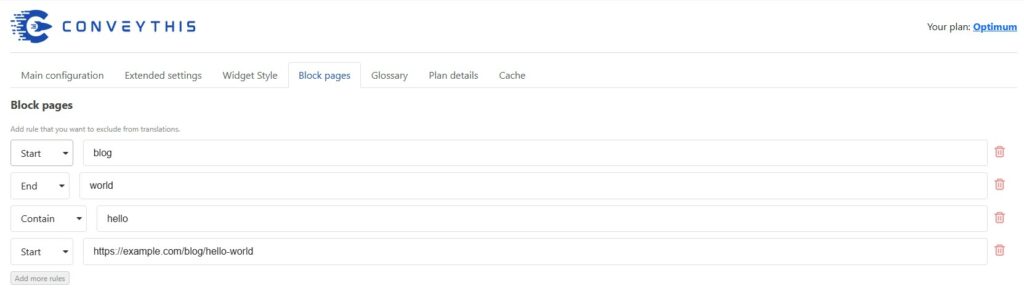
Example of blocked pages rules
What it does: Stops specific pages from being translated. This is useful when certain URLs should always stay in the original language (or shouldn’t be accessible in other languages).
How to add excluded pages (rules):
- Start – Exclude all pages starting with <your URL>. For example, https://example.com/blog/hello-world
- End – Exclude all pages ending with <your URL>. For example, https://example.com/blog/hello-world
- Contain – Exclude all pages where URL contains <your URL>. For example, https://example.com/blog/hello-world
- Equal – Exclude single page where URL is exactly same with <your URL>. For example, https://example.com/blog/hello-world
Best practice: Exclude sections that shouldn’t be translated (common examples: account pages, internal tools, confirmation pages, some checkout flows—depending on your setup).
Excluding specific page elements (IDs & Classes)
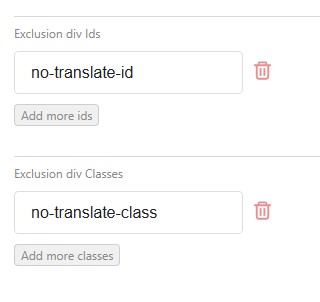
Example of excluded IDs and Classes
Where: ConveyThis → Block pages → scroll to Exclusion div Ids and Exclusion div Classes
What it does: Prevents selected parts of a page from being translated.
- Exclusion div Ids = exclude one specific element (unique block)
- Exclusion div Classes = exclude multiple elements that share the same component/style
How to use (IDs or Classes)
- Enter the value without symbols:
- ID: type
your-id-name(don’t include#) - Class: type
your-class-name(don’t include.)
- ID: type
- Click Add more ids or Add more classes if you need more entries
- Click Save settings
Tip: If you don’t know the ID or class, right-click the element on your page → Inspect → copy the value from id="..." or class="...".
Glossary
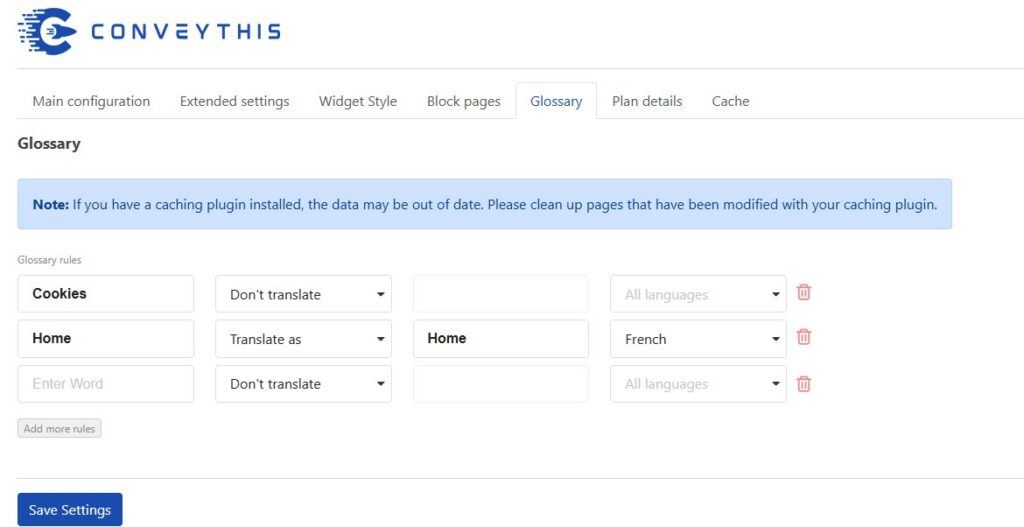
Where: ConveyThis → Glossary
What it does: Lets you control how specific words/phrases are translated so your terminology stays consistent.
Use Glossary for:
- Brand names (keep unchanged)
- Product names / features
- Industry terms that must always translate the same way
Dashboard features (ConveyThis)
There are also useful features available in your ConveyThis dashboard. To access them, log in here: https://app.conveythis.com/account/login/
Custom translation — ConveyThis dashboard
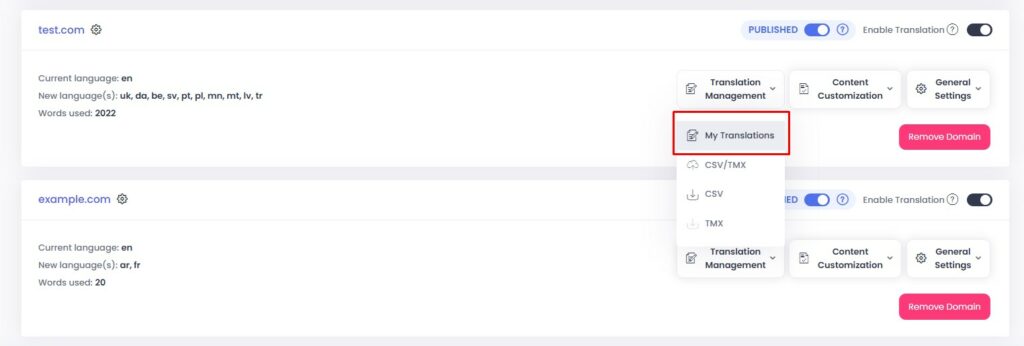
Where to find it:
In your dashboard, find your domain, then go to Translation Management → My Translations.
What it does:
Lets you manually edit translations and fine-tune what visitors see. This is where you can fix wording, adjust tone, and update language-specific items like images or PDF links.
Typical workflow:
- Open My Translations
- Select the target language and page
- Click Edit translation or open the Visual Editor
- Update the translation for the required element
- Save, then refresh your website to confirm the changes
Most useful for:
- Headlines and CTA buttons
- Navigation labels
- Pricing and feature text
- Image replacements (when Translate Media is enabled)
- PDF link replacements (when Translate PDF is enabled)
- or any other custom translation
Whitelist — ConveyThis dashboard
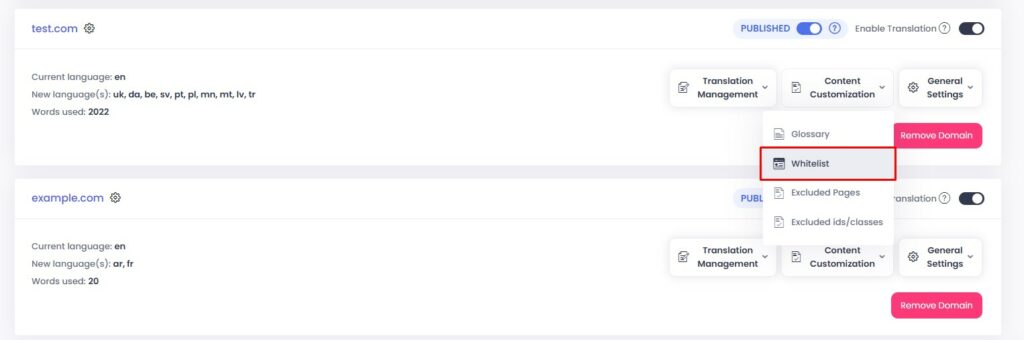
Where to find it:
In your dashboard, under your domain, then go to Content Customization → Whitelist.
What it does:
Whitelist means “translate only these pages.” Any page not added to the whitelist will remain untranslated.
Best for:
-
Sites where only certain pages should be multilingual (for example, marketing pages), while other sections should stay in one language.
How to use it:
- Open Whitelist
- Add the pages you want to translate (manually or using your site structure/sitemap options)
- Save changes
Important: Whitelist is intentionally strict — start with your most important pages first, then expand gradually.
ConveyThis makes going multilingual straightforward: install the plugin, choose your languages, and let it handle the heavy lifting of translated pages, navigation, and SEO-friendly language versions. With a few quick tweaks for consistency (like exclusions and a glossary) and optional polishing in the dashboard, you get a site that feels natural in every language without turning translation into a constant project. Set it up once, adjust as needed, and enjoy a multilingual website that simply works.