
Wix Integration
Integrating ConveyThis into your site is fast and easy, and Wix is no exception. You add the ConveyThis app from the Wix App Market, choose your languages, and ConveyThis adds the language switcher to your site for you. There is no code to paste and no separate sign-up.
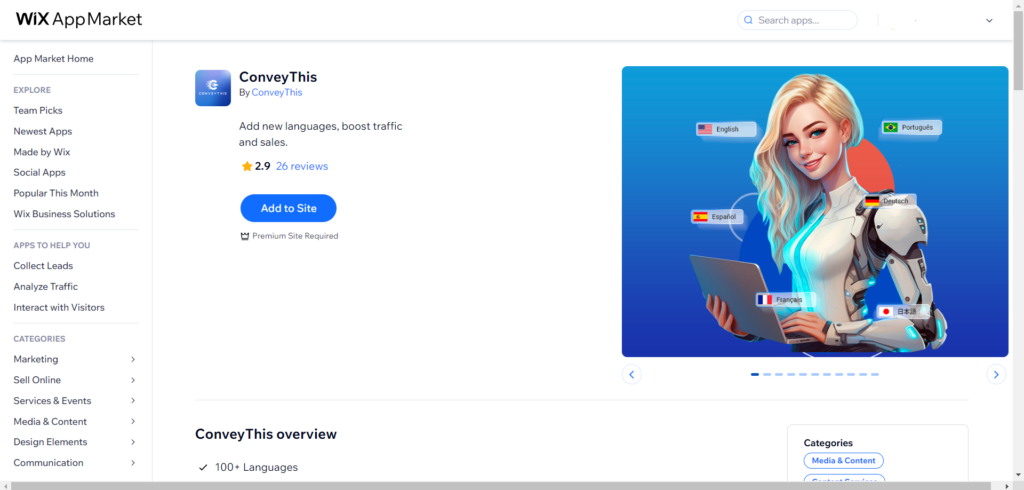
1) Add ConveyThis from the Wix App Market
In your Wix dashboard, go to Apps → App Market. Search for ConveyThis and click Add to Site. Review the permissions Wix asks for and confirm.
2) Choose your languages
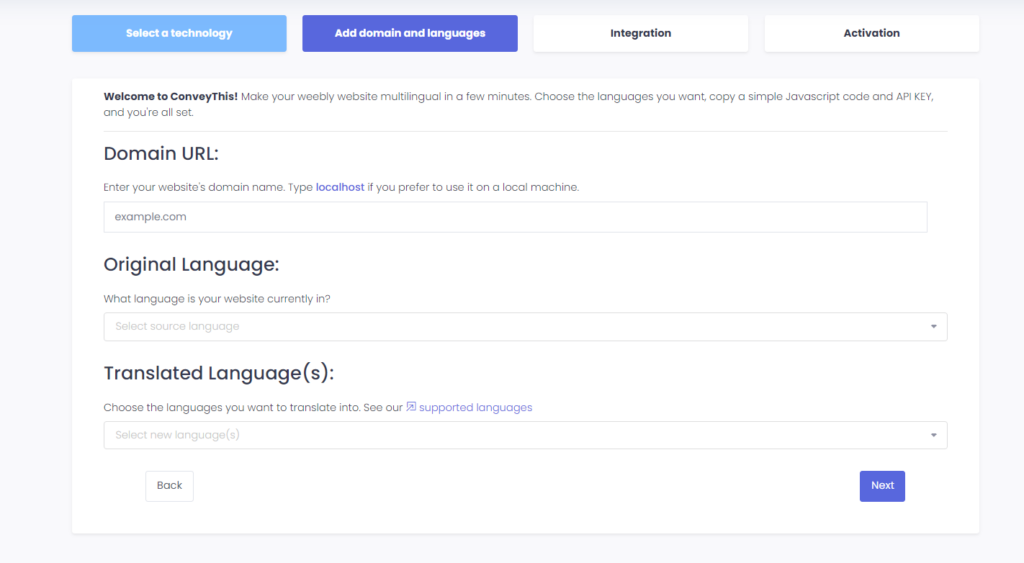
Wix opens the ConveyThis setup. Your ConveyThis account is created for you with the email address of your Wix site, on the Free plan.
Confirm your domain, choose the language your site is written in and the languages you want to add, then save.
3) You’re all done!
That’s it. ConveyThis adds its script to your Wix site automatically. Open your website: the language switcher appears in the bottom-right corner. It can take a minute or two to show up the first time.
To manage your translations later, go to Apps → ConveyThis in your Wix dashboard. The ConveyThis dashboard opens right inside Wix.
Plans and billing on Wix
When you install ConveyThis from the Wix App Market, your plan is billed by Wix. Every site starts on the Free plan, which is the default and needs no purchase.
- To upgrade: in the ConveyThis dashboard, open Plan & billing and click Choose on a paid plan. You are taken to Wix checkout to complete the purchase. You can compare plans on our pricing page.
- To go back to Free: the Free plan can’t be selected on the plans page, because it isn’t a purchase. Instead, cancel your ConveyThis subscription in your Wix account under Billing & Subscriptions. Your paid plan stays active until the end of the period you’ve paid for, then your site moves to the Free plan automatically.
Troubleshooting
- “You must be an owner of the website.” Open ConveyThis while you are logged in to Wix as the site owner. If the message stays, remove the app and add it again from the Wix App Market as the site owner.
- “Account not found, please try to reinstall app.” Remove ConveyThis from your site in Wix and add it again from the Wix App Market.
Installing without the Wix app
Already have a ConveyThis account, or prefer to add the code yourself? Sign in to ConveyThis, choose Wix as your website technology during setup, and add your domain and languages. Then copy the JavaScript code shown at the end of the setup.
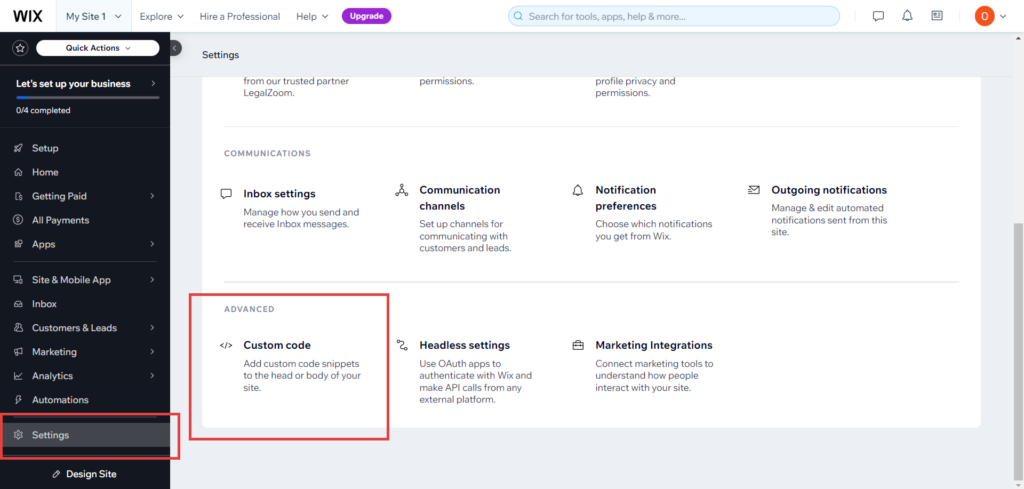
In your Wix dashboard, go to Settings → Custom Code and click + Add Custom Code. Paste the code, choose All pages and Load code once, and place it in the Head.
With this method your plan is billed by ConveyThis directly, not through Wix, and you manage it in your ConveyThis dashboard.