


A translate widget is the button or menu visitors use to switch your site into another language. You can add one in three ways: build it yourself on a machine translation API, install a translation plugin for your CMS, or paste a JavaScript snippet from a website translation service. The right choice depends less on the button and more on what happens behind it: whether translations can be edited, and whether each language gets its own address that search engines can index.
This guide covers the options, the setup steps for ConveyThis, how to design a switcher people can actually use, and what to test before you announce the new languages.
Three ways to add a translate widget
1. Build it on a translation API
Google’s old free “Website Translator” snippet (the google_translate_element code many older tutorials show) is reaching the end of its support, as explained in our Google Translate widget alternative guide. Google points site owners to the paid Cloud Translation API instead. With the API, a developer can send your page text for translation and render the result behind a custom language menu.
That gives you full control over how the button looks, but you also own everything else: caching translations so you are not billed for the same sentence twice, a place to correct bad output, handling pages that change, and generating separate language URLs if you want those pages in search results. For most businesses that is a software project, not a widget.
2. Install a CMS translation plugin
If your site runs on WordPress, Shopify, Joomla or a similar platform, a translation plugin or app is usually the shortest path. Most plugins add their own language switcher that you can drop into a menu, sidebar or footer. Some store translations in your CMS database; others, including ConveyThis, keep them in a cloud dashboard and serve them to your site. See the WordPress integration and Shopify integration pages for platform specifics.
3. Paste a JavaScript snippet from a translation service
For sites built on anything else (a custom stack, a site builder, a static site), a service like ConveyThis gives you one script to paste into the <head> of every page. The script adds the switcher and serves the translated version when a visitor picks a language. There are 35 integrations for common platforms, and the JavaScript integration covers everything else.

How to add the ConveyThis language switcher
The steps are the same whichever platform you use, only the install step changes.
- Create an account and add your domain. In the ConveyThis dashboard, choose your platform (or “JavaScript” for a custom site), enter your domain, and set the original language and the languages you want to add.
- Install. On WordPress, install the ConveyThis plugin from the plugin directory and enter the API key from your dashboard. On Shopify, install the ConveyThis app. For other sites, copy the snippet shown in the dashboard and paste it into the
<head>section of all pages. Most site builders have a “custom code” or “header code” setting for this. - Check the switcher. Reload your site. By default the switcher appears in the bottom-right corner; it can take a few minutes the first time.
- Review the translations. The first pass is machine translation. Open the dashboard to edit individual sentences, use the visual editor to correct text in context, add glossary rules for brand and product names, and invite translators or colleagues with team roles.
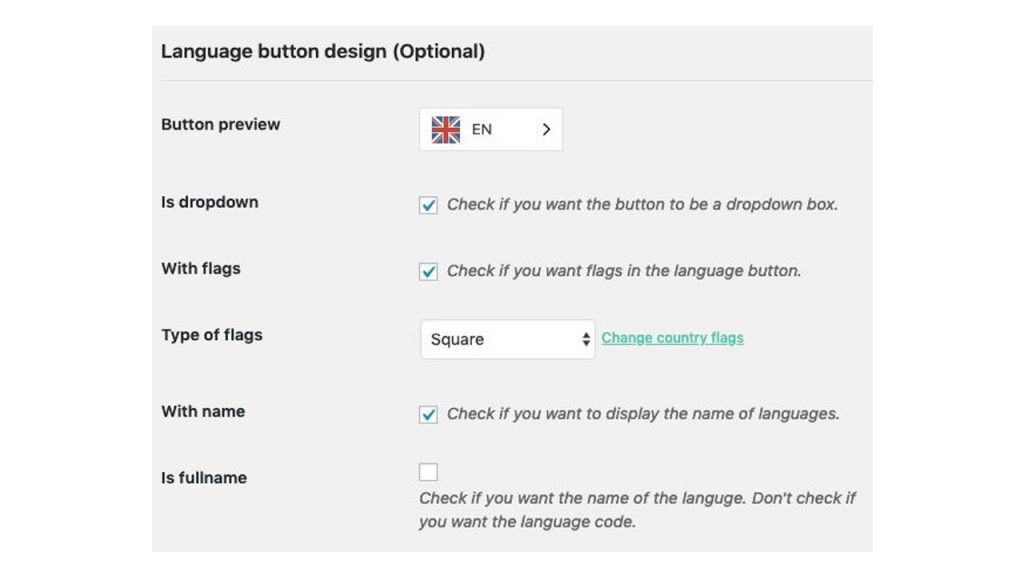
Style and position the switcher
In the domain settings you can choose:
- Position. A fixed corner of the screen, or “Custom” to place the switcher inside an element you choose, such as your main menu. You enter the element’s ID (for example
menu, without the#). The position guide shows where the setting lives for JavaScript and WordPress sites. - Dropdown or list, and which way the menu opens.
- Flags, names or codes. You can show language names, language codes, flags, or a combination. You can also change which flag represents a language, for example a UK flag instead of a US flag for English.
Designing a switcher people can use
A translate button is small, but it is often the first thing a visitor who cannot read your default language looks for. A few rules make it easier to find and less annoying to use:
- Show language names, not only flags. Flags represent countries, not languages. Spanish is spoken in more than twenty countries, and a visitor from Mexico may not look for a Spanish flag. If you use flags, pair them with the language name.
- Write each language name in that language. “Deutsch”, “Español”, “日本語” are easier to spot than “German”, “Spanish”, “Japanese” for the people who need them.
- Put it where people expect it. The header or main navigation is the most common place, with the footer as a second location. A floating corner button works, but make sure it does not cover chat widgets or cookie banners on mobile.
- Keep the visitor on the same page. Switching language should show the translated version of the page they are on, not send them to the home page.
- Remember the choice. Once someone picks a language, keep it as they browse.
- Be careful with automatic redirects. Redirecting people by browser language can help, but always leave the switcher visible so they can change it. ConveyThis has an optional browser-language redirect that is off unless you turn it on.
Why the widget alone is not enough for SEO
A widget that swaps the text in the visitor’s browser only helps people who are already on your site. Search engines index URLs, so if every language shares one address, your translated pages cannot appear in search results in those languages.
To be found in other languages, each translation needs its own URL, such as example.com/es/ or es.example.com, with the translated title and meta description on that page and hreflang tags linking the versions together. Google explains this in its guide to managing multilingual sites.
ConveyThis serves translations on real language URLs (subfolders, subdomains, or a ?lang parameter), translates meta tags and structured data, and adds hreflang automatically. If you build your own widget on an API, you have to create all of that yourself. The multilingual SEO page covers the details.
Test before you announce it
Before telling customers the site speaks their language, go through a short checklist:
- Switch languages on the home page, a product or service page, a blog post and the contact page.
- Test on a phone. Switchers that look fine on desktop often overlap other buttons on small screens.
- Submit a form in each language and check that confirmations and emails arrive translated.
- Look at text inside images, PDFs and pop-ups. These are the parts most often left untranslated.
- Check right-to-left languages such as Arabic or Hebrew, if you added any, for layout problems.
- View the page source of a translated URL and confirm the
langattribute, translated title and hreflang tags are there. - Ask a native speaker to read the pages that matter most, usually pricing, checkout and anything legal.
What it costs
ConveyThis has a free plan for one language and up to 5,000 words, which is enough to try the switcher on a small site. Paid plans start at $12 a month for 30,000 words. Words are counted only when translated content is shown to visitors, and bot traffic doesn’t count. The pricing page lists every plan.
If you are deciding how much of the site to translate, and in what order, start with how to translate an entire website. For a step-by-step project plan, see how to translate a website.












;fill-opacity:1;'%20d='M%2019.511719%2039.964844%20C%208.304688%2039.964844%200%2031.289062%200%2020.324219%20L%200%2020.230469%20C%200%209.363281%208.160156%200.46875%2019.847656%200.46875%20C%2027.023438%200.46875%2031.320312%202.878906%2034.847656%206.375%20L%2029.519531%2012.492188%20C%2026.59375%209.820312%2023.59375%208.179688%2019.800781%208.179688%20C%2013.390625%208.179688%208.761719%2013.53125%208.761719%2020.085938%20L%208.761719%2020.203125%20C%208.761719%2026.757812%2013.273438%2032.203125%2019.800781%2032.203125%20C%2024.144531%2032.203125%2026.808594%2030.46875%2029.808594%2027.722656%20L%2035.136719%2033.121094%20C%2031.199219%2037.335938%2026.855469%2039.964844%2019.511719%2039.964844%20'/%3e%3cpath%20style='%20stroke:none;fill-rule:nonzero;fill:rgb(26.274511%25,42.352942%25,94.901961%25);fill-opacity:1;'%20d='M%2035.878906%200.0351562%20L%2044.136719%200.0351562%20L%2044.136719%2039.867188%20L%2035.878906%2039.867188%20Z%20M%2035.878906%200.0351562%20'/%3e%3cpath%20style='%20stroke:none;fill-rule:nonzero;fill:rgb(26.274511%25,42.352942%25,94.901961%25);fill-opacity:1;'%20d='M%2059.472656%2016.15625%20C%2056.039062%2016.15625%2053.808594%2018.613281%2053.160156%2022.375%20L%2065.617188%2022.375%20C%2065.113281%2018.664062%2062.953125%2016.15625%2059.472656%2016.15625%20M%2073.535156%2027.578125%20L%2053.28125%2027.578125%20C%2054.097656%2031.335938%2056.710938%2033.3125%2060.40625%2033.3125%20C%2063.191406%2033.3125%2065.183594%2032.445312%2067.464844%2030.300781%20L%2072.191406%2034.492188%20C%2069.480469%2037.867188%2065.566406%2039.941406%2060.289062%2039.941406%20C%2051.527344%2039.941406%2045.070312%2033.769531%2045.070312%2024.832031%20L%2045.070312%2024.710938%20C%2045.070312%2016.347656%2051%209.480469%2059.472656%209.480469%20C%2069.191406%209.480469%2073.65625%2017.074219%2073.65625%2025.363281%20L%2073.65625%2025.457031%20C%2073.65625%2026.300781%2073.609375%2026.808594%2073.535156%2027.578125%20'/%3e%3cpath%20style='%20stroke:none;fill-rule:nonzero;fill:rgb(26.274511%25,42.352942%25,94.901961%25);fill-opacity:1;'%20d='M%2089.375%2039.796875%20L%2081.863281%2039.796875%20L%2070.390625%2010.324219%20L%2079.152344%2010.324219%20L%2085.679688%2029.914062%20L%2092.257812%2010.324219%20L%20100.847656%2010.324219%20Z%20M%2089.375%2039.796875%20'/%3e%3cpath%20style='%20stroke:none;fill-rule:nonzero;fill:rgb(26.274511%25,42.352942%25,94.901961%25);fill-opacity:1;'%20d='M%20111.550781%2016.15625%20C%20108.121094%2016.15625%20105.886719%2018.613281%20105.238281%2022.375%20L%20117.695312%2022.375%20C%20117.191406%2018.664062%20115.03125%2016.15625%20111.550781%2016.15625%20M%20125.617188%2027.578125%20L%20105.359375%2027.578125%20C%20106.175781%2031.335938%20108.792969%2033.3125%20112.488281%2033.3125%20C%20115.246094%2033.3125%20117.265625%2032.445312%20119.542969%2030.300781%20L%20124.273438%2034.492188%20C%20121.558594%2037.867188%20117.648438%2039.941406%20112.367188%2039.941406%20C%20103.609375%2039.941406%2097.152344%2033.769531%2097.152344%2024.832031%20L%2097.152344%2024.710938%20C%2097.152344%2016.347656%20103.078125%209.480469%20111.550781%209.480469%20C%20121.273438%209.480469%20125.734375%2017.074219%20125.734375%2025.363281%20L%20125.734375%2025.457031%20C%20125.734375%2026.300781%20125.6875%2026.808594%20125.617188%2027.578125%20'/%3e%3cpath%20style='%20stroke:none;fill-rule:nonzero;fill:rgb(26.274511%25,42.352942%25,94.901961%25);fill-opacity:1;'%20d='M%20143.566406%2018.757812%20C%20138.070312%2018.757812%20134.710938%2022.085938%20134.710938%2029.074219%20L%20134.710938%2039.867188%20L%20126.457031%2039.867188%20L%20126.457031%2010.613281%20L%20134.710938%2010.613281%20L%20134.710938%2016.519531%20C%20136.390625%2012.46875%20139.128906%209.867188%20144%2010.085938%20L%20144%2018.757812%20Z%20M%20143.566406%2018.757812%20'/%3e%3c/g%3e%3c/svg%3e)




;fill-opacity:1;'%20d='M%20144.558594%2039.894531%20L%20155.4375%209.839844%20C%20155.4375%209.839844%20147.28125%209.839844%20139.121094%2011.515625%20L%20128.867188%2039.894531%20Z%20M%20142.675781%201.78125%20L%20140.585938%207.539062%20C%20148.738281%205.863281%20156.902344%205.863281%20156.902344%205.863281%20L%20158.992188%200.105469%20C%20158.992188%200.105469%20150.832031%200.105469%20142.675781%201.78125%20M%2085.980469%2032.773438%20C%2090.898438%2033.71875%2095.914062%2034.136719%20101.039062%2034.136719%20C%20106.375%2034.136719%20110.140625%2032.984375%20110.554688%2029.320312%20C%20110.765625%2027.640625%20109.089844%2026.382812%20106.167969%2024.707031%20C%20102.816406%2022.824219%2099.894531%2021.878906%2096.960938%2019.886719%20C%2094.03125%2017.898438%2092.78125%2014.859375%2093.71875%2011.507812%20C%2094.871094%207.636719%2097.585938%205.4375%20101.664062%203.34375%20C%20106.480469%200.9375%20110.242188%20-0.0078125%20119.550781%20-0.0078125%20C%20125.40625%20-0.0078125%20131.054688%200.515625%20136.597656%201.667969%20L%20134.609375%207.113281%20C%20129.691406%206.167969%20124.675781%205.75%20119.550781%205.75%20C%20114.214844%205.75%20110.453125%206.90625%20110.035156%2010.570312%20C%20109.828125%2012.246094%20111.5%2013.503906%20114.425781%2015.179688%20C%20117.773438%2017.066406%20120.695312%2018.011719%20123.628906%2020%20C%20126.558594%2021.988281%20127.808594%2025.027344%20126.871094%2028.378906%20C%20125.71875%2032.253906%20123.003906%2034.449219%20118.925781%2036.542969%20C%20114.113281%2038.949219%20110.347656%2039.894531%20101.039062%2039.894531%20C%2095.183594%2039.894531%2089.535156%2039.375%2083.992188%2038.21875%20Z%20M%2062.34375%2039.894531%20L%2071.441406%2014.867188%20C%2074.476562%206.488281%2063.390625%209.527344%2060.875%2011.515625%20C%2058.890625%2012.984375%2055.332031%2016.441406%2054.078125%2020.105469%20L%2046.859375%2040%20L%2031.175781%2040%20L%2040.273438%2014.867188%20C%2043.308594%206.488281%2032.222656%209.527344%2029.710938%2011.515625%20C%2027.722656%2012.984375%2024.167969%2016.441406%2022.910156%2020.105469%20L%2015.691406%2040%20L%200.0078125%2040%20L%2014.441406%200.105469%20C%2019.464844%200.105469%2022.179688%201.257812%2024.375%203.457031%20C%2025.207031%204.289062%2025.734375%205.339844%2026.046875%206.496094%20C%2028.980469%204.714844%2031.589844%203.351562%2033.371094%202.726562%20C%2036.613281%201.46875%2040.691406%200.105469%2045.714844%200.105469%20C%2050.734375%200.105469%2053.453125%201.257812%2055.644531%203.457031%20C%2056.480469%204.289062%2057.007812%205.339844%2057.320312%206.496094%20C%2060.25%204.714844%2062.863281%203.351562%2064.640625%202.726562%20C%2067.886719%201.46875%2071.964844%200.113281%2076.984375%200.113281%20C%2082.007812%200.113281%2084.722656%201.265625%2086.917969%203.464844%20C%2089.21875%205.660156%2089.113281%209.742188%2088.28125%2012.050781%20L%2078.027344%2039.902344%20L%2062.34375%2039.902344%20Z%20M%2062.34375%2039.894531%20'/%3e%3c/g%3e%3c/svg%3e)

;fill-opacity:1;'%20d='M%202.453125%209.882812%20L%202.453125%2012.851562%20L%207.304688%2012.851562%20L%2016.800781%2030.734375%20L%2028.488281%2030.734375%20L%2037.980469%2012.824219%20L%2042.832031%2012.792969%20L%2042.84375%209.882812%20L%2028.328125%209.882812%20L%2028.328125%2012.804688%20L%2032.195312%2012.804688%20L%2025.488281%2025.515625%20L%2018.234375%2012.847656%20L%2023.527344%2012.824219%20L%2023.515625%209.882812%20Z%20M%2096.097656%209.882812%20L%2096.097656%2012.851562%20L%20100.949219%2012.851562%20L%20110.445312%2030.734375%20L%20122.128906%2030.734375%20L%20131.625%2012.824219%20L%20136.476562%2012.792969%20L%20136.484375%209.882812%20L%20121.972656%209.882812%20L%20121.972656%2012.804688%20L%20125.835938%2012.804688%20L%20119.132812%2025.515625%20L%20111.878906%2012.847656%20L%20117.167969%2012.824219%20L%20117.160156%209.882812%20Z%20M%2072.222656%209.882812%20L%2072.222656%2012.851562%20L%2077.078125%2012.851562%20L%2077.082031%2027.453125%20L%2071.96875%2027.453125%20L%2071.96875%2030.707031%20L%2077.085938%2030.734375%20L%20101.3125%2030.734375%20L%20101.3125%2021.027344%20L%2098.15625%2021.027344%20C%2097.984375%2026.167969%2093.542969%2027.457031%2091.675781%2027.457031%20C%2089.960938%2027.457031%2086.640625%2027.453125%2086.640625%2027.453125%20L%2086.640625%2012.847656%20L%2091.417969%2012.824219%20L%2091.410156%209.882812%20Z%20M%2055.890625%209.285156%20C%2047.644531%209.285156%2040.960938%2014.214844%2040.960938%2020.292969%20C%2040.960938%2026.375%2047.644531%2031.304688%2055.890625%2031.304688%20C%2064.136719%2031.304688%2070.824219%2026.375%2070.824219%2020.292969%20C%2070.824219%2014.214844%2064.136719%209.285156%2055.890625%209.285156%20Z%20M%2055.675781%2028.0625%20C%2052.769531%2028.0625%2050.414062%2024.566406%2050.414062%2020.25%20C%2050.414062%2015.933594%2052.769531%2012.4375%2055.675781%2012.4375%20C%2058.582031%2012.4375%2060.941406%2015.933594%2060.941406%2020.25%20C%2060.941406%2024.566406%2058.582031%2028.0625%2055.675781%2028.0625%20Z%20M%20149.539062%208.921875%20C%20141.289062%208.921875%20134.605469%2013.933594%20134.605469%2020.113281%20C%20134.605469%2026.292969%20141.289062%2031.300781%20149.539062%2031.300781%20C%20157.78125%2031.300781%20164.46875%2026.292969%20164.46875%2020.113281%20C%20164.46875%2013.933594%20157.78125%208.921875%20149.539062%208.921875%20Z%20M%20149.324219%2028.007812%20C%20146.417969%2028.007812%20144.0625%2024.453125%20144.0625%2020.066406%20C%20144.0625%2015.679688%20146.417969%2012.125%20149.324219%2012.125%20C%20152.230469%2012.125%20154.585938%2015.679688%20154.585938%2020.066406%20C%20154.585938%2024.453125%20152.230469%2028.007812%20149.324219%2028.007812%20Z%20M%20149.324219%2028.007812%20'/%3e%3c/g%3e%3c/svg%3e)